Skip to content
LogoTechnipages
LogoTechnipages
  • Topics
        • Android
        • Browsers
        • Gaming
        • Hardware
        • Internet
        • iPhone
        • Linux
        • macOS
        • Office
        • Reviews
        • Software
        • Windows
        • Definitions
        • All Recent Posts
  • Product Reviews
  • About

How to Turn off Galaxy S22

Andrew MyrickMarch 3, 2022 Comments (0)

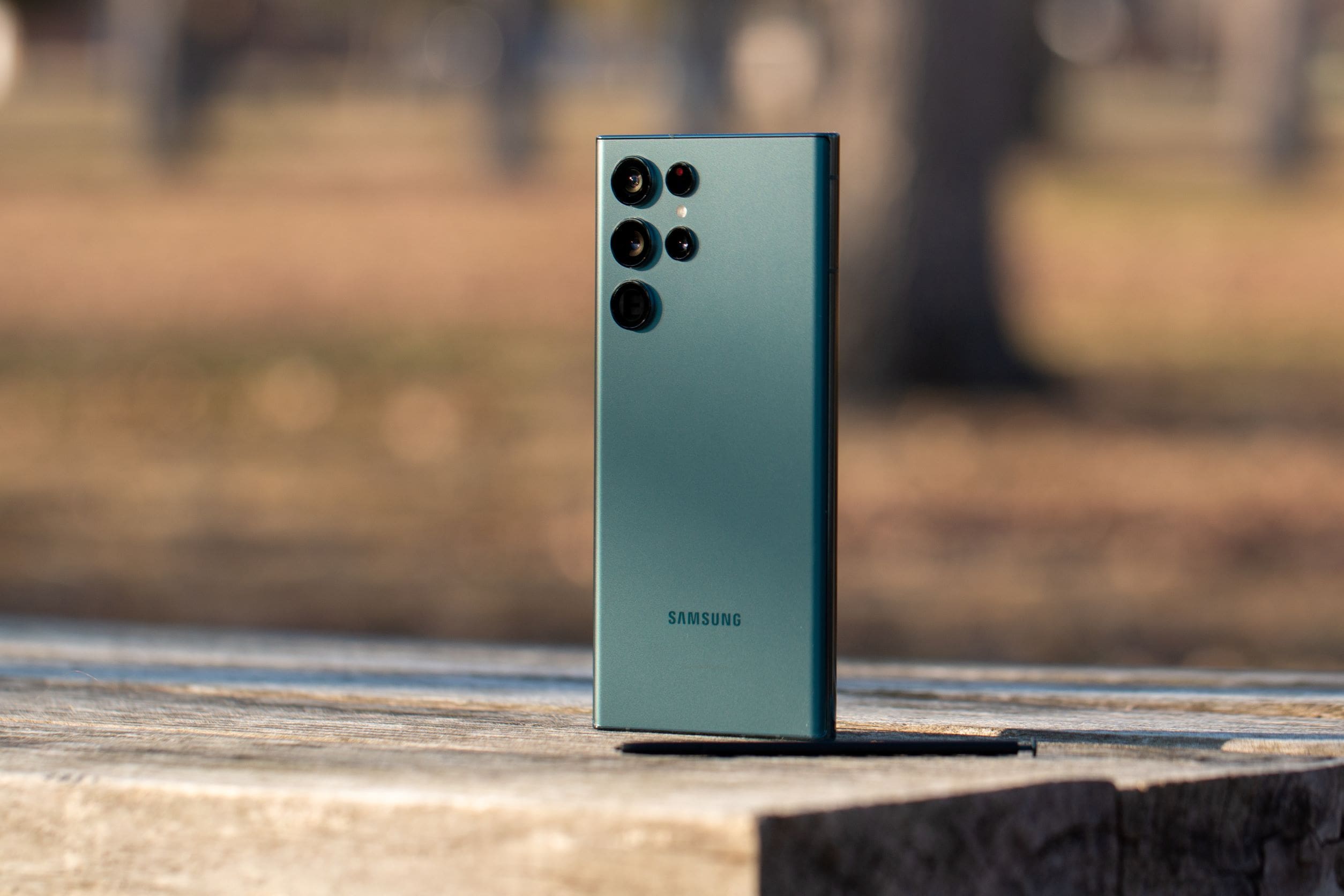
Samsung’s latest and greatest Galaxy has arrived for 2022, as the Galaxy S22 trio of devices is now available. These devices were highly anticipated for multiple reasons. The Galaxy S22 Ultra has officially replaced the Galaxy Note, which was canceled last year. After you get your phone, you’re going to want to know about the basics, and today we’re taking a look at how to turn off Galaxy S22.

Contents

  • 1 Turn off Galaxy S22 from Quick Settings
  • 2 Bring Back Power Menu
  • 3 Other Ways to Turn off Galaxy S22
    • 3.1 Conclusion

Turn off Galaxy S22 from Quick Settings

When it comes to turning off Galaxy S22, the easiest way to do so is from the Quick Settings panel. No special configurations need to be done, as this method works right out of the box.
Turn Off Galaxy S22 - 4
Turn Off Galaxy S22 - 3
Turn Off Galaxy S22 - 2

  1. Unlock your Galaxy S22 and go to the Home Screen.
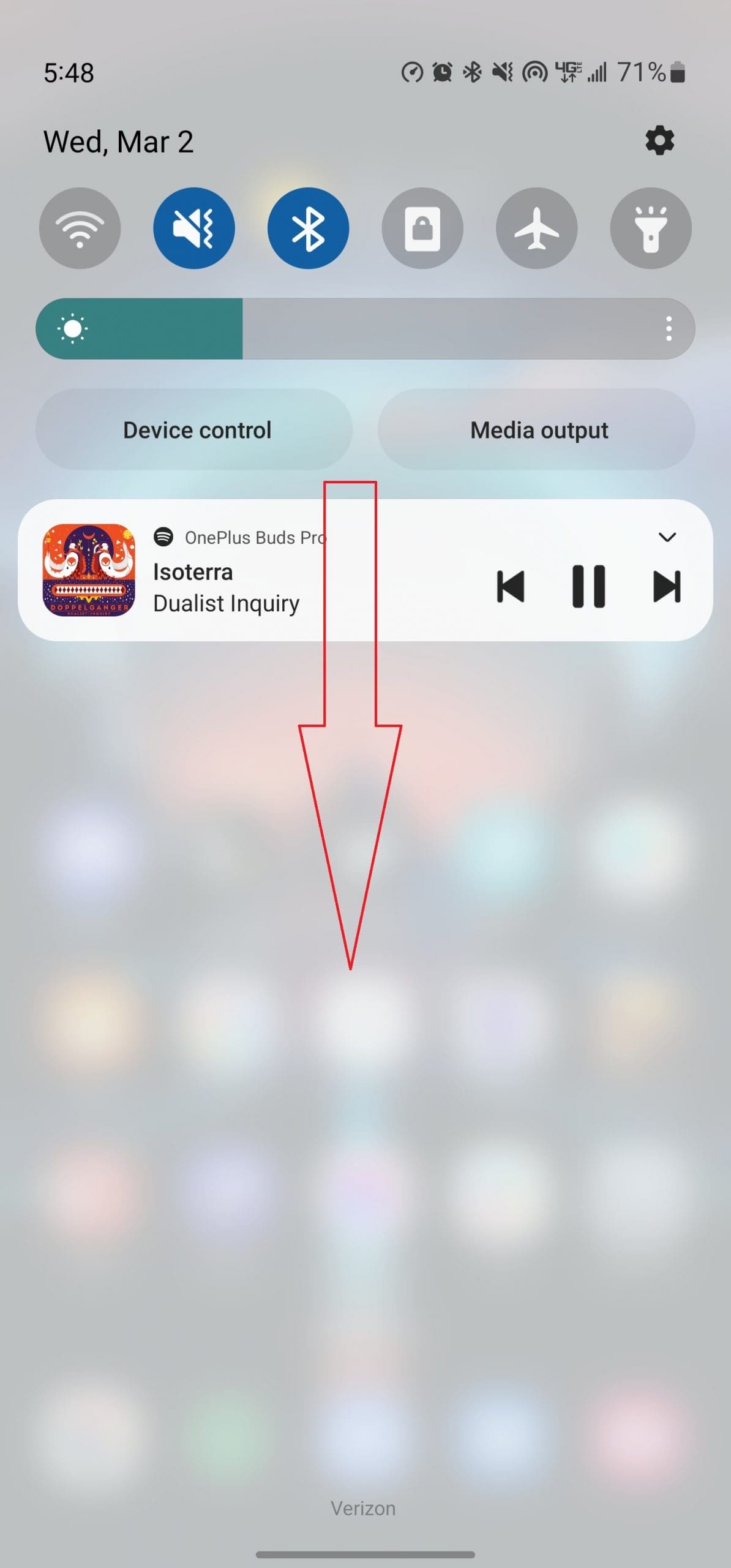
  2. Swipe down on the Home Screen to reveal the Notification Shade.
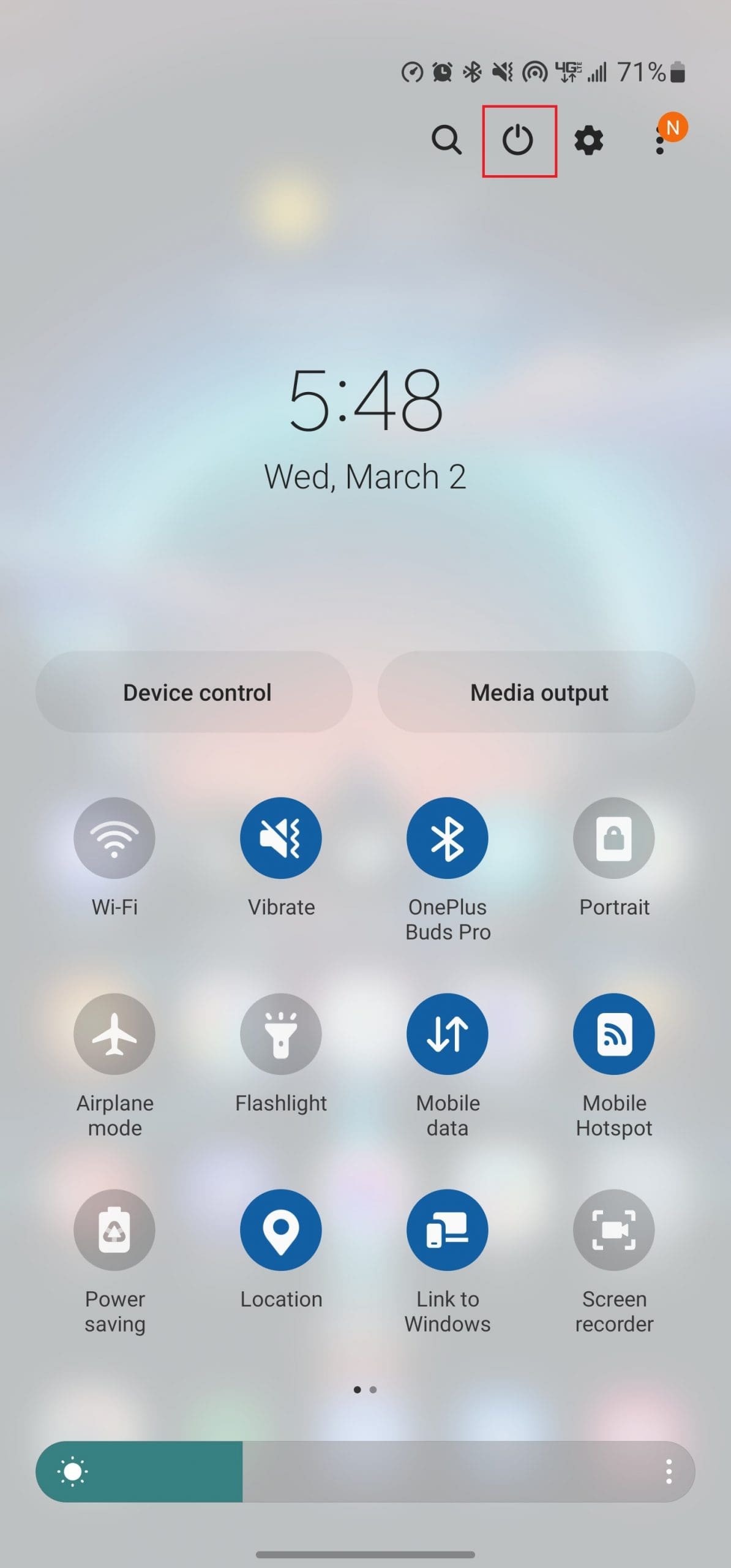
  3. Swipe down again to reveal the Quick Settings panel.
  4. Tap the Power Button in the top right corner.
  5. Tap either Power Off or Restart.

Bring Back Power Menu

To try and force Galaxy S22 owners to use Bixby, Samsung has changed how the Power (Side) button works on your Galaxy phones. Out of the box, pressing and holding the side button will only activate Bixby, which can be rather frustrating to some. However, Samsung also makes it possible for you to bring back the old Power Menu by pressing and holding the side button. Want to make Bixby go away? Here’s how you can do so:
Turn Off Galaxy S22 Settings Advanced features- 5
Turn Off Galaxy S22 side key - 6
Turn Off Galaxy S22 power off restart- 7

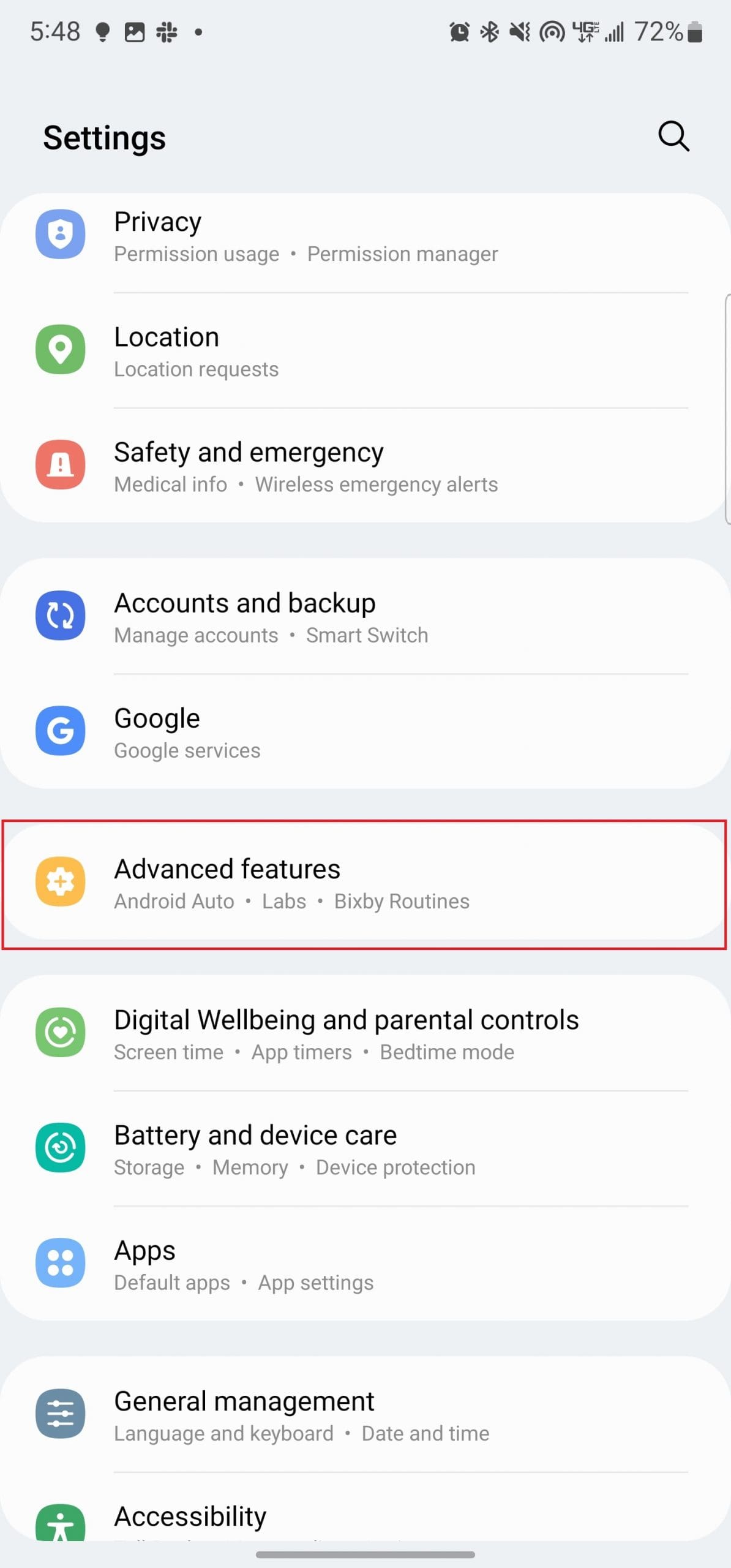
  1. Open the Settings app on your Galaxy S22.
  2. Scroll down and tap Advanced features.
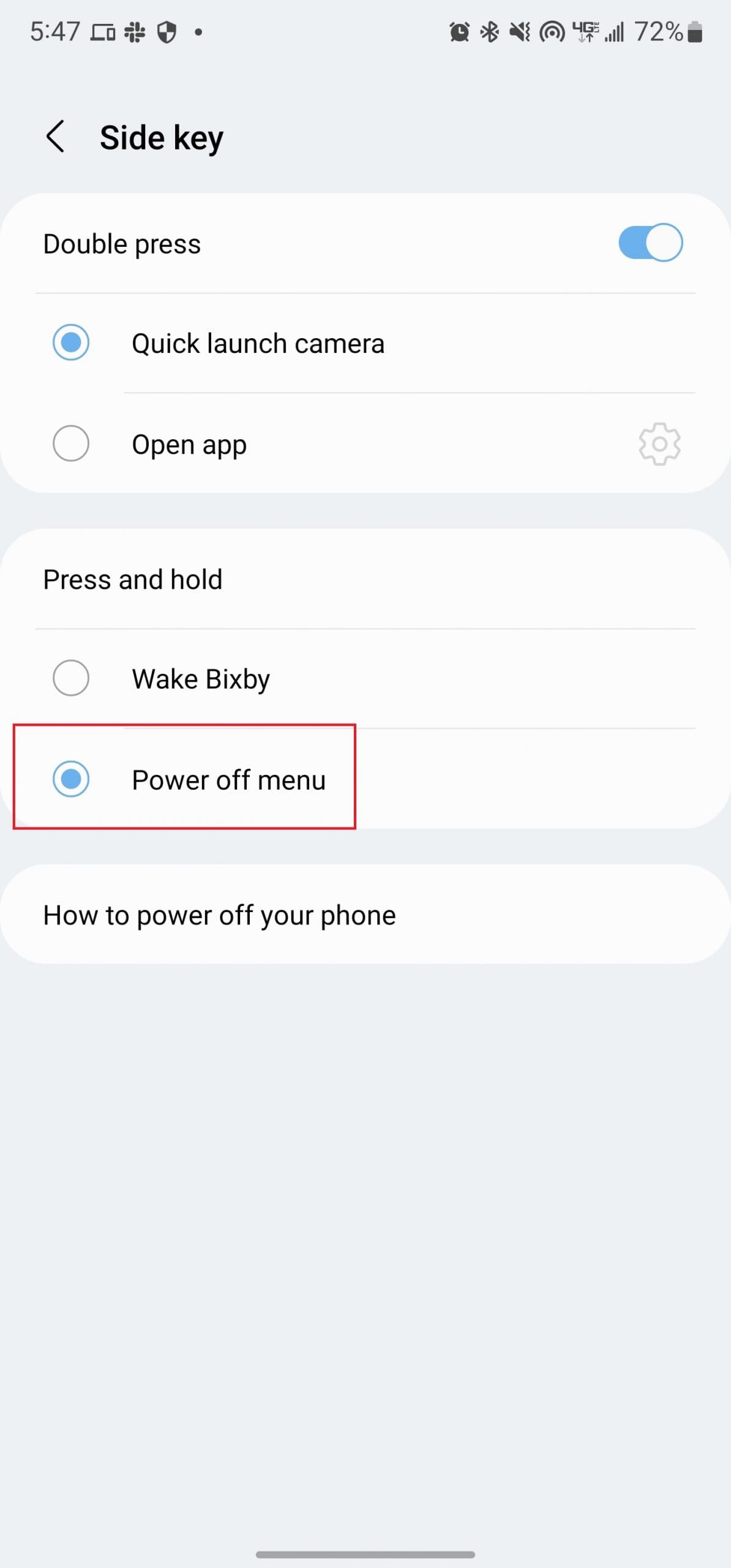
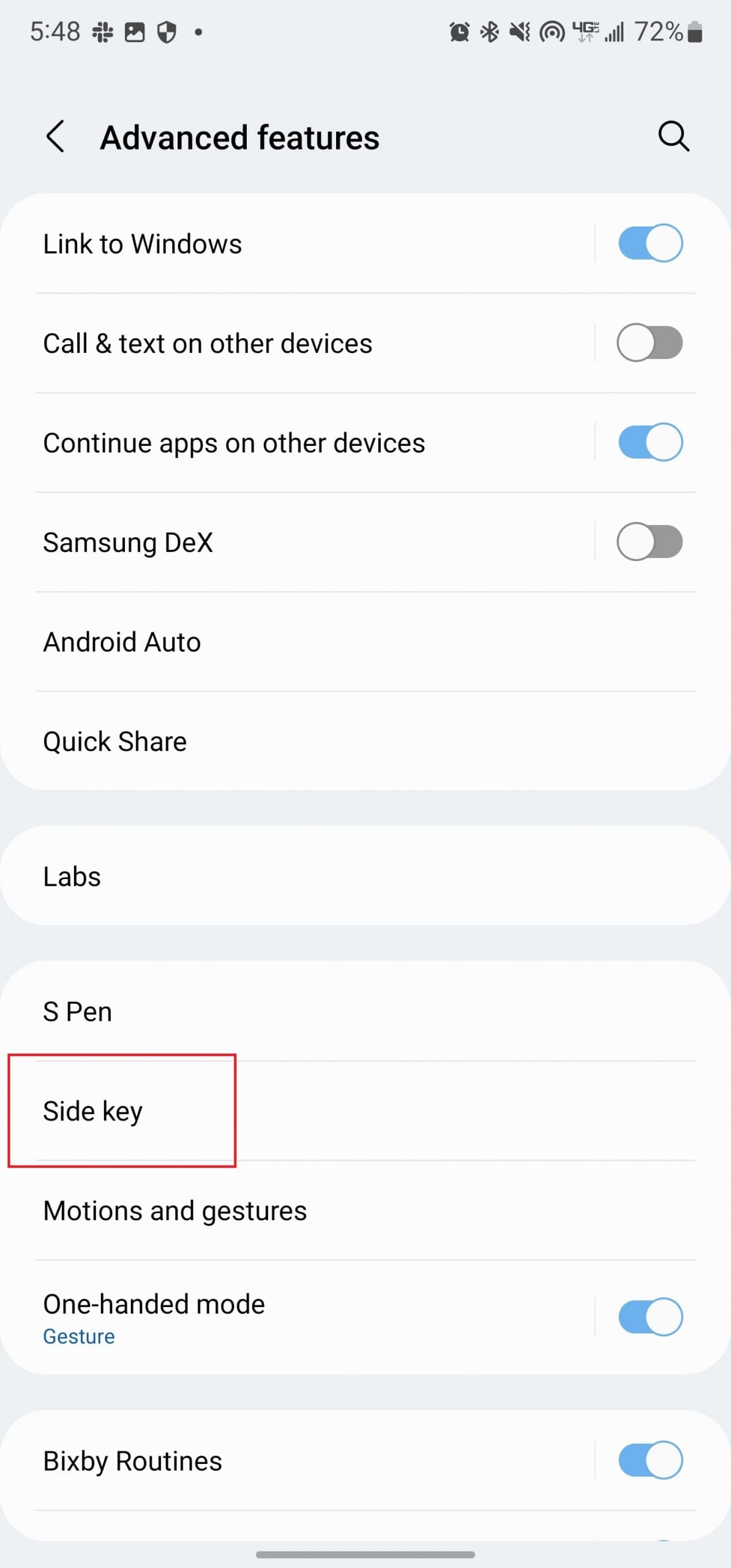
  3. Tap Side key.
  4. Under Press and hold, tap Power off menu.
  5. Exit the Settings app.
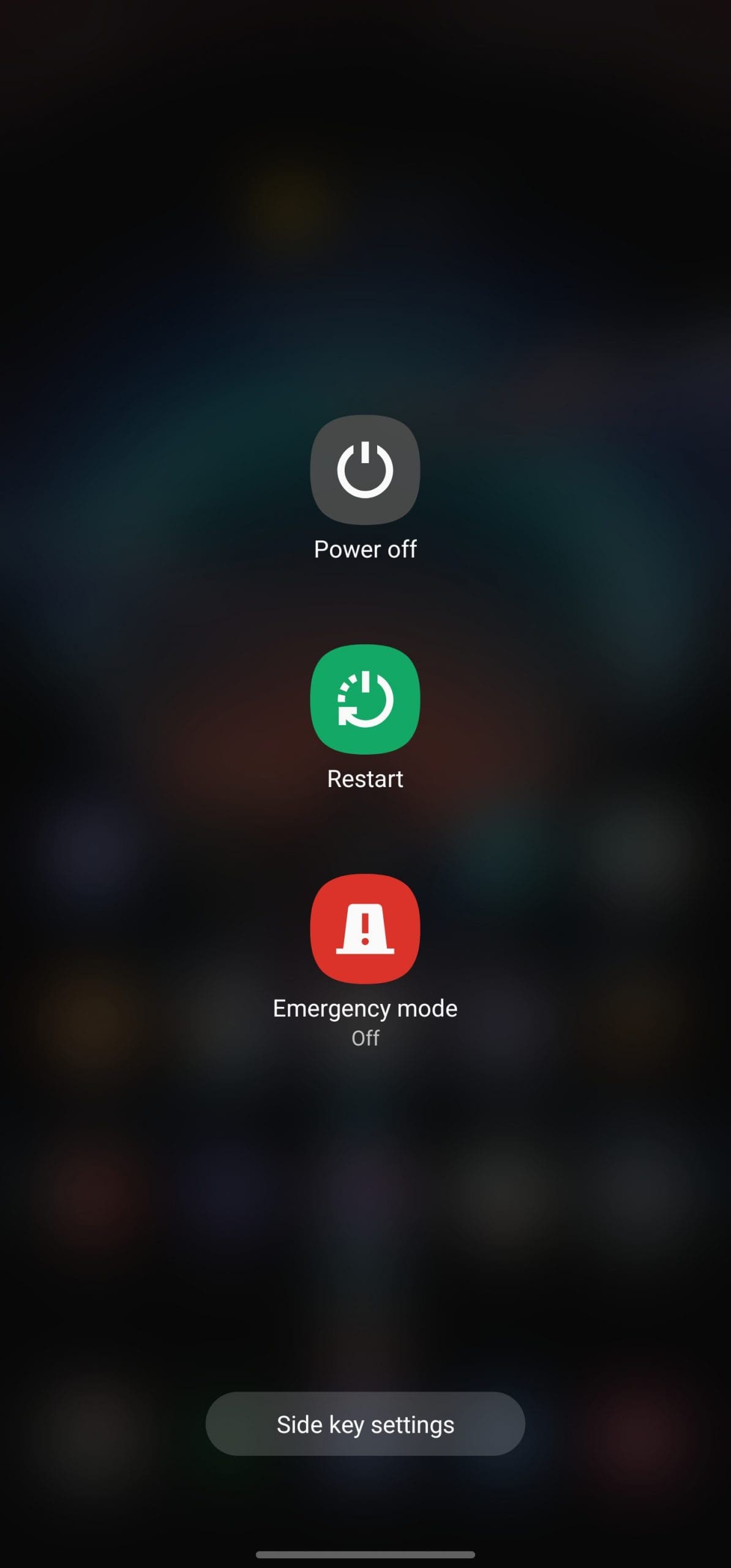
  6. Press and hold the Side button until the Power Off menu appears.
  7. Tap either Power Off or Restart.

Other Ways to Turn off Galaxy S22
Turn Off Galaxy S22 - 1

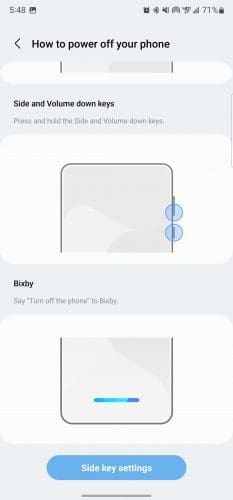
As we mentioned before, Samsung has changed how the Power button works on its devices. However, if you either enjoy using Bixby or just want to know all of the ways to turn off the smartphone, you’re in luck. There’s a way to turn off your new phone while still being able to press and hold the buttons on the side of the phone.

  1. Press and hold the Side and Volume down keys at the same time.
  2. Once the Power Off Menu appears, select either Power Off or Restart.

The last and final method that you can use to turn off Galaxy S22 is to use Bixby. This is Samsung’s version of Google Assistant and is the default virtual assistant on every Samsung phone. If you have not already disabled Bixby, you can activate the assistant and have Bixby turn off your phone with your voice.

Conclusion

As you can see, there are different ways to turn off your S22. Some are more straightforward than others, but it gets the job done. Which method is your favorite? Share your thoughts in the comments below, and don’t forget to share the article with others on social media.


Categories: Android

Author Andrew Myrick

Andrew Myrick is a freelance writer based on the East Coast of the US. He enjoys everything to do with technology, including tablets, smartphones, and everything in between. Perhaps his favorite past-time is having a never-ending supply of different keyboards and gaming handhelds that end up collecting more dust than the consoles that are being emulated.

You Might Also Like

  • 4 Business Card Maker Apps for Android

    Judy SanhzAndroid
  • Firefox for Android: How to Force Enable Zooming

    Mel HawthorneAndroid
  • Best Tips to Save Smartphone Battery Life for Android

    Judy SanhzAndroid
  • google-maps-find-location-by-phone-number

    How to Easily Fix Google Maps Not Working for Android

    Judy SanhzAndroid

Leave a Reply

Your email address will not be published. Required fields are marked *

  • unable to create notebook error in onenote

    We Were Unable to Create Your Notebook Error in OneNote – Common Fixes 

  • error code 0x800704f8 fix

    Error Code 0x800704f8 – How to Fix 

  • back button in browsers doesnt work

    What to Do if the Back Button in Browser Doesn’t Work 

  • could not find this item

    “Could Not Find This Item” When Trying to Remove Files

  • no graphics signal on first boot

    No Graphics Signal on First Boot – How to Fix

profile pic

The Experts Behind Technipages

My name is Mitch Bartlett. I've been working in technology for over 20 years in a wide range of tech jobs from Tech Support to Software Testing. I started this site as a technical guide for myself and it has grown into what I hope is a useful reference for all.

Learn More

technipages logo white
linkedin icon

Technipages is part of Guiding Tech Media, a leading digital media publisher focused on helping people figure out technology. Learn more about our mission and team here.

© 2026 Guiding Tech Media All Rights Reserved

  • About Us
  • Contact
  • Terms of Use
  • Privacy Policy

© 2026 Guiding Tech Media All Rights Reserved

Information from your device can be used to personalize your ad experience.
Do not sell my personal information.

Last Updated on March 3, 2022 by Judy Sanhz