
When you first get your Android device, you start installing all sorts of apps because you finally have more storage space. You stop transferring apps to your SD card, and you don’t worry too much about those HD videos anymore.
But after a while, when your Android device doesn’t work as fast as it used to, you start to wonder what could be taking up soo much storage space. Could it be the videos, or maybe it’s the apps? The good news is that there’s a way to find out, so you can decide if it’s worth keeping or not.
Contents
How to View Large Files in Android Storage
Sometimes the large files that are taking up the most space are files you can live without. To see what those files are, go to Settings > Storage > Internal Storage. Whatever is taking up the most storage space will appear on top, and it’ll show you how much storage it’s taking up.

If you want to view the pictures or files, you only have to tap on them. You might be asked how you want to view the files, and then it’s up to you what you keep and what you erase. The Storage Manager option will give you the option of erasing videos and pictures over 90 days old.
A file manager app that’ll help you clean things up is Google Files. For example, it’ll show you WhatsApp memes and blurred pictures you can erase. You never know; maybe what’s also taking up so much storage space are those good morning images you get.
How to Get More Storage Space on Android
Now that you know what’s taking up so much of your storage space, it’s time to get rid of it. There are various things you can try to make more room for other files. For example, you can erase downloads you don’t need anymore, or you can uninstall apps you don’t use as often. If your Android device has room for a microSD card, you can also move files to the card. Google Files lets you easily move your files to the SD card. Simply select the file, tap on the three dots at the top right and choose the Move to option. You’ll see a message to confirm, and once you tap on the Continue option, the app will move the files.

If you save your pictures and videos to Google Photos, you can erase them from your device. When you ever need them again, you can always download them again. You can see what files are already backed up to your Google Photos account by opening the app and going to Library > Utilities > Free up space.
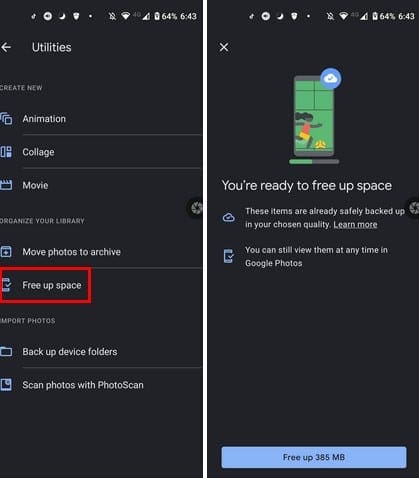
At the bottom, Google Photos will show you how much space you’re going to free up. A blue line will indicate how far along the app is and when it’s done, it’ll show you a notification. To continue, tap on the blue Done button at the bottom.
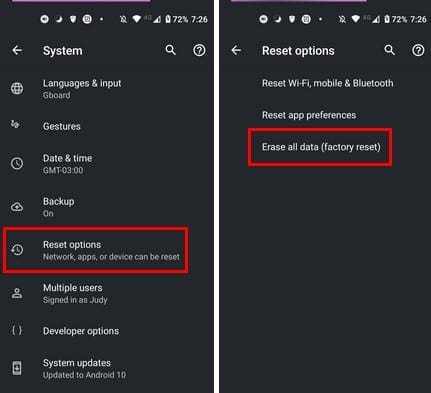
If you’re willing to go to the extreme and start from scratch, you can always factory reset your Android device. Before you do this, make sure you’ve backed up all the files you don’t want to lose. If you’re running on Android 10, you can do this by going to Settings > System > Reset options > Erase all data (factory reset).
Conclusion
You get so caught up with everything you need to do that you don’t realize that you’re filling up your Android device with unnecessary files. Thanks to apps like Google Files, you can easily get rid of those files you don’t need anymore. Are there a lot of files that you need to erase? Share your thoughts in the comments below, and don’t forget to share the article with others on social media.



What you have described isn’t “Android”, but rather one particular device and it’s customization of Android. No such thing as “Settings > Storage > Internal Storage” on Motorola.
Same problem , all my memory is taken up by OTHER and nobody has responded to this
Same here. How do I look into that Other that is occupying 80% of my space
I have same issue as previous comment , same phone even. My storage shows 10.95 GB as ” other ” but can not find out what that is composed of ?
I have managed and deleted everything I can find on my Samsumg G7 internal storage (I removed the SD card). STORAGE ANALYSIS shows that I am ‘using’ 14.81 GB out of 16 GB (92%). Images, videos, etc are not using much space at all, but OTHER is using 14.80 GB.