Skip to content
LogoTechnipages
LogoTechnipages
  • Topics
        • Android
        • Browsers
        • Gaming
        • Hardware
        • Internet
        • iPhone
        • Linux
        • macOS
        • Office
        • Reviews
        • Software
        • Windows
        • Definitions
        • All Recent Posts
  • Product Reviews
  • About

How to Respond to UnSaved WhatsApp Number

Judy SanhzJuly 4, 2021 Comments (0)
fix whatsapp error you cannot place another call

It may not happen very often, but there will come a time when you’ll get a WhatsApp message from someone you don’t have on your contact list. Maybe they’re replying to an ad you placed or they could be an old friend you lost contact with.

You decide to answer, but take precautions such as hiding that message that WhatsApp shows you’re typing. But, there’s good news when it comes to answering this stranger. You won’t have to add them to your contacts list. You can use one of these three tips to answer them and move on.

Contents

  • 1 How to Answer Messages from Unsaved WhatsApp Numbers
    • 1.1 Reply Using Google Search Widget
    • 1.2 Conclusion

How to Answer Messages from Unsaved WhatsApp Numbers

One way you can answer messages from people you don’t know is by using the following URL. Type https://wa.me/PhoneNumber. Where it says PhoneNumber, replace that with the number of the person who messaged you. Don’t forget to add the country code as to the phone number.

For example, if you’re going to answer a message to someone in the United States, the number will look like this: 13232542156. Make sure the plus symbol is not in the URL. When the URL is opened in the browser, it’ll give you the option to continue in WhatsApp. Tap on the Open option to continue in the WhatsApp app. These steps can be used on Android and iPhone.

Reply Using Google Search Widget

Before you go ahead and try this, there is one thing to keep in mind. Not all devices are compatible, but if you still want to give it a try to see if it works on yours, here are the steps. In the Google widget on your home screen, enter the phone number, but this time with the plus symbol and then the number with the country code.
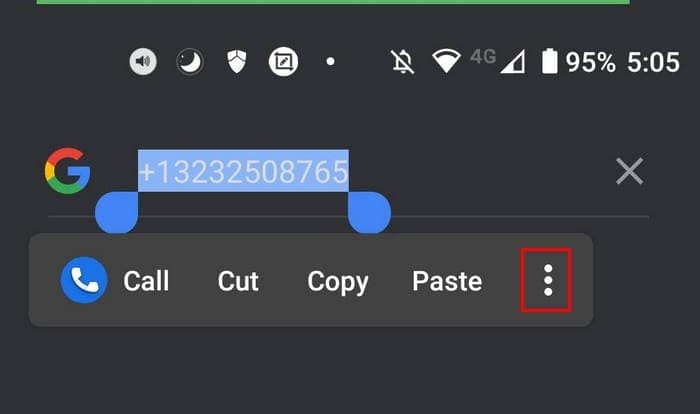
Select the entire number so you can see the dots to the right. Tap on the dots and choose the WhatsApp option.

Conclusion

Do you get a lot of messages from strangers? When you get a message from someone you don’t know, it is possible to answer, but sometimes apps don’t work the way they should. Thanks to these options, you have more options for answering messages from people you don’t know. Share your thoughts in the comments below, and don’t forget to share the article with others on social media.

Categories: Android

Author Judy Sanhz

I am a tech geek who loves technology. I have been writing about tech for over a decade, covering various devices and programs. I write about Android, Apple, and Windows devices and programs. I stay updated on the latest gadgets, upgrades, features, and news. I aim to make complicated tech information easy for everyone to read. I've been with TechniPages from the beginning to help others fix their tech issues with the easy-to-follow guides.

You Might Also Like

  • Samsung Galaxy S20: How To Restart and Power Off

    MonaAndroid
  • How to Hard and Soft Reset Samsung Galaxy Z Fold Galaxy Z Fold 4

    Andrew MyrickAndroid
  • Android Apps

    Android: How to Close Apps

    Aaron KimAndroid

Leave a Reply

Your email address will not be published. Required fields are marked *

  • service outage message on Xbox

    What to Do With a Service Outage Message on Xbox

  • signs your hdd is failing

    Signs That Your HDD Is Failing

  • how to fix error code 0x800705b4 in windows 11

    How to Fix Error Code 0x800705b4 in Windows 11

  • does chromebook need an antivirus

    Does Chromebook Need an Antivirus?

  • top vpns

    Top 5 VPNs to Keep Your Information Private in 2026

profile pic

The Experts Behind Technipages

My name is Mitch Bartlett. I've been working in technology for over 20 years in a wide range of tech jobs from Tech Support to Software Testing. I started this site as a technical guide for myself and it has grown into what I hope is a useful reference for all.

Learn More

technipages logo white
linkedin icon

Technipages is part of Guiding Tech Media, a leading digital media publisher focused on helping people figure out technology. Learn more about our mission and team here.

© 2026 Guiding Tech Media All Rights Reserved

  • About Us
  • Contact
  • Terms of Use
  • Privacy Policy

© 2026 Guiding Tech Media All Rights Reserved

Information from your device can be used to personalize your ad experience.
Do not sell my personal information.

Last Updated on July 4, 2021 by Judy Sanhz