With the release of Windows 11, Microsoft also focused on a tool that allows devs to embed web technologies, such as JavaScript, HTML, and CSS, directly into their native apps. This tool is called Microsoft Edge Webview2.
MSEdgeWebView2.exe relies on the Edge browser to display web content in native apps. In other words, it allows apps to integrate Edge into them. Speaking of which, widgets are powered by Microsoft Edge Webview2 as well. They’re web apps loading from Edge. The file is usually located under C:\Program Files (x86)\Microsoft\EdgeWebView.
But MSEdgeWebView2.exe may sometimes cause all sorts of issues, such as high CPU, GPU, and RAM usage and various errors. Let’s see how you can solve these problems.
Contents
Fix MSEdgeWebView2.exe Issues on Windows 11
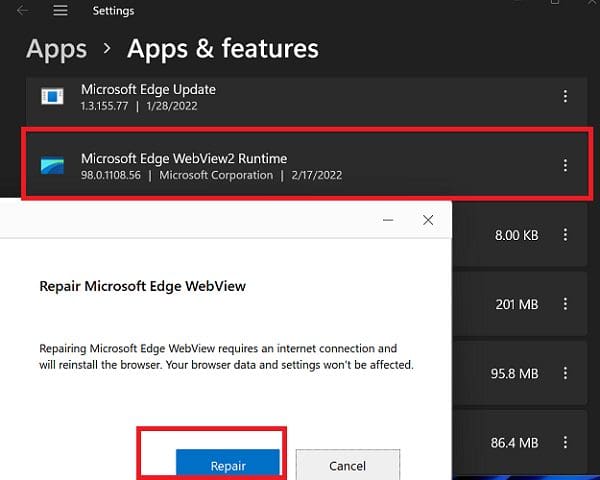
Repair MSEdgeWebView2
Try repairing MSEdgeWebView2, and check if you notice any improvements.
- Navigate to Settings.
- Select Apps.
- Go to Apps & Features.
- Locate Microsoft Edge Webview2.
- Click on More options (the three dots).
- Select Modify.
- Hit the Repair button.
Uninstall MSEdgeWebView2
If repairing Microsoft Edge Webview2 fails to solve the problem, try uninstalling the tool. Go back to Apps & Features, as shown above, click on More Options, and then select Uninstall.
If you’re not using any web apps that require Microsoft Edge Webview2, you don’t really need to reinstall it. However, if you notice that something doesn’t work properly on your computer, you can always download Microsoft Edge Webview2 from Microsoft.
Change Display Language
Changing the Windows 11 display language may solve your MS Edge Webview2-related issues. This solution is advantageous if experiencing high CPU usage and overheating issues. Your CPU should chill decently after switching to a different language.
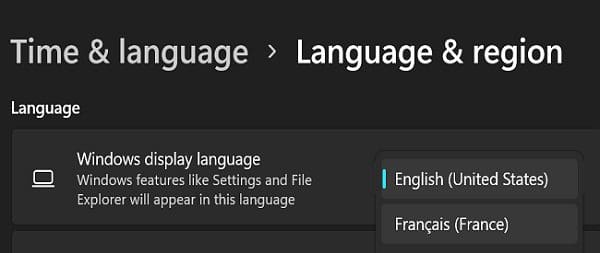
- Go to Settings.
- Select Time & Language.
- Select Language & Region.
- Then, go to Windows display language.
- Use the drop-down menu to switch to a different language.

- Windows will sign you out to apply the changes.
Repair, Disable, or Uninstall Faulty Apps
Maybe the issues you’re experiencing are caused by the apps that use Webview2. To check if this is the case, clean boot your computer. As a quick reminder, by clean booting your machine, you’re using only a limited set of drivers and programs. If the problem is gone, this indicates one of your apps or programs is the culprit.
Launch the Task Manager and click on the Startup tab to identify it. Then, enable your startup programs selectively. If the issue returns after activating a specific program, that’s the culprit. First, try to repair the respective app or program, and check if you notice any changes. If the issue persists, disable or uninstall the problematic program.
Use a Different User Profile
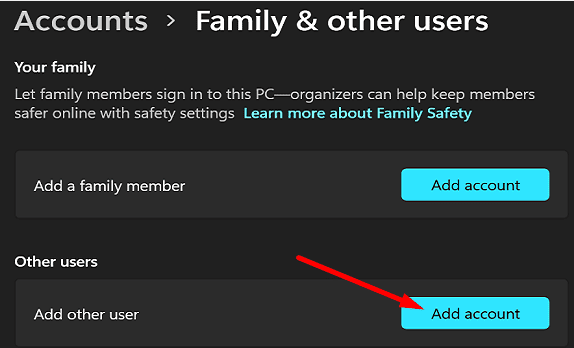
Switch to a different user account, and check if you’re experiencing the same issues. If you don’t have one, go to Settings → Accounts → Family & other users → select Add account to create a new user profile.
Repair System Files
Use DISM and SFC to repair faulty system files.
- Launch Command Prompt with admin rights.
- Run the following commands one by one:
- DISM.exe /Online /Cleanup-image /Restorehealth
- sfc /scannow
- chkdsk /f /r /b
- Press Y to confirm and restart your computer.
Conclusion
To fix MSEdgeWebView2 issues and errors on Windows 11, repair or reinstall MSEdgeWebView2. Then, change the display language, and switch to a different user profile. Additionally, repair, disable, or uninstall apps using Webview2. If the issue persists, run DISM and SFC to repair faulty system files.
Hit the comments below and let us know which solution worked for you.