
If you’ve overclocked your PC to try to get that bit of extra performance out of it, then one of the key bits of information you might want to keep an eye on is the temperature of your CPU. Even if you haven’t overclocked your computer, the thermals can still be an interesting bit of information to know about.
Open Hardware Monitor is a tool that monitors and reports a number of hardware statistics for your computer. For example, it can track the clock speed of each of your CPU cores, as well as their utilisation rates. One of the key bits of data that it can collect and display is the temperature readings from your CPU as well as your GPU. It also includes a feature that allows it to display these stats on the desktop in the format of an old school Windows 7 Gadget.
How to display CPU temperature on the Windows 10 Desktop
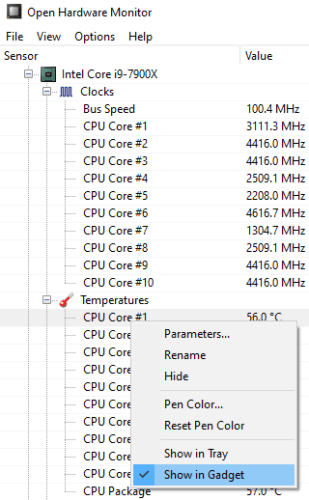
There are two things you need to do to display CPU temperatures. The first is to right-click on the specific entries that you want to see on your desktop and click “Show in Gadget”.
Tip: You can select multiple entries to display at the same time. You may see multiple temperature readings for your CPU, typically each CPU core has its own temperature sensor as well as an independently positioned package sensor. Your motherboard may also have a number of CPU temperature sensors. If you want to monitor your temperatures, its generally best to run a stress test to work out which temperature sensor ends up the hottest, and to then monitor that one. This is because the hottest cores are the most likely ones to thermal throttle, or slow themselves down to prevent dangerous overheating.
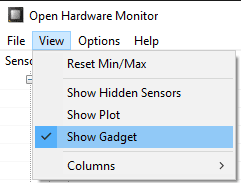
Once you’ve selected the temperature sensors you want to see, along with any other stats that you want to be included, you need to enable the Gadget. To do so, click on “View” in the top bar, then click on “Show Gadget”.
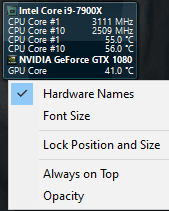
Once you’ve performed both of these actions, you may need to minimise all of your open windows to find the Gadget on your desktop. If you want, you can right-click on the Gadget to configure it a little further. For example, you can disable the hardware names to reduce the size of the Gadget, you can also change the font size, set the Gadget to always be on top, and configure it to be partially transparent.
Tip: If you have the Gadget open and minimise the main Open Hardware Monitor window, you can re-open it by double-clicking the Gadget. Alternatively, you can double-click the icon in the system tray instead. You can also resize the Gadget by clicking and dragging the edges.


It’s not a tool that is built into Windows.
Head over to ‘openhardwaremonitor dot org’ and download/install it from there.
Pretty poor article with lack of detail and no response to Paul’s comment before me. Any further details Mel?
Where does one find Open Hardware Monitor? I looked in Settings and System Performance and System Tools, even Device Manager but didn’t see it. My pc is running Windows 10 Home