
Skip to content
LogoTechnipages
LogoTechnipages
  • Topics
        • Android
        • Browsers
        • Gaming
        • Hardware
        • Internet
        • iPhone
        • Linux
        • macOS
        • Office
        • Reviews
        • Software
        • Windows
        • Definitions
        • All Recent Posts
  • Product Reviews
  • About

How to Disable the Chat for a Zoom Meeting

Judy SanhzNovember 15, 2022 Comments (0)
Zoom

Disabling the chat can be a good idea if you have to have your class through Zoom. This way, you know your Zoom participants won’t get distracted by the chat and start messaging other participants. There is more than one way to disable the chat in your Zoom meetings. Here are your options, and don’t forget to let us know in the comments which method you decide to go with.

Contents

  • 1 How to Prevent Zoom Participants from Using the Chat
    • 1.1 Disable Chat by Signing in to the Zoom Web Portal
    • 1.2 How to Restrict Zoom Chat
    • 1.3 Conclusion

How to Prevent Zoom Participants from Using the Chat

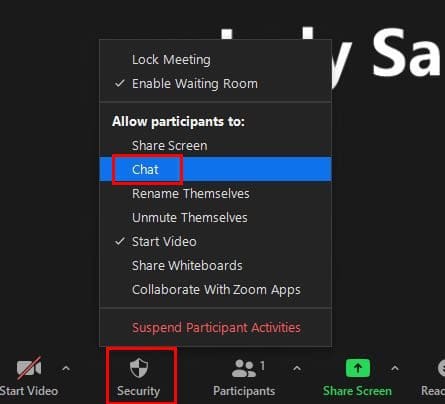
To disable the chat during a Zoom meeting, click on the Security button and click on the Chat option. When you click on the Security option, you’ll see that various options have a checkmark on them, which means they are allowed during a meeting. The check mark goes away when you click on them, which means the option is disabled. Repeat the process if you ever change your mind and want to turn it back on.
Zoom Security option chat

Disable Chat by Signing in to the Zoom Web Portal

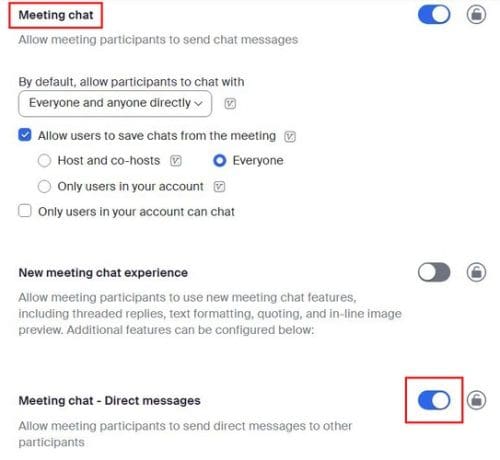
When you sign into the Zoom web portal, ensure you sign in with the privilege to edit account settings. Once you’re in, on the left navigation panel and go to Account Management > Meeting Chat – Direct messages.
Zoom chat Zoom portal

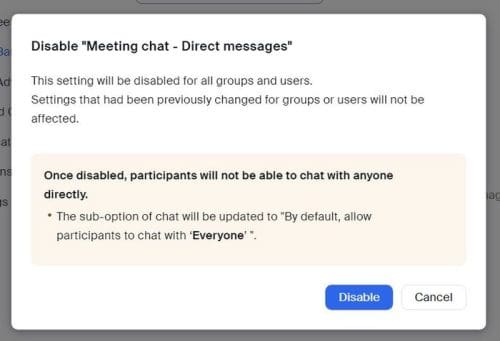
Toggle off the option, and you’ll be warned of what will happen if you disable it.
Disable chat warning

How to Restrict Zoom Chat

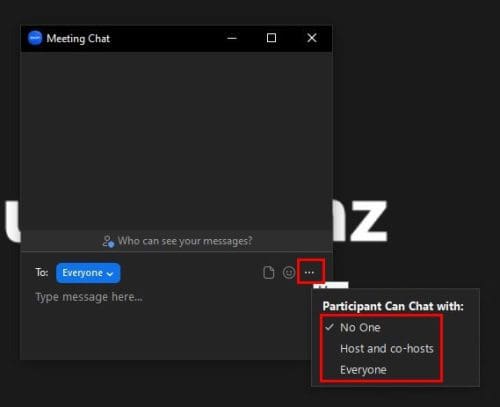
If you want to restrict who your Zoom participants can talk to, here are the steps to follow. Once you’ve created your meeting and it’s up and running, click on the chat icon. When the chat window appears, click on the three dots to the right of the emoji icon. You’ll see the option only to have your Zoom participants chat with the hosts, everyone, or with no one.
Restrict Zoom chat

Conclusion

By disabling or restricting the Zoom chat, you can keep your participants concentrated on the meeting. If you change your mind at any time, you can always change it back since the change is not permanent. You can make the changes from the Zoom web portal or even when the meeting has already started. What option will you be applying? Share your thoughts in the comments below, and don’t forget to share the article with others on social media.


Categories: Software

Author Judy Sanhz

I am a tech geek who loves technology. I have been writing about tech for over a decade, covering various devices and programs. I write about Android, Apple, and Windows devices and programs. I stay updated on the latest gadgets, upgrades, features, and news. I aim to make complicated tech information easy for everyone to read. I've been with TechniPages from the beginning to help others fix their tech issues with the easy-to-follow guides.

You Might Also Like

  • Zoom: How to Hide Call Participants Who Aren’t Using a Webcam

    Mel HawthorneInternet
  • microsoft teams how secure is it

    How Secure Is Microsoft Teams?

    Madalina DinitaSoftware
  • Google Duo: How To Prevent Other People From Seeing Your Video Before They Pick up Your Call

    Mel HawthorneInternet
  • How to Access Recent Notes in OneNote

    Danny MaiorcaSoftware

Leave a Reply

Your email address will not be published. Required fields are marked *

  • clipchamp unexpected application error

    Clipchamp Unexpected Application Error: Here’s the Solution 

  • winload.efi file missing error

    Winload.EFI File Missing Error on Boot – How to Fix

  • fix error 0x9cfc7550

    How to Fix Error 0x9cfc7550 (We Couldn’t Create a New Partition) in Windows 

  • fix error code 0x3000008 1

    How to Fix Error Code 0x3000008 for Remote Desktop Connection

  • fix error code 0x80190001 1

    How to Quickly Fix Error 0x80190001 for Microsoft or Outlook Account Login 

profile pic

The Experts Behind Technipages

My name is Mitch Bartlett. I've been working in technology for over 20 years in a wide range of tech jobs from Tech Support to Software Testing. I started this site as a technical guide for myself and it has grown into what I hope is a useful reference for all.

Learn More

technipages logo white
linkedin icon

Technipages is part of Guiding Tech Media, a leading digital media publisher focused on helping people figure out technology. Learn more about our mission and team here.

© 2025 Guiding Tech Media All Rights Reserved

  • About Us
  • Contact
  • Terms of Use
  • Privacy Policy

© 2025 Guiding Tech Media All Rights Reserved

Information from your device can be used to personalize your ad experience.
Do not sell my personal information.

Last Updated on November 15, 2022 by Judy Sanhz