While you were on vacation, you recorded the road all the way up to the cabin. The view was incredible, but your friends might not have an hour to view the entire video. Since you want them to see the entire video, it’s a good idea if you speed it up a little so your friends can see the entire video in half the time. Good thing that there is an app you can try that not only allows you to adjust the video’s speed, but you can also edit it as well.
Contents
How to Add Slow-Motion to Any Android Video
A popular app on Google Play that will help you speed up or slow down videos in Fast Motion. When you first open the app, you’ll be asked to trim your video. If that’s something you want to do, make sure that the orange divider line is between the video’s two parts, the part you want to keep and the part you want to erase. You’ll notice how your video will now be divided into two sections; tap on the X of the part you want to remove. The section that remains is the part whose speed you can adjust.

Once your video is cut, you’ll see two-speed options at the bottom left. You can choose to speed up or slow down your video. If you want, you can choose to have the first half of your video be in slow motion and then speed up the other half. It’s possible two add two speeds to your video.
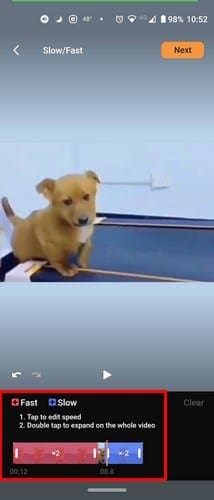
The section of the video that’s in red is the section that’ll fast forward. The section in blue is the part with the slow-motion effect. You can adjust how much of the video will be affected by the speed adjustment. Place your finger on one of the sides of the speeds, and the more red or blue you see means that all of that will have that speed.
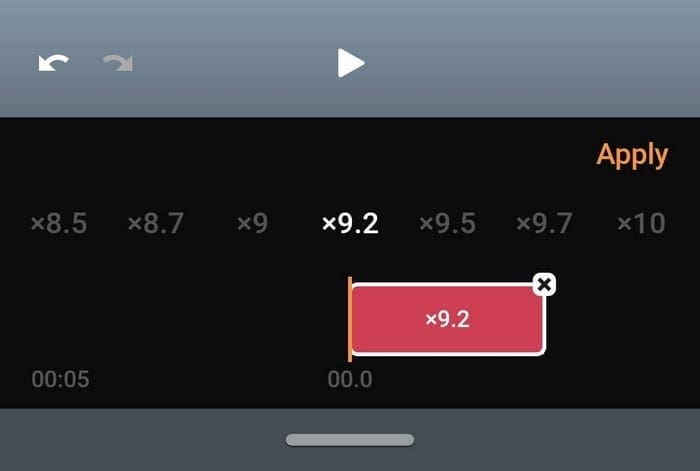
You’ll see a number on each part; that’s how fast or slow the video will be played. To change that, tap on the color section, and more speed options will appear on top.
Adjusting Video Speed
The speed options range from x1.2 to x10. The speed you’ve chosen will be displayed, just in case, you forget which one you chose. Once you’ve chosen your speed, tap on the Apply option. If you want to preview what your video will look like with that speed, tap on the play button. If you like what you see and you’re ready to move on, tap on the next option at the top right.
You can choose from video quality such as high, normal, and low. The app will quickly process your video so you can edit it. In the editing section of the app, you can add effects such as filters. There are a large variety of filters to choose from that are divided into sections. You can use filters such as:
- Fisheye
- Go freaky
- Comics
- Colors
- Dreamy
- Mirror
- Neon Jungle
- Disco
- On fire
- In the green time
- What’s on TV
- Pixel machine
- North
- Glitch
- Mysterious Japan
- Vanilla Sky
- Black and white

You can also do things such as:
- Adjust brightness
- Add frames – You can use frames such as red, food, Kodak, triangle, we are young, blue paint, rainbow, glitch, clock, stars, rec, red paint, dollar, and winter.
- Add text
- Stickers
- Voice over
Music
The app even has a section where you can choose from a large variety of music. Tap on the music icon and choose to add music you already have on your Android device or from the music the app has to offer. You can choose from music such as Dance, Jazz, Calm, Romantic, Inspiration, Dreaming, Rock, and Epic. The app will only show you four options at first; if you want to see more music options tap on the Expand button.
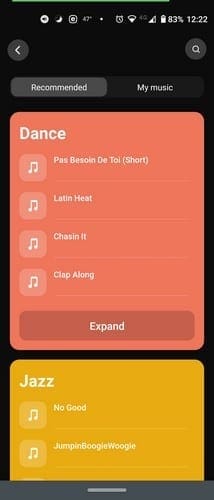
Tap on the music you want to hear, and if that’s the song you want to add to your video, tap on the Add track option. Tap once to play the song and twice to stop it.
It’s always nice to use an app that can adjust the speed of the video and provide other useful features. This reduces the probability of you having to install yet another app just to do some small editing on your video.
Final Thoughts
The app has a lot of free options to use, but not all of them are free. To use all the features the app has to offer, you’ll need to upgrade to pro. It will only set you back a dollar a month, three dollars a year, or a one-time purchase of four dollars. By buying the app, you won’t have to deal with watermarks or ads anymore. Do you think you’ll end up buying the app? Let me know in the comments below.