You may not have liked the idea of having a limit on your Google account and decided to subscribe, but things didn’t work out. Maybe you thought you would need the extra space and bought the Google One plan and then realized that you shouldn’t for different reasons. The good news is that canceling it is as easy as getting it. If you ever change your mind and want to get it again, you can.
Contents
Google One Subscription: How to Cancel
When you first get the Google One subscription, you get a month free trial. If you cancel before the trial is over, you’ll get the chance to enjoy the services without getting charged. But whether you forgot to cancel or realized it wasn’t for you, you’ll be happy to know that the process is easy. Before you cancel, keep in mind that if you’re sharing with someone else, you won’t be able to anymore. They will still have access to the 15GB since that is free, but the extra space will be gone.
You also won’t have access to the VPN that comes with the subscription, and you’ll start getting that message again that your images have stopped backing up. Then there’s the message that you won’t be able to get any more emails and that you can’t save anything to Google Drive. If you’re canceling after being billed, you get to keep the extras until the next billing cycle. But if you’re sure that you want to do this, there are different devices you can use to cancel your Google One subscription
Cancel Google One Subscription on iPad
Since not everyone has the same device, here is how you can cancel your Google One subscription on your iPad. Open the Google One app, and on the main page, swipe down and tap on the manage button. It should be below the info on the type of plane you have.
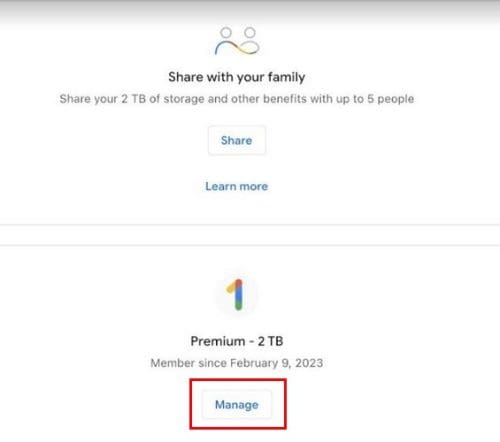
The Cancel membership will be in red. The Google One app is not the only way to cancel if you use your iPad. You can also open your preferred browser and open the Google One page. Once it’s open, tap/click on the cogwheel, and the Cancel membership option will be at the bottom of the shortlist.
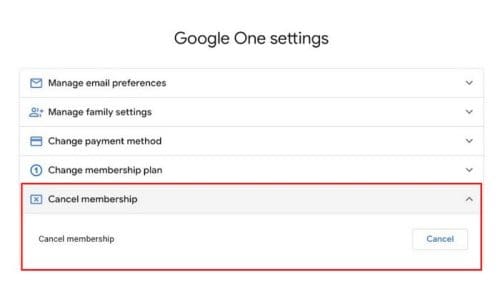
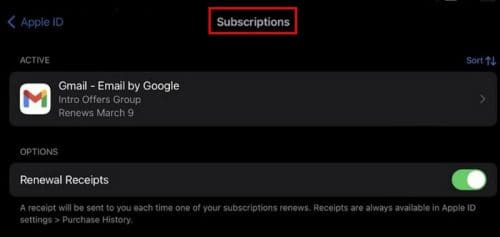
When you select the cancel button, Google will show you a message warning you of everything you will lose if you continue. If you change your mind, you can always choose the cancel button. If you followed the steps but were unable to find the cancel button, there is another way you can go to find it. Open the Settings app on your iPad and tap on your Apple ID. Tap on the subscriptions option, and your active subscriptions will be at the top. Select it, and if the Google One subscription is the only one, the Cancel option will be in red at the bottom. Remember that if you’re still on the free trial, you must cancel a day before the trial ends. This is when reminders come in handy.
How to Cancel Your Google One Subscription on Android
Canceling your Google One subscription on your Android device is also an easy task. Once you have the Google One app open, tap on the three-lined menu and go to Settings. Swipe down until you come across the Cancel subscription option.

Further Reading
Since we’re on the subject of Google One, you might want to keep reading about other things you can do without an account, such as how to type faster with speech-to-text and how you can remove a memory from Google Photos. Also, since almost everyone has erased something they later needed back, you might want to check out how you can recover those deleted Google Photos images. There are many other useful articles to choose from, and if you’re looking for a specific topic, you can always use the search bar at the top.
Conclusion
Google One may not have been what you were looking for, but at least you got to use it for a month for free. That way, you could test things out yourself. As you can see, canceling the Google One subscription was easy, and if you ever want back in, you can. You can cancel from different devices, such as your Windows computer, Android device, and iPad. Any device is good since you can also go to the Google One page. What convinced you that the subscription was not for you? Share your thoughts in the comments below, and don’t forget to share the article with others on social media.