Skip to content
LogoTechnipages
LogoTechnipages
  • Topics
        • Android
        • Browsers
        • Gaming
        • Hardware
        • Internet
        • iPhone
        • Linux
        • macOS
        • Office
        • Reviews
        • Software
        • Windows
        • Definitions
        • All Recent Posts
  • Product Reviews
  • About

How to Add a Site to Your iPad’s Home Page

Judy SanhzJuly 9, 2022 Comments (0)

Safari is full of great tips and tricks that make using the browser fun. But, sometimes, it’s the simple features you may need help remembering how to use. By saving a site you frequently visit on your home screen, you can access it with one tap. If you ever need to remove it, you can easily remove it by following these steps.

Contents

  • 1 How to Save Any Site to Your iPad’s Home Screen
    • 1.1 What the Share Icon on Your iPad Has to Offer
    • 1.2 Conclusion

How to Save Any Site to Your iPad’s Home Screen

You have a morning routine where you check your favorite sites to see what’s happening. You open them one by one and by typing out the entire URL. There’s an easier way to access your favorite sites and only have to tap once. You have faster access by saving your favorite sites to your home screen.

You can do this by opening Safari and going to the site you want to add to your home screen. Once you’re there, tap on the share icon at the top right. It looks like a box with an arrow pointing up.
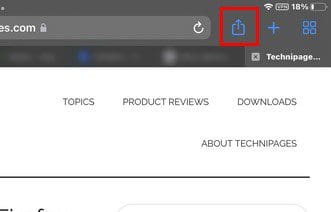
iPad Share Icon

When you tap the Share icon, a small window will appear with various options. The Add to Home Screen option will be the second on the list.
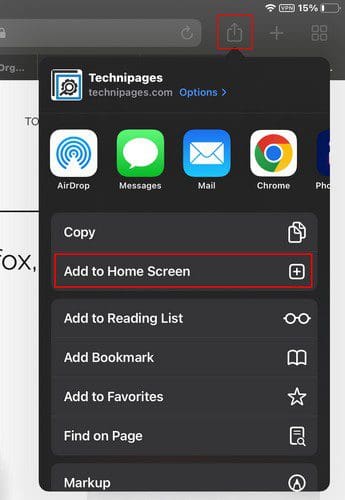
Add to Home Screen iPad

Now you’ll see the site you want to add listed and the Add option at the top right. Once you tap on it, you’ll be taken out of Safari and end up on the home screen, where you’ll be able to see the shortcut to the site. That’s all there is to it if you only want to pin a site to your iPad’s home screen, but the share button you recently used can help you with other things.
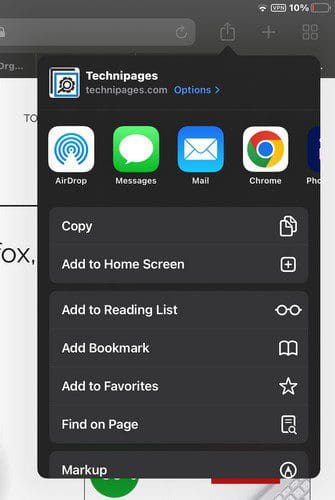
What the Share Icon on Your iPad Has to Offer

Share options iPad

Besides the evident sharing, the Shar icon in Safari can help you with other tasks. For example, you’ll see options to:

  • Copy
  • Add to reading list
  • Add bookmark
  • Add favorites
  • Find on Page
  • Markup
  • Print

Markup option iPad

With the Markup option, you can have fun and doodle all over the site. You can choose from different colors and pencils. There’s even a ruler. You can access other options such as text, signature, magnifier, and shapes if you tap the plus icon. If you tap on the dots, you can disable the option to draw with your finger and auto-minimize.
PDF iPad

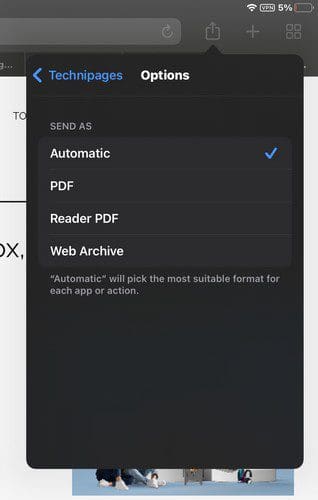
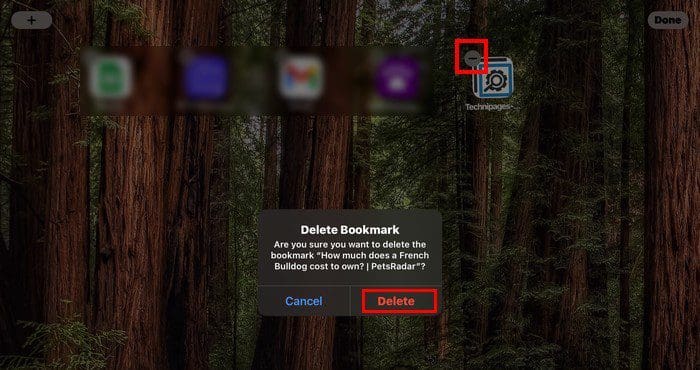
By tapping on the options link at the top right, you can send an image of the site as automatic, PDF, Reader, PDF, or Web Archive. As you can see, you can do a lot more with the Share button than share. If you ever want to remove a site from the home screen, long-press anywhere, and the icons will start to dance. When they do, you’ll see a minus icon at the corner of the icon. Tap on it, and you’ll see a confirmation message. Tap Delete, and that’s all there is to it.
Erase Site shortcuts iPad


Conclusion

When you pin a site to your iPad’s home screen, you waste no time accessing the site. It’s easier to find, and you can pin various sites to see what’s new on your favorite sites. You can do this thanks to the share button. But, the share button has other options to offer. As long as you’re there, you can check them out just in case you ever need them. How useful do you find the share button in Safari? Let me know in the comments below, and don’t forget to share the article with others on social media.

Categories: Hardware

Author Judy Sanhz

I am a tech geek who loves technology. I have been writing about tech for over a decade, covering various devices and programs. I write about Android, Apple, and Windows devices and programs. I stay updated on the latest gadgets, upgrades, features, and news. I aim to make complicated tech information easy for everyone to read. I've been with TechniPages from the beginning to help others fix their tech issues with the easy-to-follow guides.

You Might Also Like

  • Headphones That Are Made In the U.S.A.

    Mitch BartlettHardware
  • Oculus

    VR Oculus Quest 2: What Is A Guardian Boundary?

    Mel HawthorneGaming
  • fix always on display not working galaxy watch

    Fix Always on Display Not Working on Galaxy Watch

    Madalina DinitaHardware
  • fix-chromebook-stuck-checking-for-updates

    Fix: Chromebook Stuck on Checking for Updates

    Madalina DinitaHardware

Leave a Reply

Your email address will not be published. Required fields are marked *

  • how to fix your computer was unable to start

    How to Fix “Your Computer Was Unable to Start” Error 

  • fix windows 11 error code 0x8007007f

    How to Fix Windows 11 Error Code 0x8007007f 

  • windows 11 doesnt recognize ssd

    Windows 11 Doesn’t Recognize New SSD in Disk Management 

  • laptop restarts when connecting to wi fi

    Laptop Restarts When Connecting to Wi-Fi

  • how to fix no bootable device found

    How to Fix No Bootable Device Found

profile pic

The Experts Behind Technipages

My name is Mitch Bartlett. I've been working in technology for over 20 years in a wide range of tech jobs from Tech Support to Software Testing. I started this site as a technical guide for myself and it has grown into what I hope is a useful reference for all.

Learn More

technipages logo white
linkedin icon

Technipages is part of Guiding Tech Media, a leading digital media publisher focused on helping people figure out technology. Learn more about our mission and team here.

© 2025 Guiding Tech Media All Rights Reserved

  • About Us
  • Contact
  • Terms of Use
  • Privacy Policy

© 2025 Guiding Tech Media All Rights Reserved

Information from your device can be used to personalize your ad experience.
Do not sell my personal information.

Last Updated on July 9, 2022 by Judy Sanhz