
Hyperlinks can be beneficial if you want to direct someone to another part of your document (among other things). You make sure they can easily see the information they need with one click. The idea of adding a link to your Excel files sounds easy, but what are the steps to follow?
Contents
What Are Hyperlinks?
A hyperlink is a link to another part of the document you’re creating or to a site. You can easily spot them since they are usually purple, underlined, or blue. You’ll see hyperlinks in the shape of images, text, URLs, or a button. But how did they get there?
How to Apply a Hyperlink to Your Excel File
To add a hyperlink to your Excel file, open an existing file or create a new one. Once the information has been added to your Excel file, highlight the cell to which you want to add the hyperlink. Click on the Link option to the far left, followed by the Add a link option.

Keyboard Shortcut: You can also choose the cell to which you want to add the link and click CTRL + K. Also, you can right-click on the cell and click on the link option at the bottom.
Once you open the Insert Hyperlink window, add the address where you want to lead those who click on it. At the top, you will see an option called Text to Display. Here you’ll see the text that you previously added to the cell. If you change your mind and want to modify the text, you can also do it from here.

If the cell you want to add the link to is empty, you’ll see Sheet1!A1 in the Text to Display box. Or, it could simply be blank.
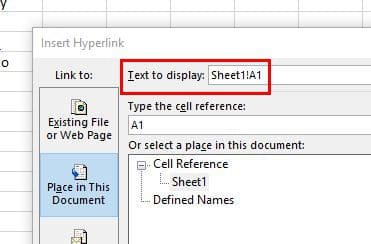
Changing the Text to Display is something you won’t be able to do if the cell contains numbers. For example, if the cell has the number 2020 and you want to add a hyperlink, the box will be greyed out with the text reading Selection in Document. This will also apply if you’re adding a link to shape. You can avoid this if you add an apostrophe before the number, so you’ll be able to edit that cell later.
Once you’ve made the necessary changes, you’ll automatically see the change in the cell. This doesn’t mean you can’t change the content of the cell. It means you’ll only be able to do so by clicking on the link.
If what you want to do is lead others to another part of the same document, click on the Place in This Document option on the left. Don’t forget to choose where you want the link to take others.
Adding a Screen Tip
Once you add the hyperlink and place the cursor on it, you’ll see the full address. You can avoid this by adding a Screen Tip. It’s like giving your link a name; when you place the cursor on it, you’ll see this name and not the full address. You can add a Screen Tip by clicking on the Screen Top box at the top right.
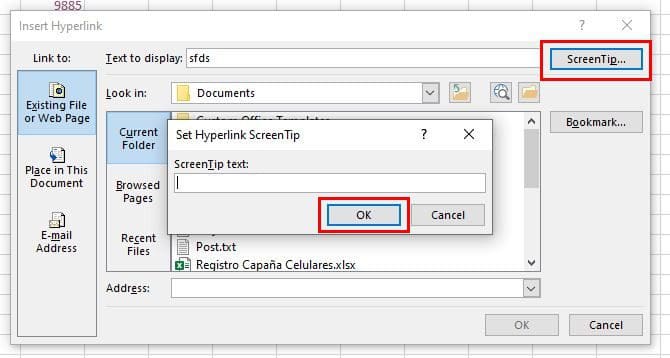
To add a Screen Tip to a cell that doesn’t have one, choose the cell and right-click on it.
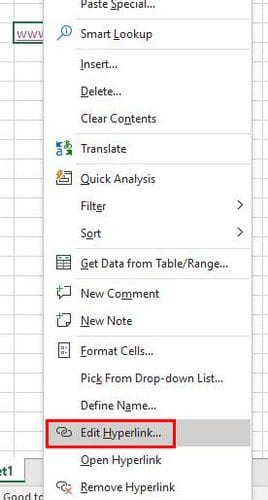
The Edit hyperlink box will appear. Click on Text to Display and give the link a name. Click OK to save your changes.
How to Create a Link By Using Drag and Drop
You can also create a link by dragging and dropping. One important thing to remember is that this method will only work on saved Excel files. If it’s not saved, it’s not going to work. Start by choosing the cell you want to link. Once you’ve selected it, place the cursor on one of the edges of the cell until you see arrows on all sides.
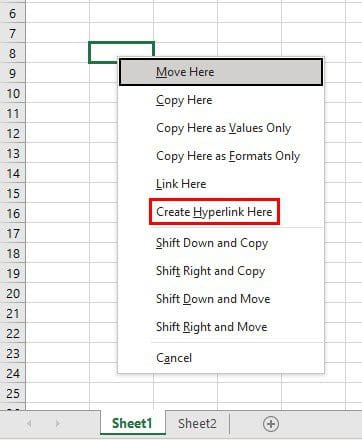
Right-click and drag down to the next cell. Press the Alt key, and without letting go of everything, you’ve pressed go where you want to place the link. Maybe page two of the Excel file. Once you’re where you want to put the link, let go of only the Alt key. Don’t let go of the right mouse button yet. Place the cursor in the cell where you want to place the link, and now let go of the right mouse key, and a window with various options should appear. Choose the Create Hyper Link here option, and you should now see your newly created link.
Conclusion
Adding hyperlinks to your Excel file makes it easier to go from one part of the file to another. You can also make those links take your reader to a specific site. Also, if you don’t want the full address seen when the cursor is placed on the link, there’s a way to hide that. How many hyperlinks do you think you’re going to add? Share your thoughts in the comments below, and don’t forget to share the article with others on social media.