Remember when you didn’t have to worry about reaching the limit on your Google storage? When Google Photos didn’t have a limit and maybe even force you to buy more storage. Now, users must check how much storage they have left to make more space for critical pictures and other files or buy more storage. You can check to see how close you are to the limit on your computer and on your Android device. But where can you check to see if you’re near the free 15GB storage limit?
Contents
How to See How Much Storage Space You Have on Google
The good news is that checking how much storage space you have left on Google is easy. Once you know how much storage you have left, keep reading to see how you can create more storage, you can put off buying storage as much as possible. You’ll need to visit google.com/storage. Once you’ve signed into your Google account, you should see how your storage is divided and what takes more space.
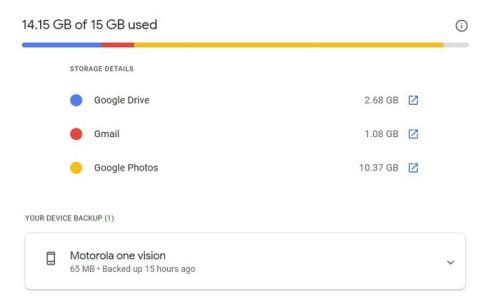
You can see how much storage you’re using on Google Drive, Gmail, and Google Photos. You’ll see an icon with an arrow in it to the right. Click on it, and it’ll take you to Drive, Gmail, or Google Photos, depending on the one you click on. For example, if you go to Google Photos, you can always start erasing pictures or videos that you can live without to make room for more important files.
Using Chrome to Check Your Google Storage
If you’re a Chrome user, you can check to see how close you are to the limit by following a few simple steps. Ensure that you’ve signed into your account, and once you have, click on your profile picture and choose the Manage your account option.
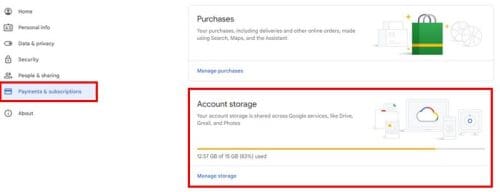
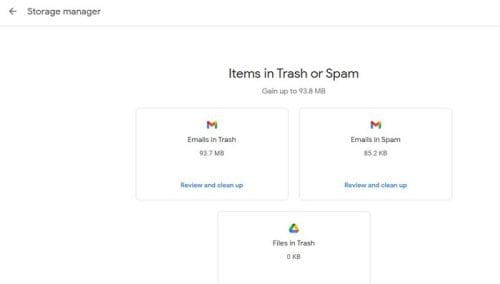
If you click on Manage Storage, you’ll see more details on your storage to see where you might need to start erasing some things or buy more storage. Remember that you can also use the Google One Storage Manager. You can review and erase from Gmail, Drive, and Google Photos. From the main page, you can see the files that are taking up the most space.
How to Check Your Google Storage on Android
Since you’re not always going to be on your computer, it’s good to know you can also check how much storage you have on Google on your Android device. You can do this by using an app such as Gmail and tapping on the profile picture at the top right. When the menu opens, tap on the Manage storage option.

You can tap on the Cleanup space button at the bottom if you want to clear some things and make more space. What’ll happen is that your browser will open so you can choose what files you want to erase on Drive, Gmail, or Photos. If you go with this last option, it’ll show you the biggest files you have, and you can start erasing files you may have forgotten you had. I went through my files, erased so many videos I knew I wouldn’t miss, and freed a lot of space.
View Your Storage Using the Google One Android App
If you don’t mind installing another app, you can always install the Google One app, making it very easy to see how much storage you have in Google. The app is free to use, and when you install it, you can choose what Google account you want to sign in with if you have more than one.
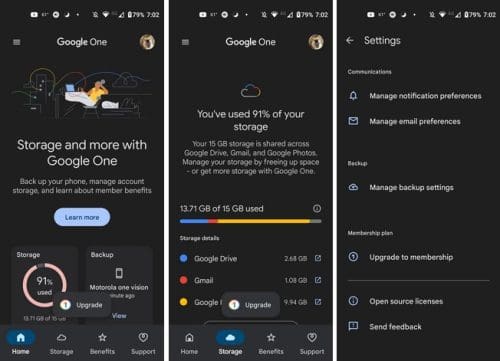
The app makes it easy to see what’s taking up so much storage, and by tapping on the arrow icon (as seen in the middle image), that specific app can open so you can review and clean up. What helps to clear up more storage are the videos. You can type videos in the search bar, and all the videos you have stored will appear. Look through them and erase the one you can live without.
How You Can Save Space
There are different things you can do to save storage space on Google. You can erase large videos on Google Photos. Or, you can erase emails with large attachments. You can search for those large emails by typing size:20MB in the search bar to find them. Make sure that your spam folder is clear and when you send something in Drive or Google Photos to the trash, ensure that you erase everything in the trash bin, or you won’t see that free space. Google will erase it after 60 days, but if you don’t want to wait that long to free up some space, you’ll need to do it manually.
If you don’t save enough space, Google will show you a message letting you know that your images and video have stopped being backed up. If nothing is done, Google will start to show you a message that soon you won’t be able to send or receive emails. Hopefully, it won’t get to that point.
Conclusion
The free and unlimited Google storage era didn’t last long enough, but we’ll have to deal with it. The users will need to be careful with the images and videos that are worth saving and the ones they’ll need to part ways with. How difficult is it for you to save storage on Google? Share your thoughts in the comments below, and don’t forget to share the article with others on social media.