Skip to content
LogoTechnipages
LogoTechnipages
  • Topics
        • Android
        • Browsers
        • Gaming
        • Hardware
        • Internet
        • iPhone
        • Linux
        • macOS
        • Office
        • Reviews
        • Software
        • Windows
        • Definitions
        • All Recent Posts
  • Product Reviews
  • About

Gboard: How to Add a Picture as Wallpaper

Judy SanhzJune 13, 2022 Comments (0)
Gboard

If you send many messages, you will use a keyboard that you’re comfortable with. If you like to send emojis, you might add the emoji line on the keyboard for faster access. You could also move the keyboard to one side if that’s more comfortable for you. You can also type in different languages.

But staring at the same wallpaper for too long can be annoying. That’s when you want to add your personal touch to the keyboard by changing the wallpaper. You can add different colors, or you can add a picture. That way, you’ll always like what you see when using that keyboard.

How to Change the Wallpaper on Gboard

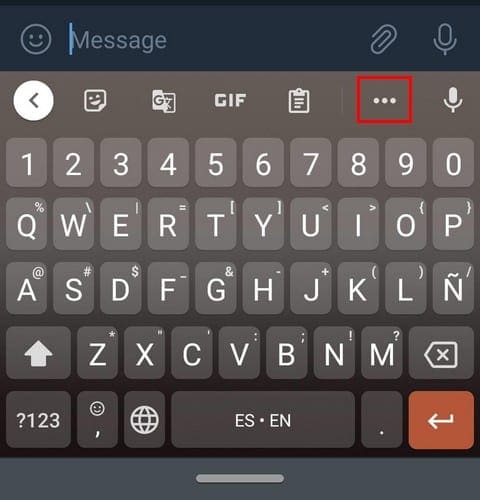
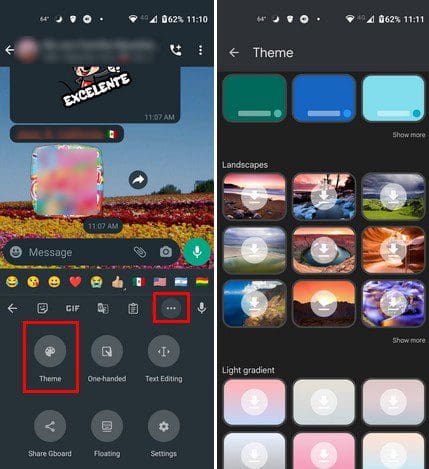
To add a picture to your Gboard keyboard, open the keyboard using any app requiring you to type something. When the keyboard appears, tap on the three dots, followed by the Theme option to the left.
Gboard Theme Android

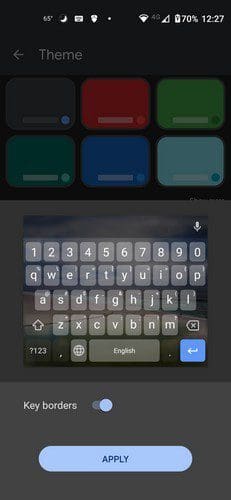
Here you can see all the options you can choose from when it comes to wallpaper- You can choose from solid colors to landscapes. If you see one that you like, tap on it to download it. Gboard will then show you a preview of what the wallpaper will look like. If you like what you see, tap on the Apply button. You should also see an option to show or hide the key borders.
Gboard Android

To add a wallpaper using a picture from your device’s gallery, tap on the My Themes option. Search for the image you want to add from all the folders you’ll see. On the next page, you’ll need to place the picture just where you want it to appear inside the box.

Tip: The higher you place the picture, even if it’s out of the box, the better it’ll appear on the keyboard when it’s time to type.

When you think you’re done, tap on the Next button at the top. The next step will be to adjust the brightness so you can see as much or as little of the picture as possible. Tap on the Done button at the bottom, and you should now see the image on your keyboard for your following message.

Conclusion

Gboard lets you add your own personal touch to the keyboard by adding different colors and pictures. You can change the wallpaper as many times as you like to give the keyboard some color. What will you be adding as wallpaper to Gboard? Share your thoughts in the comments below, and don’t forget to share the article with others on social media.

Categories: Android

Author Judy Sanhz

I am a tech geek who loves technology. I have been writing about tech for over a decade, covering various devices and programs. I write about Android, Apple, and Windows devices and programs. I stay updated on the latest gadgets, upgrades, features, and news. I aim to make complicated tech information easy for everyone to read. I've been with TechniPages from the beginning to help others fix their tech issues with the easy-to-follow guides.

You Might Also Like

  • Fix-Flashing-White-Dot-in-Google-Pixel-5

    Android Not Accepting Correct PIN or Pattern

    Madalina DinitaAndroid
  • Google Pixel 4a Rumors and Speculations

    MonaAndroid
  • Dolphin for Android: How to Change Homepage

    Mel HawthorneAndroid
  • 5 Free and Fantastic Diary Android Apps

    Judy SanhzAndroid

Leave a Reply

Your email address will not be published. Required fields are marked *

  • error 400 when signing in

    Encountered Error 400 When Signing In to Microsoft? Here’s What You Can Do 

  • unable to create notebook error in onenote

    We Were Unable to Create Your Notebook Error in OneNote – Common Fixes 

  • error code 0x800704f8 fix

    Error Code 0x800704f8 – How to Fix 

  • back button in browsers doesnt work

    What to Do if the Back Button in Browser Doesn’t Work 

  • could not find this item

    “Could Not Find This Item” When Trying to Remove Files

profile pic

The Experts Behind Technipages

My name is Mitch Bartlett. I've been working in technology for over 20 years in a wide range of tech jobs from Tech Support to Software Testing. I started this site as a technical guide for myself and it has grown into what I hope is a useful reference for all.

Learn More

technipages logo white
linkedin icon

Technipages is part of Guiding Tech Media, a leading digital media publisher focused on helping people figure out technology. Learn more about our mission and team here.

© 2026 Guiding Tech Media All Rights Reserved

  • About Us
  • Contact
  • Terms of Use
  • Privacy Policy

© 2026 Guiding Tech Media All Rights Reserved

Information from your device can be used to personalize your ad experience.
Do not sell my personal information.

Last Updated on June 13, 2022 by Judy Sanhz