

By knowing how to change the language in Gboard, you can type in as many languages as you want. With this keyboard, you’ll have everything you need to type in over 500 languages and also be able to switch between languages without having to close the keyboard.
By default, the only language Gboard will have is English, so you’ll need to install the language packs manually. The installation is quick and easy, whether you’re using Android or iOS.
Contents
How to Add a Language Pack to Google Gboard – Android
Once you’ve finished setting up Gboard, it’s time to add the languages you want to type in. To install the language packs. To do this, open the Gboard app and tap on the Languages option (it will be the first option on the list).

Now, it’s time to search for the language you want to add. At the top of the language list, you could see some languages Gboard thinks you might want to add as Suggested Languages. If you don’t see the language you want you can search for it by either using the search option at the top right or swiping down through the list.

Once you’ve found the language, you’ll need to decide the keyboard layout. You can choose from options such as:
- AZERTY
- Handwriting
- QWERTY
- QWERTZ
- Dvorak
- Colemak
- PC
To confirm that the key has been added correctly, open any app that allows you to use the keyboard. When the keyboard appears, you should see the language initials in the spacebar.
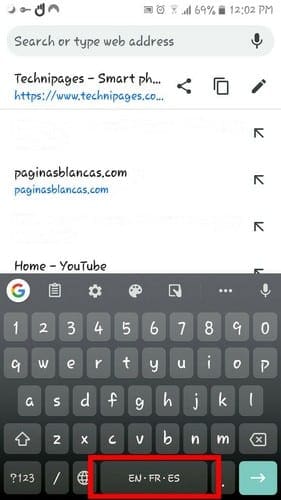
How to Switch Languages in Gboard – Android
Switching from one language to another is even easier than installing it. Open any app that allows you to type and long-press on the world icon. All the language packs you’ve installed will be listed. Simply select the one you want to switch to, and the language will be added automatically without having to restart the keyboard.

How to Add a Language Pack to Gboard – iOS 13 iPad
To install a new language pack to Gboard on iOS, open Gboard’s setting by opening the app itself. Go to Languages > Add languages > Search for your language and only a few seconds the new language will be added to the list. Gboard will show you how far along the download process is.
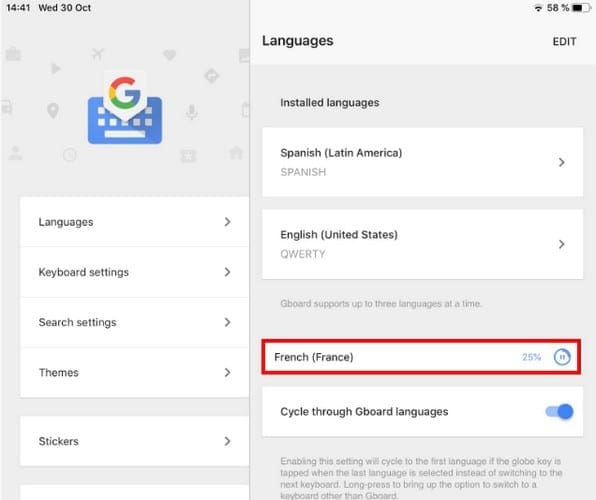
Gboard will only allow you to add a maximum of three languages. If you try to add more by following these steps, you’ll notice how the Add Language option will disappear. You can refresh the language list by erasing one language and replacing it with another.
To remove a language go to Languages and tap on the Edit option at the top right. Select the language you want to erase and tap on the Delete option at the bottom.

To change the keyboard layout for a language, select the language, and choose from the list of options. You can choose from:
- QWERTY
- AZERTY
- QWERTZ
- DVORAK
- COLEMAK
As soon as you choose an option, the keyboard will adopt that format automatically.
How to Switch Languages in Gboard – iOS 13 iPad
After adding the languages you need, it’s good to know how you can switch between them. Open any app that allows you to use the keyboard. When the keyboard appears, long-press on the world icon and choose the language, you want to switch from.
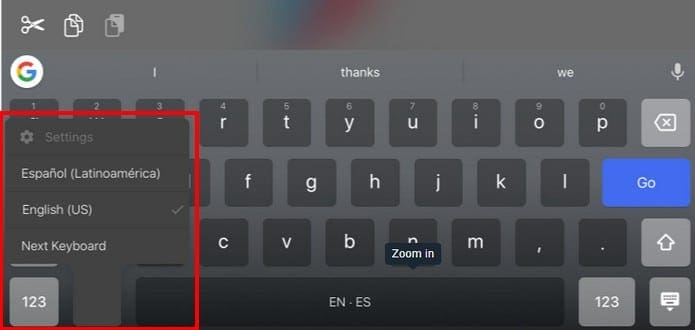
The keyboard will switch languages automatically, there will be no need to close and re-open the keyboard.
Conclusion
Gboard provides users with more than 500 languages to choose from. While you may not use all of them, it’s good to know you can use three at a time. What languages are you going to add to your Gboard keyboard? Let us know in the comments below.




Thanks but didn’t help my case much either.
Not very useful tho, it only adds extra keys to the keyboard, but it wont show word suggestions or grammatical corrections.