Skip to content
LogoTechnipages
LogoTechnipages
  • Topics
        • Android
        • Browsers
        • Gaming
        • Hardware
        • Internet
        • iPhone
        • Linux
        • macOS
        • Office
        • Reviews
        • Software
        • Windows
        • Definitions
        • All Recent Posts
  • Product Reviews
  • About

How to Enable and Disable Roaming on Samsung Galaxy S23

Kat ArmstrongMay 1, 2023 Comments (1)
Roaming Phone Header

When you travel outside of your home wireless network, your phone will automatically place itself into roaming mode. Data roaming on Android phones refers to the ability to connect to a mobile network outside of your home network, usually when you are traveling abroad. When data roaming is turned on, your phone will connect to a local network in the country you are visiting, which allows you to use mobile data to browse the internet, send and receive emails, and use other mobile apps.

However, data roaming can be expensive, as your carrier may charge you extra fees for using mobile data while you are outside of your home network. To avoid unexpected charges, it’s important to check your carrier’s roaming policies and rates before traveling and consider turning off data roaming on your phone or using a local SIM card or Wi-Fi hotspot instead. Know the facts prior to traveling so you can choose the best options for your budget.

How to Enable and Disable Roaming on Samsung Galaxy S23

Some providers charge you extra on your bill for using data while your device is roaming, which is why I am going to show you how to shut this feature off. Turning data roaming off (and then back on) on your Galaxy S23 is fairly quick and simple, so let’s get to it!

  1. Open the Settings app on your Galaxy S23.
  2. Tap Connections.
  3. Near the bottom of the page, tap Mobile networks.
  4. Tap the toggle next to Data Roaming Access to the Off position.
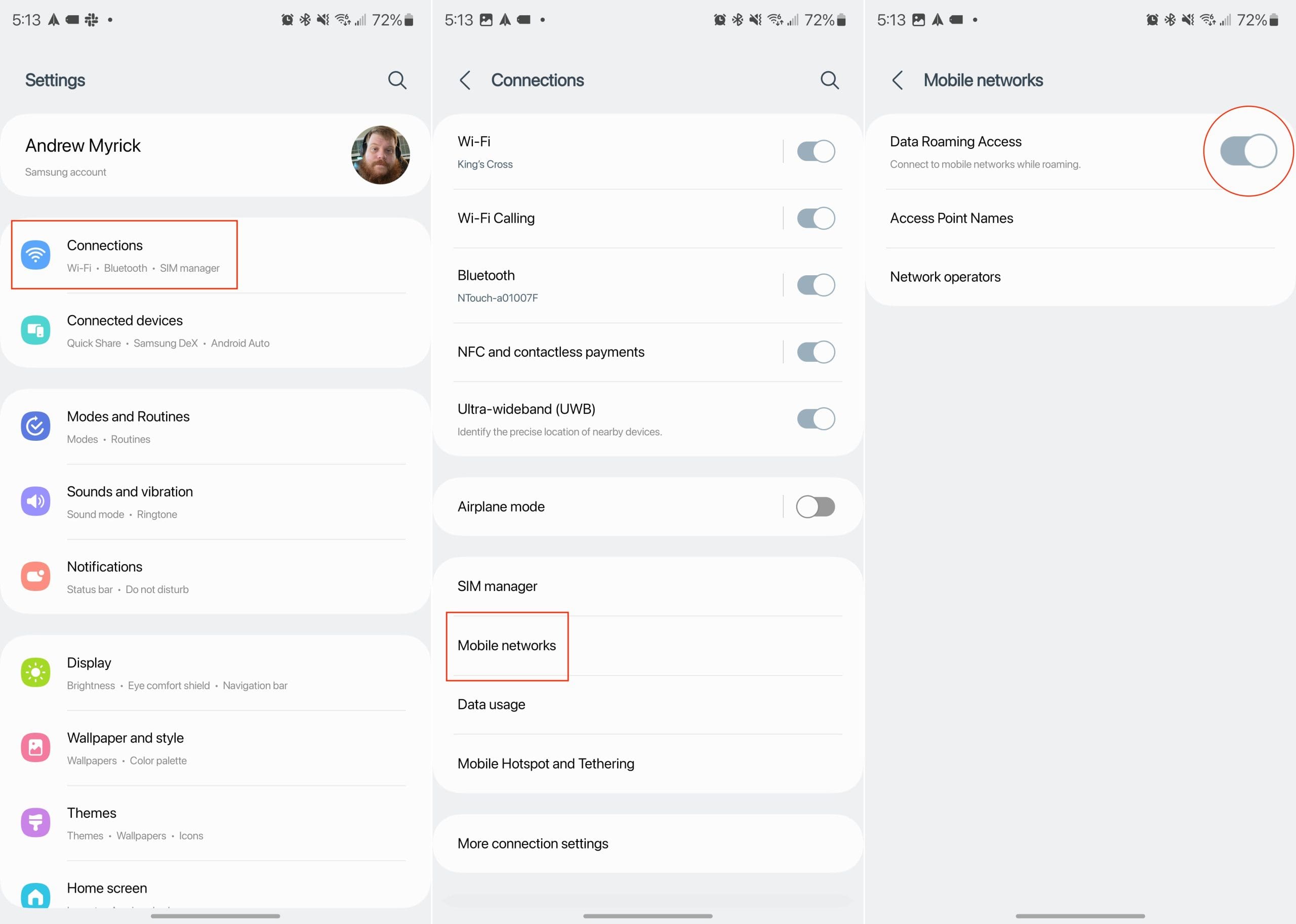
Enable and Disable Roaming on Samsung Galaxy S23

When you are ready to turn it back on, follow the same steps listed above, tapping the toggle again to enable roaming on Samsung Galaxy S23.


FAQ

How Do You Know if Your Galaxy S23 is Roaming?

If you aren’t sure whether or not you are roaming at any time, finding out is easy! All you need to do is look up at your status bar. You will see the symbol below if you are currently roaming. If you see it, you can decide whether or not you wish to continue using data or if you should perhaps turn it off in your Settings as I outlined above.

Keep in mind that roaming charges may apply when you use your phone while roaming, so it’s a good idea to check with your carrier about their roaming policies and rates before traveling.


Categories: Android

Author Kat Armstrong

You Might Also Like

  • How to Copy and Paste in Google Lens

    Judy SanhzAndroid
  • Best Budget Android Phone 2022 - Google Pixel 6a

    How to Set up Digital Wellbeing on Android

    Andrew MyrickAndroid
  • How to use navigation buttons on Chromebook in tablet mode hero

    How to Use Navigation Buttons on Chromebook in Tablet Mode

    Andrew MyrickAndroid
  • Google Pixel Watch on wrist

    How to Use Pixel Watch to Find Your Phone

    Andrew MyrickAndroid

Comments

  1. Dotty White says:
    March 14, 2020 at 2:07 pm

    Phone went in a dead area and phone did not automatically switch to reaming.

Leave a Reply

Your email address will not be published. Required fields are marked *

  • browser screen goes black

    Browser Screen Goes Black Intermittently 

  • computer heating up in hyper v

    Computer Heating Up When Using Hyper-V – How to Fix 

  • clipchamp unexpected application error

    Clipchamp Unexpected Application Error: Here’s the Solution 

  • winload.efi file missing error

    Winload.EFI File Missing Error on Boot – How to Fix

  • fix error 0x9cfc7550

    How to Fix Error 0x9cfc7550 (We Couldn’t Create a New Partition) in Windows 

profile pic

The Experts Behind Technipages

My name is Mitch Bartlett. I've been working in technology for over 20 years in a wide range of tech jobs from Tech Support to Software Testing. I started this site as a technical guide for myself and it has grown into what I hope is a useful reference for all.

Learn More

technipages logo white
linkedin icon

Technipages is part of Guiding Tech Media, a leading digital media publisher focused on helping people figure out technology. Learn more about our mission and team here.

© 2025 Guiding Tech Media All Rights Reserved

  • About Us
  • Contact
  • Terms of Use
  • Privacy Policy

© 2025 Guiding Tech Media All Rights Reserved

Information from your device can be used to personalize your ad experience.
Do not sell my personal information.

Last Updated on May 1, 2023 by Mitch Bartlett