
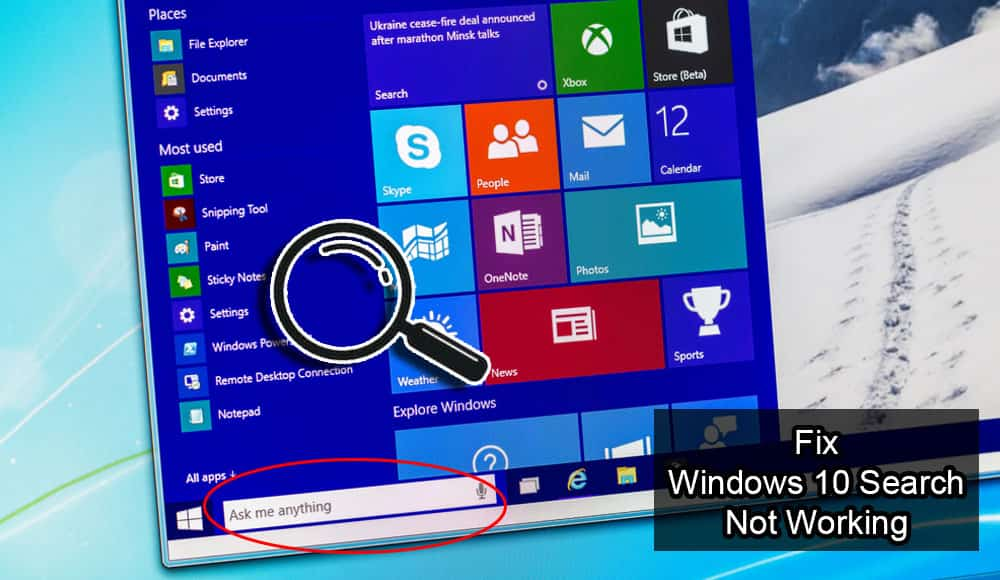
Windows 10 is the latest OS from Microsoft. It’s filled with features, but sometimes this can cause some problem. For instance, some users have reported the file search will stop in windows 10. It can be problematic for you, so that’s why it can be helpful to have some useful tips that will help you to fix the search issue in Windows 10.
What can you do if the file search stops working in Windows 10?
Contents
Restart Your PC
It is the most basic advice: shut down and restart your PC. Once you restart your computer, everything starts to work properly.
So if you haven’t tried to restart your PC, do so now. Sometimes you can solve all of your problems by restarting your system.
Restart Cortana
Cortana is the voice activated function that is interwoven with the search function of Windows 10. Sometimes turning it off and then on can fix the issue. To apply this, you have to follow the given steps.
1. Click Right on the taskbar and select “Task Manager” from the list
2. A window will appear, expand it and select the “Processes” tab, if not highlighted already
3. Select the “More Detail” option, if your task manager looks a lot less than sort the processes by “Name” via choosing an appropriate tab
4. Scroll the list to find the “Cortana” process
5. In the next step click right on Cortana and select “End Task” Option
The Windows TroubleShooter
It may not be able to fix all the issues, but it can often send you in the right direction. To get the help form, this tip follows the given steps.
1. Press “Ctrl+I” key to open windows 10 settings, select the “Start” button and then the ”cog” icon.
2. Select “Update and security”.
3. From the left-hand menu, select “Troubleshoot”.
4. Select “Search and Indexing” from list of Option.
5. Now select “Run the Troubleshooter” button.
6. A new window will appear and ask what kind of search problem you are facing. Follow the instruction on the screen and tell what it needs to know before hitting “Next”. It will try to fix your issue.
Ensure that Search Service is Running Properly
To get a confirmation, please follow the steps:
1. Press “Win+R” key to the open Run window, type “Services.MSC” and hit Enter.
2. Search for “Windows Search” by scrolling down the services list and select “Restart”.
3. Now click right on it again to choose “Properties”.
4. In the “General” tab, let’s make sure that the type for a startup is “Automatic”.
5. In “Recovery tab, confirm that after the failure actions are set to the “Restart the service”, and hit “OK”.
Rebuild the Search Index in Windows 10:
It might be that Windows 10 has forgotten where certain folders and files are. To help it to fix and remember, try the following
1. Press “Win+R”, type “Control Panel” Before choosing “OK”
2. In “Control Panel” in the top right via “View by” option, choose “Large icon” from drop down
3. From menu icons select “Indexing Option”
4. Click “Advanced”
5. Click “Rebuild” and then “OK”
Pros & Cons of Using Windows 10
MS Windows is still the most common operating system on the Planet. Advantages of using Windows were once measured against using rivaling desktop operating systems, such as MacOS or Linux, but is currently more in danger of being surpassed by Android.
– Versatile
– Productive
– Secure
– Good Native Apps
– Bulky
– Resource Heavy
– Developed for keyboard & mouse
You can buy a USB drive with Microsoft Windows 10 Home Edition and join millions of users worldwide on a platform that is considered the industry standard.





The Windows TroubleShooter >> this step is really helpful.. I fixed my problem with this.. amazing assistance out there.. thanks mate..!