Skip to content
LogoTechnipages
LogoTechnipages
  • Topics
        • Android
        • Browsers
        • Gaming
        • Hardware
        • Internet
        • iPhone
        • Linux
        • macOS
        • Office
        • Reviews
        • Software
        • Windows
        • Definitions
        • All Recent Posts
  • Product Reviews
  • About

Fix Teams Error 135011: Your Device Has Been Disabled

Madalina DinitaDecember 24, 2021 Comments (2)
fix-error-while-releasing-interface-ethernet-wi-fi

When you try to log into your Microsoft Teams account, error code 135011 may sometimes pop up on the screen. This error indicates your IT admin has probably deleted or disabled your device in the Azure Active Directory. But error 135011 can also be triggered by an unexpected app or server glitch. The good news is that it affects only the desktop app. You should be able to log into your account via the Teams web app without any problems.

Contents

  • 1 Fix MS Teams Error 135011: Your Organization Has Disabled Your Device
    • 1.1 Check Your Connection
    • 1.2 Remove All Office Credentials
    • 1.3 Contact Your Admin
    • 1.4 Conclusion

Fix MS Teams Error 135011: Your Organization Has Disabled Your Device

Check Your Connection

Try resetting your network connection. Unplug your router, wait for 30 seconds, and plug the device back in. Meanwhile, restart your computer. If you’re using a wireless connection, switch to a cable connection. Try using a different network, such as a mobile hotspot, and check if you notice any improvements.

Remove All Office Credentials

Try removing all the credentials related to Office.

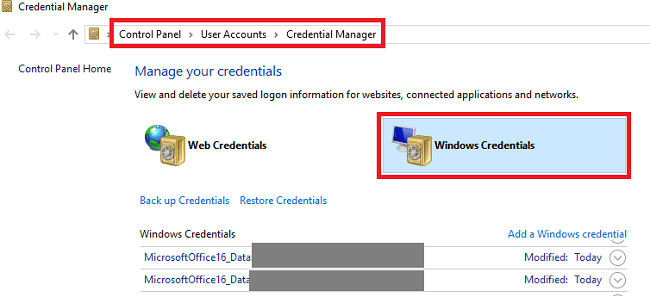
  1. Go to Control Panel.
  2. Navigate to User Accounts.
  3. Select the Credential Manager.
  4. Click on Windows Credentials.office-credentials-windows-10
  5. Remove all the credentials related to Microsoft Office.
  6. Restart Teams and check if you can log into your account.
If the error persists, unlink your work or school account.

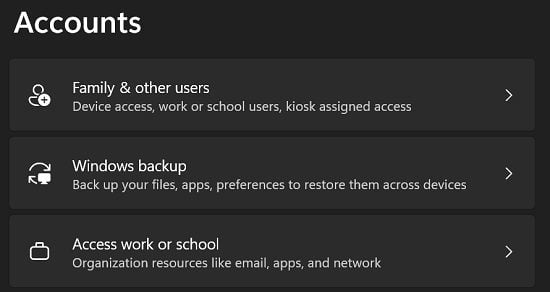
  1. Go to Settings.
  2. Click on Accounts.
  3. Go to Access work or school.windows-11-access-work-for-school
  4. Unlink your account.
  5. Restart your computer.
  6. Go back to Access work or school and re-add your account.
Contact Your Admin

If the issue persists, maybe your admin has indeed disabled your device. Contact your IT admin for further help.

If you’re an admin, go to the Azure AD admin center, select the Azure Active directory, and click on Devices. Check the list of disabled devices. Select the problematic device, and then click on Enable. If the device was deleted, you need to register it again.

Conclusion

To fix Microsoft Teams error code 135011, unplug your router, switch to a cable connection, or connect to a mobile hotspot. Additionally, launch the Credential Manager, and remove all Office credentials. If the issue persists, contact your admin and ask them to re-enable your device.

Did you manage to get rid of error 135011? Hit the comments below and let us know which solution worked for you.


Categories: Windows

Author Madalina Dinita

Madalina has been a Windows fan ever since she got her hands on her first Windows XP computer. She is interested in all things technology, especially emerging technologies -- AI and DNA computing in particular.

You Might Also Like

  • Active Directory logo

    How to Find Computer Locking Active Directory Account

    Mitch BartlettWindows
  • How-to-Use-Windows-File-Recovery

    How to Use Windows File Recovery to Recover Data

    Madalina DinitaWindows
  • windows-11-error-0x800f0950

    How Do I Fix Error Code 0x800f0950 on Windows 11?

    Madalina DinitaWindows
  • never-combine-taskbar-buttons-windows-11

    Windows 11: Enable Never Combine Taskbar Buttons

    Madalina DinitaWindows

Comments

  1. sujan says:
    April 27, 2023 at 5:18 am

    To fix this, contact your system administrator and provide the error code 135011. is massage show
    i am tell what happened i do block my device i don’t konw this time i have azure account now how to find my admin

  2. Kathy Whitehead says:
    April 19, 2022 at 8:10 pm

    Absolutely no help at all. I am the IT administrator and i was logging in to a multi user device using my login. I got error 135011. Other users can log in to Teams and Office Apps on this device and I can log in to teams and office apps on other devices. I cannot find the problem but it is super frustrating There are no disabled devices in Azure and my user account in Azure is fine as well,

Leave a Reply

Your email address will not be published. Required fields are marked *

  • an unexpected error is keeping you from copying files

    How to Fix “An Unexpected Error Is Keeping You From Copying” for Files 

  • fix page fault in nonpaged area bsod

    How to Fix “Page Fault in Nonpaged Area” BSOD 

  • fix ERROR_SYSTEM_SHUTDOWN

    How to Fix ERROR_SYSTEM_SHUTDOWN

  • cant set a new default browser

    Can’t Set a New Default Browser Automatically? Here’s What to Do

  • fix error 0x8000ffff

    How to Fix Error 0x8000ffff

profile pic

The Experts Behind Technipages

My name is Mitch Bartlett. I've been working in technology for over 20 years in a wide range of tech jobs from Tech Support to Software Testing. I started this site as a technical guide for myself and it has grown into what I hope is a useful reference for all.

Learn More

technipages logo white
linkedin icon

Technipages is part of Guiding Tech Media, a leading digital media publisher focused on helping people figure out technology. Learn more about our mission and team here.

© 2025 Guiding Tech Media All Rights Reserved

  • About Us
  • Contact
  • Terms of Use
  • Privacy Policy

© 2025 Guiding Tech Media All Rights Reserved

Information from your device can be used to personalize your ad experience.
Do not sell my personal information.

Last Updated on December 24, 2021 by Judy Sanhz