Skip to content
LogoTechnipages
LogoTechnipages
  • Topics
        • Android
        • Browsers
        • Gaming
        • Hardware
        • Internet
        • iPhone
        • Linux
        • macOS
        • Office
        • Reviews
        • Software
        • Windows
        • Definitions
        • All Recent Posts
  • Product Reviews
  • About

Fix: Outlook Failed to Connect You to Shared Calendar

Madalina DinitaFebruary 24, 2022 Comments (1)
Fix-Outlook-Failed-to-Connect-You-to-Shared-Calendar

If multiple users need to work on the same calendar, Outlook gives you the option to share it. But when you click on the “Accept” button, an error message may show up that says Outlook could not connect you to the shared calendar. More specifically, the message reads as follows: “There was a problem connecting you to the shared calendar. Please ask the person who invited you to send another sharing invitation“. Follow the troubleshooting steps below to solve the problem.

Contents

  • 1 Outlook: There Was a Problem Connecting You to the Shared Calendar
    • 1.1 Use Outlook on a Different OS
    • 1.2 Import the Shared Calendar from Directory
    • 1.3 Update and Repair Office
    • 1.4 Create a Shared Mailbox
    • 1.5 Conclusion

Outlook: There Was a Problem Connecting You to the Shared Calendar

Use Outlook on a Different OS

Check if you can access the shared calendar using Outlook on the Web or the Outlook app for macOS and iPhone. The errors and glitches affecting Outlook on Windows don’t usually show up on other operating systems. If the error message persists, go to the next step.

Import the Shared Calendar from Directory

If you’re using Outlook for the Web, try accessing the shared calendar from the Directory folder. Sign in to your account, select Calendar, and then right-click on Other Calendars. Select Open Calendar, and go to the Directory folder. Locate the shared calendar you want to open and hit the Open button.

Alternatively, you can also go to Calendar and select Import Calendar. Then, import the shared calendar directly from the Directory folder. Use the search field to search for the email account of the calendar owner.
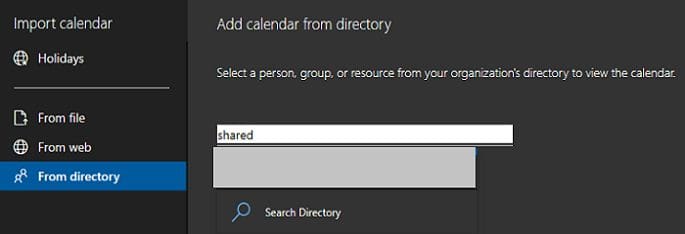
add-shared-calendar-from-Directory-Outlook

Update and Repair Office

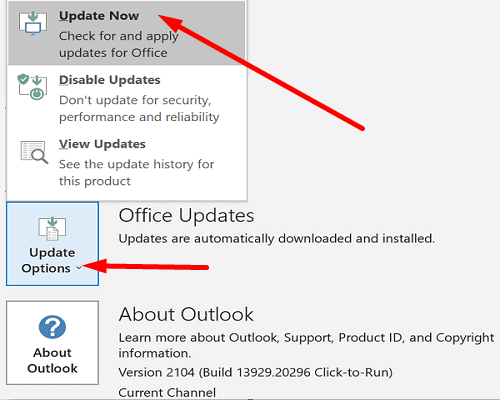
Install the latest Office updates if you’re using Outlook as part of the Office Suite.

  1. Launch any Office apps and click on the File menu.
  2. Then, go to Account.
  3. Select Update Options.
  4. Hit the Update Now button.

update-outlook

If you still can’t access the shared calendar, repair your Office files.

  1. Launch Control Panel.
  2. Go to Programs.
  3. Click on Programs and Features.
  4. Select the Office Suite and hit the Change button.
  5. First, launch the Quick Repair option.
  6. Then, if the issue persists, launch the Online Repair tool.
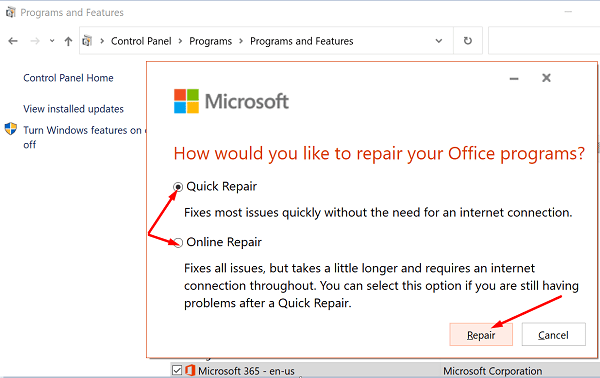
repair-microsoft-office

Create a Shared Mailbox

If nothing works, create a shared mailbox and use PowerShell to assign the calendar permissions. Shared mailboxes also include a shared calendar that multiple users can add their appointments and schedule activities.

For more information on creating a shared calendar, go to Microsoft’s Support page. Or you can ask your IT admin to help you create the shared email account.

Conclusion

If Outlook says, there was a problem connecting you to the shared calendar, check if the option works on Outlook on the Web. Then, import the shared calendar directly from the Outlook Directory. Additionally, update and repair your Office files. If the problem persists, create a shared mailbox with a shared calendar.

Did you manage to solve the problem and access your shared Outlook calendar? Let us know in the comments below.

Categories: Windows

Author Madalina Dinita

Madalina has been a Windows fan ever since she got her hands on her first Windows XP computer. She is interested in all things technology, especially emerging technologies -- AI and DNA computing in particular.

You Might Also Like

  • fix-windows-11-fingerprint-not-available

    Windows 11: Fingerprint Option Is Currently Unavailable

    Madalina DinitaWindows
  • OneDrive-problem-displaying-list-of-folders

    OneDrive: We Couldn’t Display Your List of Folders

    Madalina DinitaWindows

Comments

  1. Anonymous says:
    August 2, 2022 at 4:23 pm

    go into exchange online and search for “public folder”. there can be calendars attached in here , and you need to grant access under public folders before you can add the item in outlook

Leave a Reply

Your email address will not be published. Required fields are marked *

  • system32 folder opens on startup

    System32 Folder Opens on Startup – How to Fix

  • browser keeps opening hp support

    Browser Keeps Opening HP Support Assistant Tabs 

  • camera not working in vmware

    Camera Not Working in VMware – How to Fix

  • browser screen goes black

    Browser Screen Goes Black Intermittently 

  • computer heating up in hyper v

    Computer Heating Up When Using Hyper-V – How to Fix 

profile pic

The Experts Behind Technipages

My name is Mitch Bartlett. I've been working in technology for over 20 years in a wide range of tech jobs from Tech Support to Software Testing. I started this site as a technical guide for myself and it has grown into what I hope is a useful reference for all.

Learn More

technipages logo white
linkedin icon

Technipages is part of Guiding Tech Media, a leading digital media publisher focused on helping people figure out technology. Learn more about our mission and team here.

© 2026 Guiding Tech Media All Rights Reserved

  • About Us
  • Contact
  • Terms of Use
  • Privacy Policy

© 2026 Guiding Tech Media All Rights Reserved

Information from your device can be used to personalize your ad experience.
Do not sell my personal information.

Last Updated on February 24, 2022 by Judy Sanhz