Skip to content
LogoTechnipages
LogoTechnipages
  • Topics
        • Android
        • Browsers
        • Gaming
        • Hardware
        • Internet
        • iPhone
        • Linux
        • macOS
        • Office
        • Reviews
        • Software
        • Windows
        • Definitions
        • All Recent Posts
  • Product Reviews
  • About

Fix: Amazon Prime Video Not Working on Microsoft Edge

Madalina DinitaJune 12, 2021 Comments (2)
prime-video-not-working-microsoft-edge

Microsoft Edge is becoming more and more popular among Windows 10 users. The Redmond giant has added a plethora of new features and improvements to Edge making the browser more appealing to users. But this doesn’t mean the engineers working on Edge can go on vacation now. There are plenty of bugs and issues they still need to fix as quickly as possible. One of them is the issue where Amazon Prime won’t load on Microsoft Edge. Well, if you’re experiencing similar issues, follow the tips listed in this guide to fix the problem.

Contents

  • 1 Fix Microsoft Edge Not Playing Amazon Prime Videos
    • 1.1 Install the Amazon Prime Video App
    • 1.2 Check if Your Browser Is the Culprit
    • 1.3 Turn off Hardware Acceleration
    • 1.4 Conclusion

Fix Microsoft Edge Not Playing Amazon Prime Videos

Install the Amazon Prime Video App

If you’re looking for a quick workaround, you can download the Amazon Prime Video app from the Windows Store. Of course, the app won’t fix your Amazon Prime issues on Edge, but you should be able to quickly access your account and play the videos you’re interested in.

Check if Your Browser Is the Culprit

If your Edge browser is to blame for the Amazon Prime Video issues you’re experiencing, the solutions below should fix the problem.

First of all, go to More options, select History, and then click on More options again. Select Clear browsing data and clear your cache from the last four weeks. If the issue persists, clear your cache from All time.
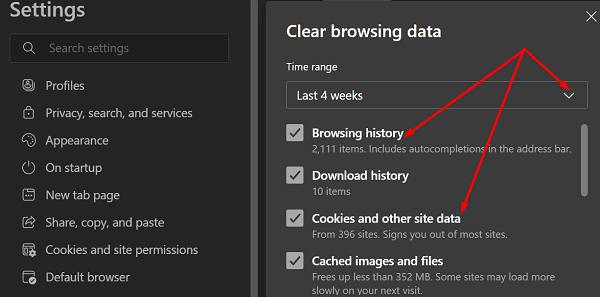
edge-delete-cache-cookies

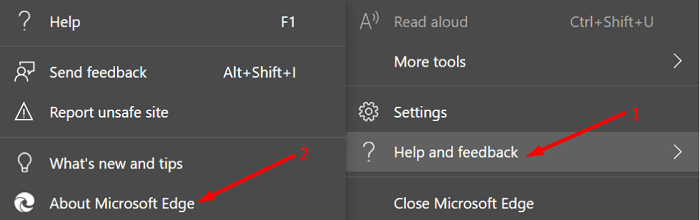
Then go to Extensions and toggle off all your browser extensions. Go to Help and feedback and select About Edge. Check for updates and install the newest Edge version on your machine.
If the problem persists, uninstall Edge. Go to Settings, select Apps, and go to Apps and Features. Select Edge from the list of installed apps, and hit the Uninstall button. Restart your computer and install a fresh copy of Edge.
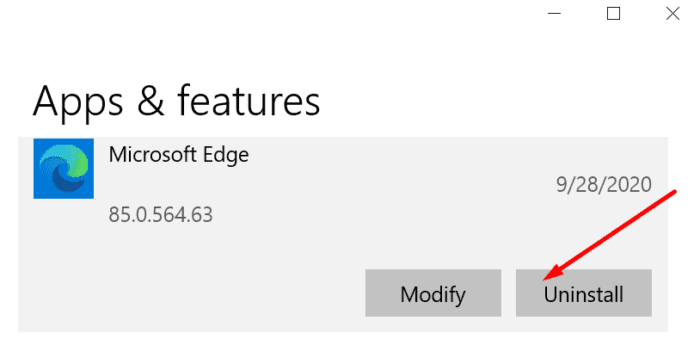
uninstall microsoft edge

If the problem persists, switch to a different browser. Amazon Prime Video supports the following browsers: Google Chrome, Mozilla Firefox, Internet Explorer, Microsoft Edge, Safari, and Opera.

Turn off Hardware Acceleration

A number of users confirmed that disabling hardware acceleration fixed the problem. Click on More options, go to Settings, and select System. Turn off “Use hardware acceleration when available“.
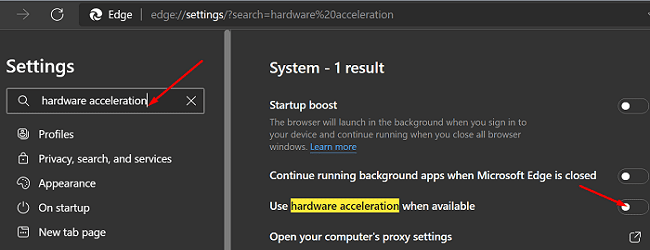
microsoft-edge-disable-hardware-acceleration

Conclusion

If you can’t play Amazon Prime videos on Microsoft Edge, disable hardware acceleration in your browser settings. Additionally, clear the cache, disable your extensions and update your browser. Should the issue persists, switch to a different browser or install the Amazon Prime Video stand-alone app. Did these troubleshooting suggestions help you fix the problem? Let us know in the comments below.


Categories: Internet

Author Madalina Dinita

Madalina has been a Windows fan ever since she got her hands on her first Windows XP computer. She is interested in all things technology, especially emerging technologies -- AI and DNA computing in particular.

You Might Also Like

  • Twitch.tv: How to Configure a Stream Schedule

    Mel HawthorneInternet
  • Picture-in-Picture Mode in Firefox: How to Turn It On

    Judy SanhzInternet
  • Slack: How To Export a Workspace Member List

    Mel HawthorneInternet
  • Dropbox: How to View Which Browsers and Devices Are Signed into Your Account

    Mel HawthorneInternet

Comments

  1. Bruno Jander says:
    November 13, 2021 at 7:26 pm

    Thank you!!!!!

    Disabling hardware acceleration fixed the problem! :)

  2. ANDRES AGREDO says:
    August 22, 2021 at 9:42 am

    Thank you so much! It works, also for Netflix when I disabled the hardware acceleration

Leave a Reply

Your email address will not be published. Required fields are marked *

  • fix error code 0x3000008 1

    How to Fix Error Code 0x3000008 for Remote Desktop Connection

  • fix error code 0x80190001 1

    How to Quickly Fix Error 0x80190001 for Microsoft or Outlook Account Login 

  • fix filecoauth.exe application error

    Fix FileCoAuth.exe Application Error 

  • fix error code 0x80010002 in windows update

    How to Fix 0x80010002 Error in Windows Update 

  • an unexpected error is keeping you from copying files

    How to Fix “An Unexpected Error Is Keeping You From Copying” for Files 

profile pic

The Experts Behind Technipages

My name is Mitch Bartlett. I've been working in technology for over 20 years in a wide range of tech jobs from Tech Support to Software Testing. I started this site as a technical guide for myself and it has grown into what I hope is a useful reference for all.

Learn More

technipages logo white
linkedin icon

Technipages is part of Guiding Tech Media, a leading digital media publisher focused on helping people figure out technology. Learn more about our mission and team here.

© 2025 Guiding Tech Media All Rights Reserved

  • About Us
  • Contact
  • Terms of Use
  • Privacy Policy

© 2025 Guiding Tech Media All Rights Reserved

Information from your device can be used to personalize your ad experience.
Do not sell my personal information.

Last Updated on June 12, 2021 by Mitch Bartlett