Skip to content
LogoTechnipages
LogoTechnipages
  • Topics
        • Android
        • Browsers
        • Gaming
        • Hardware
        • Internet
        • iPhone
        • Linux
        • macOS
        • Office
        • Reviews
        • Software
        • Windows
        • Definitions
        • All Recent Posts
  • Product Reviews
  • About

How to Enable and Disable Vertical Tabs in Microsoft Edge

Judy SanhzMarch 17, 2021 Comments (2)

There are times that, without you noticing, you end up opening a large number of tabs. You open tabs you need at the moment and tabs you think you might need shortly. Before you know it, you have so many tabs open it’s not even funny.

Microsoft said that this new feature is aimed to make tab organization and management easier for everyone. If you want to give this new feature a try, keep reading to see how you can turn on this useful feature. If you see that it’s not for you after trying it, you’ll also see how you can turn them off.

Enable Vertical Tabs in Microsoft Edge

One way to turn on the vertical tabs in Edge is to go into the browser’s settings. But, before that, look at the top left of your browser. If you see the vertical tab icon, all you need to do is click on the to enable it.

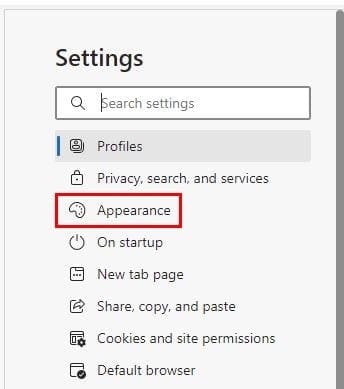
If you don’t see the vertical tab icon as shown in the image above, then it looks like you’ll need to go into the browser’s settings. To enable the vertical tabs in the Microsoft Edge browser (once you have the browser open):

  • Click on the three dots
  • Go to Settings
  • Appearance

Once you’re in appearance, scroll down a bit and look for the option that says Show vertical tabs button.
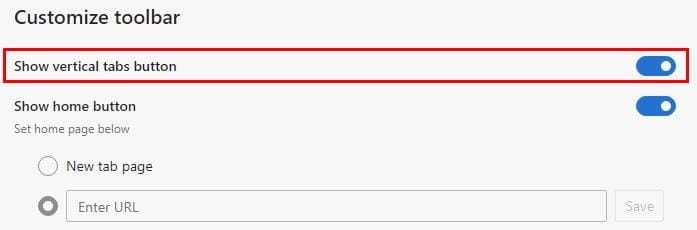
These are the steps to follow if you don’t see the option to enable the tab sidebar.

Once you’ve enabled the vertical tabs on Edge, the tabs you have open should now be visible on the browser’s left side. The tab that you’re currently looking at will stand out from the others. To close a specific tab, click on the X, and to open a new tab, click on the new tab option. You can also try the keyboard shortcut Ctrl + T as well.

To close vertical tabs, you can click on the icon with the arrow pointing up. You can also right-click on a space to the side of the side tab option and click on turn off.
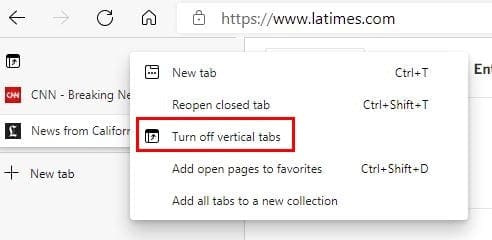
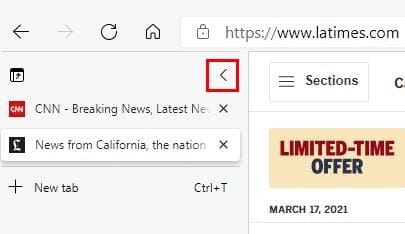
If you don’t like the idea of the vertical tabs showing too much, you can always collapse it. You can do that by clicking on the arrow pointing left.
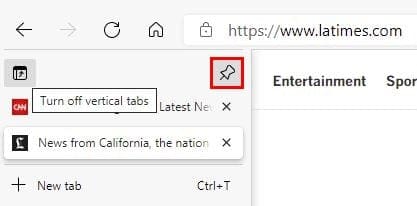
When you want the side menu to show completely, hover over the tabs and click on the pin icon at the top right.
Conclusion

Especially when you have the tabs open for work reasons, they tend to get out of control. Thanks to this tool, you can find it in Microsoft Edge; it’s easier to keep your open tabs organized. What are your thoughts on the feature? Do you think it helps to keep your tabs organized? Share your thoughts in the comments below.


Categories: Internet

Author Judy Sanhz

I am a tech geek who loves technology. I have been writing about tech for over a decade, covering various devices and programs. I write about Android, Apple, and Windows devices and programs. I stay updated on the latest gadgets, upgrades, features, and news. I aim to make complicated tech information easy for everyone to read. I've been with TechniPages from the beginning to help others fix their tech issues with the easy-to-follow guides.

You Might Also Like

  • Facebook Header

    Facebook: Add Admin to Group or Page

    Mel HawthorneInternet
  • Accessing Google Services on PC

    MonaInternet
  • how-does-google-know-if-store-is-busy

    How to See What Apps Have Access to Your Account

    Judy SanhzInternet
  • delete-photos-from-phone-after-backup-to-google-photos

    Google Photos: How to Customize Your Memories

    Judy SanhzInternet

Comments

  1. Michael In Paris says:
    October 8, 2021 at 3:51 am

    Vertical tabs keep reappearing (I think: after waking up the PC) despite the fact that I disable them. Is there a way to disable them once and for good?

  2. Kevin A Smith says:
    May 28, 2021 at 12:07 pm

    This helped the dreaded RTFM time and effort. Kudos! Cheers!

Leave a Reply

Your email address will not be published. Required fields are marked *

  • roblox error 280

    Having Trouble With Roblox Error 280? Here’s What to Do

  • hard disk smart command error

    Hard Disk SMART Command Failed – How to Fix 

  • files automatically deleted on click

    Files Getting Deleted Automatically? Here Are Some Reasons Why

  • error 400 when signing in

    Encountered Error 400 When Signing In to Microsoft? Here’s What You Can Do 

  • unable to create notebook error in onenote

    We Were Unable to Create Your Notebook Error in OneNote – Common Fixes 

profile pic

The Experts Behind Technipages

My name is Mitch Bartlett. I've been working in technology for over 20 years in a wide range of tech jobs from Tech Support to Software Testing. I started this site as a technical guide for myself and it has grown into what I hope is a useful reference for all.

Learn More

technipages logo white
linkedin icon

Technipages is part of Guiding Tech Media, a leading digital media publisher focused on helping people figure out technology. Learn more about our mission and team here.

© 2026 Guiding Tech Media All Rights Reserved

  • About Us
  • Contact
  • Terms of Use
  • Privacy Policy

© 2026 Guiding Tech Media All Rights Reserved

Information from your device can be used to personalize your ad experience.
Do not sell my personal information.

Last Updated on March 17, 2021 by Judy Sanhz