
Are you familiar with Grayscale Mode?
Grayscale mode is a simple feature that is useful for a variety of purposes. It effectively shifts colors into black and white tones with different saturations. Your screen would take on a similar feel to the monochrome TV. For one, this mode can potentially help those with colorblindness have an easier time looking at their PC. For those who want a different look to their display, it can be a welcome change.
For laptop users, switching to Grayscale can reduce their device’s power consumption. As you might’ve guessed, with Grayscale Mode, your GPU will only render two colors instead of the usual 32-bit colors. Besides that, some users claim that Grayscale reduces eye weariness. It is also believed to improve focus (assuming your work doesn’t rely on colors).
Enabling Grayscale Mode on your Windows PC is pretty straightforward.
Contents
How to Enable Grayscale Mode
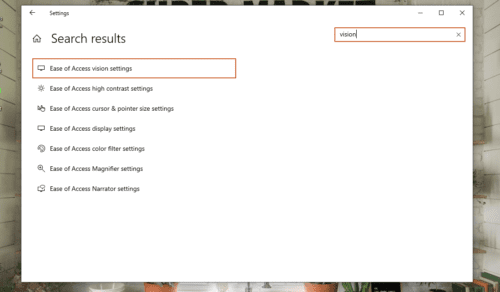
- Hit the Windows key > type in Ease of Access Vision Settings > hit Enter. This will take you to the Display settings window.
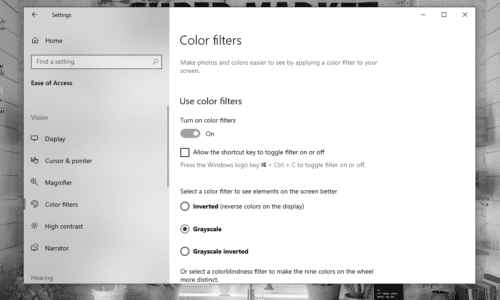
- On the sidebar to the left of the window, click on Color Filters.
- On the right side, you should see an option to Turn on Color Filters. Enable it.
- Now, select your filters. Usually, Grayscale is the default option, so you won’t have to search extensively for it.
Simple, right?
As a side note, Grayscale is not the only mode available for color filters. Additionally, there is a way to instantly toggle the color filters on and off using a keyboard shortcut.
Enable Grayscale Mode Using a Keyboard Shortcut
To use the hotkey on your Windows, you’ll first need to activate it.
- From the same Color Filters window, click on the checkbox for Allow the Shortcut Key to Toggle Filter On or Off.
- After allowing the shortcut to enable or disable the filter, hold down Windows + Ctrl + C to instantly toggle Grayscale Mode on or off.
“My screen turned black and white all of a sudden. How do I fix that?”
This common problem is often caused by none other than the Grayscale Mode you inadvertently enabled using the keyboard shortcut. To turn the screen back to normal, you simply need to turn off color filters using the Windows + Ctrl + C shortcut or by altering the color filter settings mentioned above.
If you can’t use your hotkey to disable color filters, make sure that the Allow the Shortcut Key to Toggle Filter On or Off is left unchecked.
Grayscale Mode is Great and All, but What About the Other Options?
Grayscale mode is not the only option visually impaired, and colorblind users may choose from. As mentioned before, there are other modes.
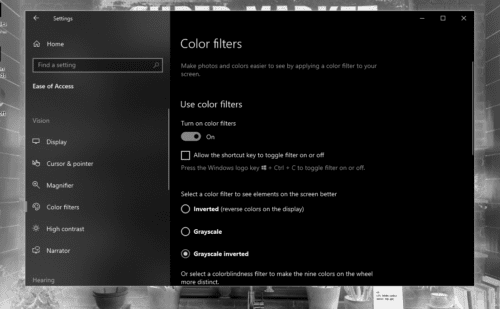
Grayscale Inverted is the filter that I personally recommend. It’s practically the same as Grayscale Mode but with inverted colors, meaning the black tones will turn white and vice versa. This makes any text on a typical website appear white while the site background turns to black. This also reduces the amount of light coming from your monitor. It’s a radical “Dark Mode” if you will.
Red-Green modes are perfect for those with reduced sensitivity to either green light or red light. On the other hand, Blue-Yellow mode is helpful to those who cannot distinguish between blue and yellow.
How to Enable Grayscale Mode by Editing the Registry
This method is more complicated to use and not entirely recommended, especially when you can simply enable Grayscale Mode with a keystroke. However, because the option exists, it’s included in this article.
- Hit the Windows key > type in regedit > then hit Enter to open up the Registry Editor app.
- Navigate to: Computer\HKEY_CURRENT_USER\Software\Microsoft\ColorFiltering. To speed things up, you can simply copy and paste the path into the Registry Editor.
- On the right side of the window, create or edit the REG_DWORD values labeled Active and FilterType.
- Set the value for Active to 1 (enable) instead of 0 (disable).
- For FilterType, you can set its value to one of the following:
- 0 (Grayscale)
- 1 (Inverted)
- 2 (Grayscale inverted)
- 3 (Red-green (green weak))
- 4 (Red-green (red weak))
- 5 (Blue-yellow)
- After you’ve changed the values, sign out from your computer, then sign back in. You can also restart your computer.
Conclusion
That’s probably all you will need to know about Grayscale Mode on Windows PC. Feel free to use other color filters as well to see which one suits you best!





Return it!
That problem is not fixable. I have returned two laptops in the past because of the same issue, everything on screen looks like old newspaper.
No i bought a new HP laptop – pavillion, everything is grey-beige-yellowish. No matter what i do, i cant remove it, and make natural colours as my old laptop from acer :-(
I want it gone forever! what to do?