Skip to content
LogoTechnipages
LogoTechnipages
  • Topics
        • Android
        • Browsers
        • Gaming
        • Hardware
        • Internet
        • iPhone
        • Linux
        • macOS
        • Office
        • Reviews
        • Software
        • Windows
        • Definitions
        • All Recent Posts
  • Product Reviews
  • About

Easy Voice Recorder Pro: How to Prevent Interruptions While Recording

Judy SanhzOctober 6, 2022 Comments (0)
Mic

You can do various things to set up the app to your liking. But, one thing that can ruin a recording is when something like an incoming call interrupts everything. This can be unpleasant when what you’re recording is very important. Fortunately, there are specific settings you can change to avoid things like other apps and calls from ruining your recordings.

How to Create Interruption-Free Recordings

With a few taps here and there, you can set up Easy Voice Recorder Pro so that apps nor calls can interrupt. Once the app is open, tap on the dots at the top right and go to Settings.
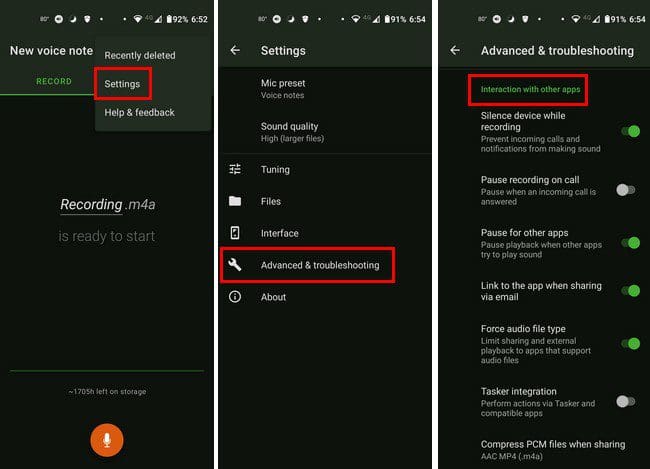
Easy Voice Recorder Pro App

Once you’re in Settings, go to Advanced and troubleshooting, followed by Interaction with other apps. In this section, you’ll see various options you can easily toggle on or off at any time. You can choose from options such as:

  • Silence device while recording
  • Pause recording on call
  • Pause for other apps
  • Link to the app when sharing via email
  • Force audio file type
  • Tasker integration
  • Compress PCM files when sharing

With this last option, you can choose from options such as MP3 (.MP3), AAC MP4 (.m4a), and Off.
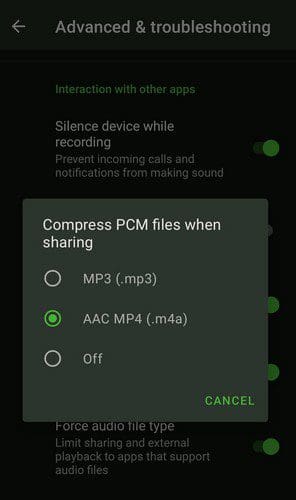
Compress files options Easy Voice

Other Useful Features you can use are under the Device-related section. Here you can modify options such as:

  • Proximity sensor while playing
  • Proximity sensor while recording
  • Check for audio loss
  • Sleep mode while playing – You can choose from options such as allow the screen off, allow dimmed screen, and leave the screen on.
  • Sleep mode while recording

Sleep Mode while recording

Conclusion

As you can see, you don’t have to deal with interruptions when recording. You can avoid interruptions when a call comes in or when other apps try to interfere by going to the app’s settings. How will you be setting up the app? Let me know in the comments below, and don’t forget to share the article with others on social media.

Categories: Android

Author Judy Sanhz

I am a tech geek who loves technology. I have been writing about tech for over a decade, covering various devices and programs. I write about Android, Apple, and Windows devices and programs. I stay updated on the latest gadgets, upgrades, features, and news. I aim to make complicated tech information easy for everyone to read. I've been with TechniPages from the beginning to help others fix their tech issues with the easy-to-follow guides.

You Might Also Like

  • How to Get IMDb Ratings for Netflix on Android

    Judy SanhzAndroid
  • Android 10: How to Access and Manage Your Android Clipboard

    Judy SanhzAndroid
  • How to Prevent Google from Saving Voice Recordings

    Judy SanhzAndroid
  • Android: How to Make Your Number Private or Not

    Judy SanhzAndroid

Leave a Reply

Your email address will not be published. Required fields are marked *

  • does chromebook need an antivirus

    Does Chromebook Need an Antivirus?

  • top vpns

    Top 5 VPNs to Keep Your Information Private in 2026

  • npu power management bug

    What Is the NPU Power Management Bug and How Do You Fix It?

  • pc can't enroll for windows 10 extended security updates

    PC Can’t Enroll for Windows 10 Extended Security Updates – How to Fix

  • hdd better than an ssd

    When Is an HDD Better Than an SSD?

profile pic

The Experts Behind Technipages

My name is Mitch Bartlett. I've been working in technology for over 20 years in a wide range of tech jobs from Tech Support to Software Testing. I started this site as a technical guide for myself and it has grown into what I hope is a useful reference for all.

Learn More

technipages logo white
linkedin icon

Technipages is part of Guiding Tech Media, a leading digital media publisher focused on helping people figure out technology. Learn more about our mission and team here.

© 2026 Guiding Tech Media All Rights Reserved

  • About Us
  • Contact
  • Terms of Use
  • Privacy Policy

© 2026 Guiding Tech Media All Rights Reserved

Information from your device can be used to personalize your ad experience.
Do not sell my personal information.

Last Updated on October 6, 2022 by Judy Sanhz