

While using Microsoft Windows, I had a window that had somehow fallen completely off of my screen. Right-clicking the window in the Taskbar and selecting Maximize brought it back, but there was no way I could get the window restored to where I could move it around my screen with my mouse.
Luckily, there are a couple of ways to bring off-screen windows back to the desktop screen.
Contents
Fix 1 – Resolution Trick
Windows 11, 10, & 8
- Start the problematic application.
- Right-click a blank area of the Desktop, then choose “Display settings“.
- Select “Advanced display settings” at the bottom of the window.
- Temporarily change the “Resolution” to another value, then choose “Apply“.
- See if you can see the window on your screen now.
- Change the resolution back to the previous value, then select “OK“.
Windows 7
- Start the problematic application.
- Right-click a blank area of the Desktop, then choose “Screen Resolution“.
- Temporarily change the “Resolution” to another value, then choose “Apply“.
- See if you can see the window on your screen now.
- Change the resolution back to the previous value, then select “OK“.
Fix 2 – Show Desktop Toggle
- Hold down the Windows Key, then press “D“. Repeat these steps to see if it makes the window you are looking for reappear.
- Alternately, you can right-click a blank area of the taskbar, then choose “Show the desktop“, then repeat.
Fix 3 – Move Option 1
- Select the program in the task bar.
- Hold the Windows Key while pressing Left Arrow or Right Arrow repeatedly to move the window back into view.
Fix 4 – Move Option 2
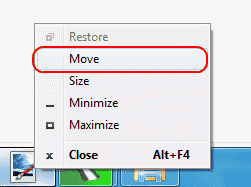
- In Windows 10, 8, 7, and Vista, hold down the “Shift” key while right-clicking the program in the taskbar, then select “Move“. In Windows XP, right-click the item in the task-bar and select “Move“. In some instances, you may have to select “Restore“, then go back and select “Move“.

- Use your mouse or the arrow keys on your keyboard to move the window back onto the screen.
Fix 5 – Cascade Windows
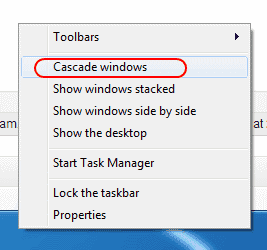
- Right-click a blank area of the task-bar, then select “Cascade windows“.

Fix 6 – Maximize
Sometimes a single app will get stuck in a state where it cannot redraw onto the Window. You can usually alleviate this by doing the following.
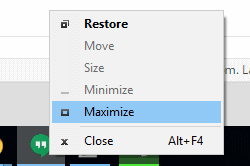
- Hold “Shift” and right-click on the program icon in the taskbar, then choose “Maximize“.

Fix 7 – Attempt to Bring Up Menu with Keyboard Shortcut
- Sometimes you need to trigger the menu to the specific application that is not coming up on the screen. Use these steps.
- Select the application in the taskbar. If you can’t select it there, hold the ALT key while pressing Tab to select the application.
- Hold the Shift + ALT keys and press Spacebar.
- Hopefully this shortcut makes a menu appear where you can select Maximize.
FAQ
How do I prevent my application from starting off the screen every time I launch it?
Most applications will stop doing this if you properly exit out of the application while it is on the screen. If you have already properly exited the application, you might need to uninstall and reinstall it.
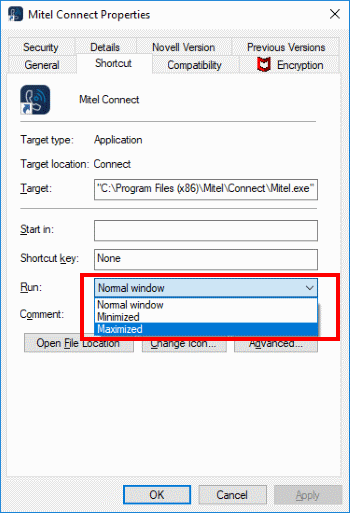
Otherwise, you can try right-clicking the icon for the application, then choosing “Properties“. Under the “Shortcut” tab, change the “Run” setting to “Maximized“, then select “OK“.

When using a Windows 11 laptop with a docking station and monitor, I sometimes close the laptop lid and disconnect hastily, leaving applications open. Later, when I use the laptop away from the docking station, these applications appear off-screen. For certain apps that don’t show a “maximize” option when shift+right-clicking their taskbar icon, the combination of shift + alt + spacebar worked for me. This key sequence brought up a dropdown menu that included a “maximize” option, which successfully brought the window back into view. Cheers sir and thank you!
None of these solutions worked. I think I need to reconnect my laptop to a second monitor. Even re-installing does not fix this. There is no move or maximize option.
If you are using a docked laptop/station, but not using its display,
Open the laptop screen and see if your window is here.
then just ‘Move’ back to your normal display devices
This error is very annoying. On win 10 and the Foxit reader window. 1st monitor horizontal, 2nd vertical. No solution works. :-(
I’ve been always using some kind of `Fix 3 – Move Option 1: Hold the Windows Key while pressing Left Arrow or Right Arrow repeatedly to move the window back into view.` It’s been of help since Windows NT. Unfortunately, it happens rarely enough so that I keep forgetting the shortcut. Thanks for bring that up, again!
Didn’t know this was a thing until it was! Very annoying and had put off for awhile. My “Notepad” was fine on my work double-monitors until I brought my laptop home to work on the single screen and can’t find the notepad after opening the app. Tried your different fixes until your #4 did the trick for me, thank you Sir!
Win11. Wow. Never had that happen, until it did, while changing resolution for the game. Settings > System > Display > Scale > adjusting % did the trick. Thank you very much for the article!
Thank you! Maximised worked (on win10). Thank you for sharing such tips, it sometimes saves a lot of precious time and nerves :)
Thank you so much. I couldn’t get the window for a small app into view no matter what I tried. Finally read this site and got it back.
Fix 4 worked finally well. Fix 7 is about the same, but difficult when one does not see the effect of the keyboard has.
Instruction for Windows 10 don’t work. I cannot see the “Advanced display settings” because the display settings window is off screen.
How do I bring the Display Setting window back onto the visible desktop?