Skip to content
LogoTechnipages
LogoTechnipages
  • Topics
        • Android
        • Browsers
        • Gaming
        • Hardware
        • Internet
        • iPhone
        • Linux
        • macOS
        • Office
        • Reviews
        • Software
        • Windows
        • Definitions
        • All Recent Posts
  • Product Reviews
  • About

Android: USB Port Detects Moisture or Debris

Madalina DinitaMay 25, 2021 Comments (2)
USB-Port-detects-moisture-or-debris.

If you want your Android phone to work properly, keep it away from moisture, liquids, and debris. Modern smartphones come equipped with a special sensor that detects when moisture gets into the USB port. An alert pops on the screen, prompting you to unplug the charger and let it dry. The alert won’t go away until the issue has been solved. As a result, your phone will refuse to charge. Let’s see what you can do to sort things out.

What Can I Do If the USB Port Detects Moisture?
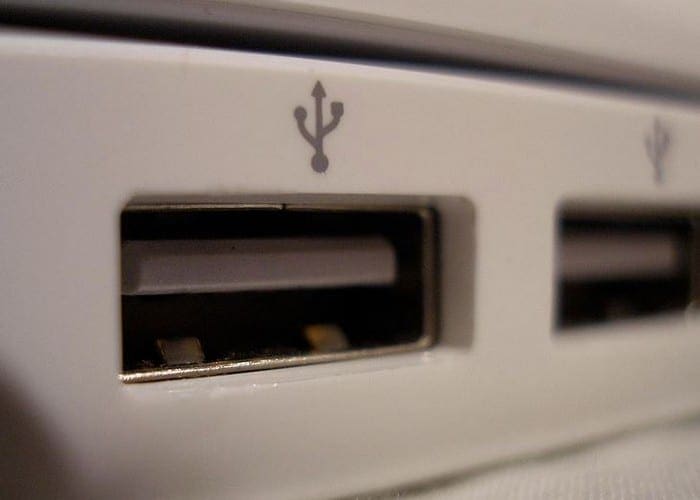
First of all, you need to turn off your phone. Then gently shake the device to force moisture and water droplets to fall out. Place your device in a well-ventilated space and let moisture naturally evaporate. This should take between two to four hours. So, have a little patience and let the laws of physics do their magic. Don’t use any heat sources to avoid further damage.

To speed up the process, you can use a sheet of soft paper towel and poke it into the port to soak up moisture. You can also use a cotton bud to remove any debris or specks of dust that triggered the error.

As a workaround for the charging problem, you can use a wireless charger if your device supports this technology. You can then ignore the alert since you’re not using the USB port to charge the device.

Some users even suggested the alert might indicate your device has been hacked. Disconnect your phone from the Internet (turn off Wi-Fi and cellular data), plug in the charger, and check if the error persists. If it’s gone, scan your device for malware. Then go to Settings, select Apps, tap All Apps and uninstall any suspicious apps that you don’t recall installing.

If the problem persists, go to an authorized repair shop and have your device repaired.

Conclusion

If your Android device senses moisture or debris getting into the USB port, it will automatically disable battery charging. Let your phone dry in a well-ventilated place and use a sheet of paper towel to soak up moisture. If you’ve got additional tips and tricks on how to get rid of the “Moisture has been detected” alert, share your ideas in the comments below.

Categories: Android

Author Madalina Dinita

Madalina has been a Windows fan ever since she got her hands on her first Windows XP computer. She is interested in all things technology, especially emerging technologies -- AI and DNA computing in particular.

You Might Also Like

  • How to Add Content to Samsung Secure Folders

    Judy SanhzAndroid
  • Contacts

    The Most Efficient Ways to Organize Your Android Contacts

    Judy SanhzAndroid
  • Can Pixel 6 Split Screen?

    Andrew MyrickAndroid
  • Fix-Whatsapp-View-Once-Not-Working

    How to Turn Yourself into WhatsApp Stickers

    Judy SanhzAndroid

Comments

  1. JJ says:
    June 30, 2022 at 10:59 am

    you gotta do a factory reset

  2. Terry Lindsey says:
    March 20, 2022 at 9:56 am

    No. The phone is now dead it will not charge what do I do

Leave a Reply

Your email address will not be published. Required fields are marked *

  • sound in xbox party chat on pc

    How to Change Sound Input and Output Devices in Xbox Party Chat on PC

  • bluetooth toggle missing windows 11

    What to Do When Your Bluetooth Toggle Is Missing (Windows 11)

  • microsoft paint features

    Unleash Your Inner Artist – Advanced Microsoft Paint Features You Might Not Know About

  • how to make chromebook run faster

    8 Ways to Make Your Chromebook Run Faster

  • error code 0xC0000428

    What Is Error Code 0xC0000428 and How to Fix It

profile pic

The Experts Behind Technipages

My name is Mitch Bartlett. I've been working in technology for over 20 years in a wide range of tech jobs from Tech Support to Software Testing. I started this site as a technical guide for myself and it has grown into what I hope is a useful reference for all.

Learn More

technipages logo white
linkedin icon

Technipages is part of Guiding Tech Media, a leading digital media publisher focused on helping people figure out technology. Learn more about our mission and team here.

© 2026 Guiding Tech Media All Rights Reserved

  • About Us
  • Contact
  • Terms of Use
  • Privacy Policy

© 2026 Guiding Tech Media All Rights Reserved

Information from your device can be used to personalize your ad experience.
Do not sell my personal information.

Last Updated on May 25, 2021 by Judy Sanhz