Knowing how you can adjust the screen brightness on your Windows 11 computer can be helpful. You may already have your way of changing the brightness, but what if there is a faster way? In the following article, you’ll see the different ways you can change the screen brightness, and you never know; you might find a new preferred method of adjusting the screen brightness.
Contents
- 1 1. How to Adjust Screen Brightness Using Keyboard Keys
- 2 2. How to Change the Screen Brightness Using Settings on Windows 11
- 3 How to Change the Screen Brightness Using the Action Center
- 4 How to Adjust the Screen Brightness Using the Mobility Center on Windows 11
- 5 How to Change the Screen Brightness Using Energy Recommendations on Windows 11
- 6 How to Change the Display Brightness Using PowerShell
- 7 How to Change the Screen Brightness Using the Command Prompt
- 8 How to Adjust Screen Brightness Using a Third-Party App
- 9 How to Adjust Screen Brightness Using Battery Saver on Windows 11
1. How to Adjust Screen Brightness Using Keyboard Keys
The quickest way to adjust the screen brightness is by using the keys on your keyboard. Since not all keyboards are made alike, you might or might not have these keys, but it’s worth a look into. At the top of your keyboard, you’ll see keys that range from F1 to F12. The number might change depending on the keyboard, but as you can see in the image below, I have the brightness setting on F5 to increase the brightness and F4 to lower it.

2. How to Change the Screen Brightness Using Settings on Windows 11
If you’re already in Settings, you can change the screen brightness by doing the following. Go to:
- System
- Display
- Brightness

You should see a slider you can use to adjust the brightness as low or high as you want. The changes can be seen in real-time; you can get the perfect brightness before you close Settings.
How to Change the Screen Brightness Using the Action Center
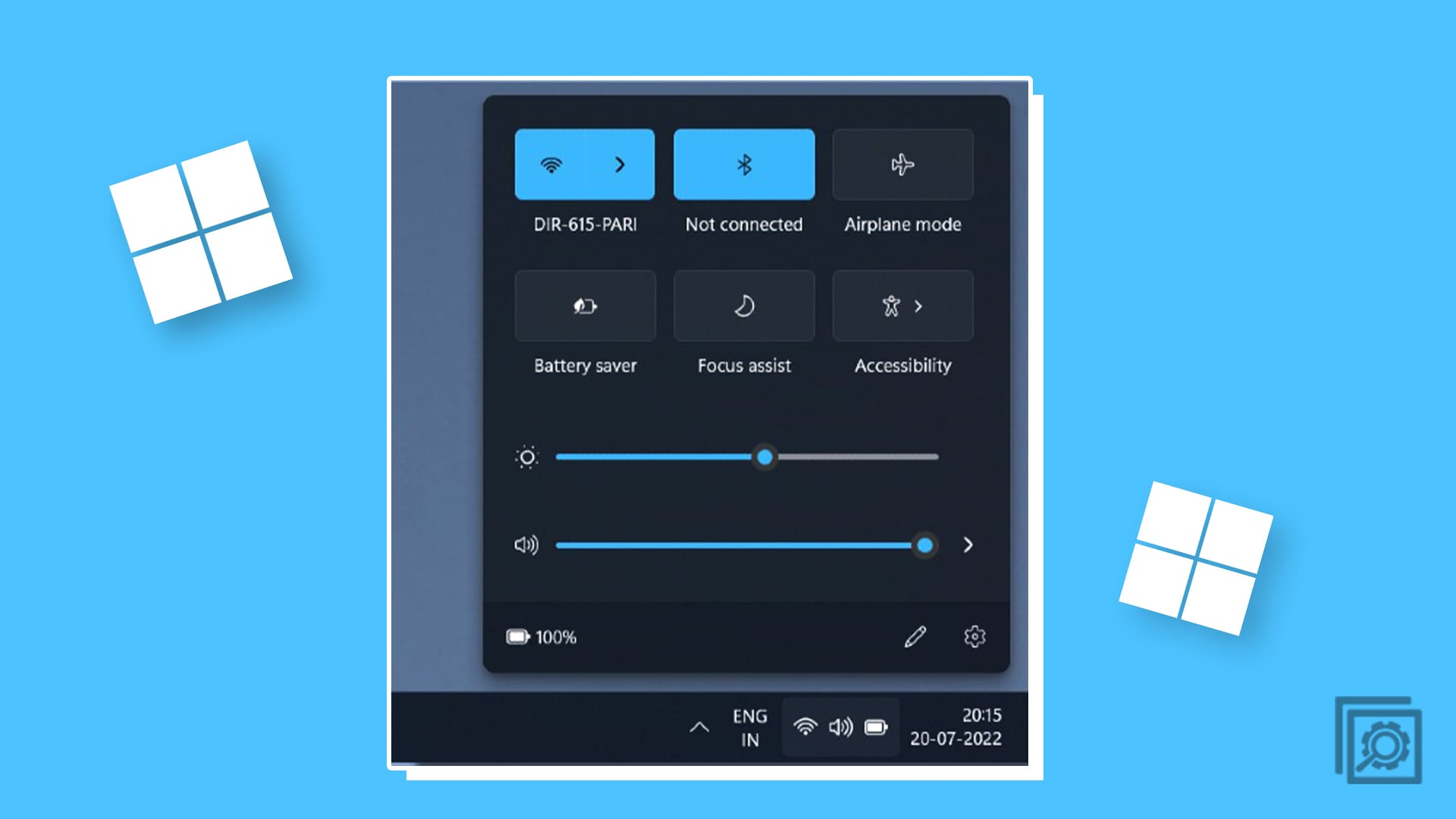
Another quick and easy way to adjust the screen brightness is by using the Action Center. Open the Action Center by pressing the Windows + A keys. The brightness slider will be the first one on the top. You can use your mouse, or if you have a touchscreen, your hands to adjust it.

How to Adjust the Screen Brightness Using the Mobility Center on Windows 11
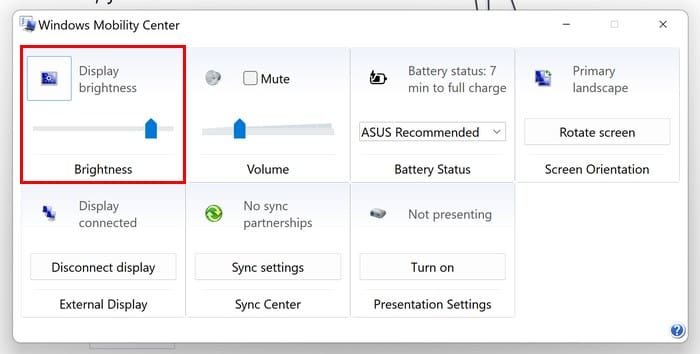
You can also use the Mobility Center if you still want more options to adjust the screen brightness. You can access the Mobility Center by right-clicking on the Start Menu and choosing Mobility Center at the top. The Display Brightness option will be the first one on the left. Use the slider to adjust the brightness to your liking.
How to Change the Screen Brightness Using Energy Recommendations on Windows 11
You like your screen to be as bright as possible, but if you want your battery to last, these changes are necessary. You can adjust your brightness to save battery by going to settings. Open Settings by pressing the Windows + I keys. Once in Settings, go to System > Power and Battery> Energy Recommendations. You’ll see six changes you must make to save battery, and brightness is one of them.
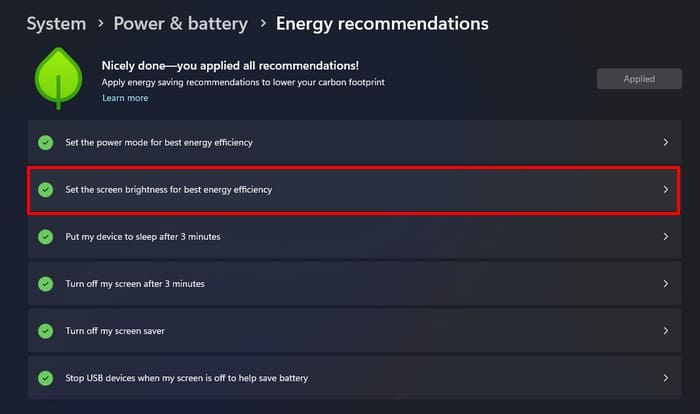
At the top right, you’ll see a button that says Apply. Click on it, and your computer will make those six changes to save as much battery as possible. You’ll notice the change automatically if your screen’s brightness is too high. You can’t see to what percentage the brightness was in Energy Recommendations. But, if you click on the Set the screen brightness for best energy efficiency option, you’ll end up in Display settings, where if you place the cursor on the blue circle, you should see the percentage (for future reference).

How to Change the Display Brightness Using PowerShell
If you like using PowerShell to make changes, here is a command you can try to change the screen brightness. First, open PowerShell as an administrator by right-clicking the Windows Start menu and choosing Terminal (Admin). Once it’s open, press Ctrl + V to paste the following command:
(Get-WmiObject -Namespace root/WMI -Class WmiMonitorBrightnessMethods).WmiSetBrightness(1, BrightnessValue)
Remember to replace where it says Brightness Value with how bright or low you want your display to be. For example, you can choose any number from one to 100. So the command will look like this:
(Get-WmiObject -Namespace root/WMI -Class WmiMonitorBrightnessMethods).WmiSetBrightness(1, 90)
Press enter, and the change will be applied automatically. To check that the command worked, go to Settings > Display > and place the cursor on the blue circle under brightness. If you put the screen brightness to 90, it should be 90.
How to Change the Screen Brightness Using the Command Prompt
To change the screen brightness using the Command Prompt, you must open it as an Administrator. You can do this by typing Command Prompt in the search field, and when it comes up in the results, choose the Run as administrator option. Once it’s open, enter the following command:
PowerShell (Get-WmiObject -Namespace root/WMI -Class WmiMonitorBrightnessMethods).WmiSetBrightness(1, BrightnessValue)
Remember to change where it says Brightness Value to the brightness you want. For example, if you’re going to set it to 70, the command will look like this:
PowerShell (Get-WmiObject -Namespace root/WMI -Class WmiMonitorBrightnessMethods).WmiSetBrightness(1, 70)
How to Adjust Screen Brightness Using a Third-Party App
In the Microsoft Store, you’ll find apps you can use to give you more control over how you can change the screen brightness. You’ll find apps you’ll need to pay for and others you can try for free such as Twinkle Tray: Brightness Slider. The app is free, and let’s customize what keyboard keys you can use to increase or decrease the brightness. You can also set how much brightness should be adjusted when using hotkeys.
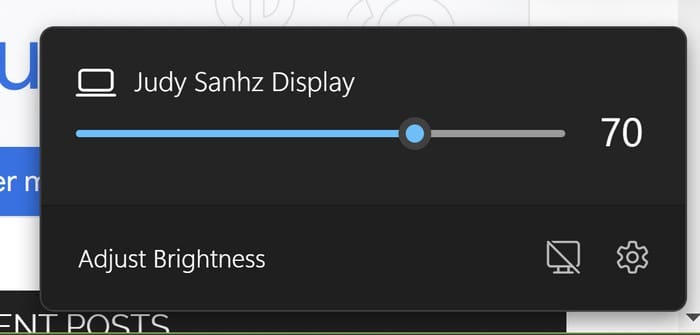
When you install the app, it’ll give you some brief instructions on how to set it up. The app will have an icon in the form of a star (the shape can be changed) on your taskbar. When you click on it, you can easily adjust the brightness if you cannot adjust the brightness from the Action Center (for example).
You can do other things by going to settings, such as renaming your display, using troubleshooting options, and adjusting the screen brightness after a specific time. You can even enable an Idle Detection option that will reduce the brightness of all displays when the app detects no input for some time. Other helpful options include changing the theme, language, the App icon, and resetting settings. If you’re not happy with the app, you can always uninstall it. Since it’s free, there is no refund process to go through.
How to Adjust Screen Brightness Using Battery Saver on Windows 11
When your battery is running low, you need to make changes for it to last as long as possible. Battery saver can change the screen brightness to give you that extra time. To allow the feature to change the screen brightness go to Settings > System > Power and Battery > Battery Saver. Toggle on the option that says Lower screen brightness when using battery saver and set the percentage for when you want Battery Saver to start.

Further Reading
As long as we’re on the subject of adjusting the screen brightness, see how you can alter camera brightness for Microsoft Teams. Or if you’re having issues with the adaptive brightness on Google Pixel or Android, here are some tips to try. And for Android users, see how you can prevent apps from changing the brightness on your device. For Zoom users, here is how you can boost the brightness of your webcam.
Conclusion
The more options you have when changing the brightness of your screen, the better. If you can’t use one, you have others to choose from. You can adjust the screen brightness from settings, the Action Center, or you can use a third-party app (among other options). Some methods are quick, while others take a few more steps but still get the job done. Which one will be your preferred way? Share your thoughts in the comments below, and remember to share the article with others on social media.