Skip to content
LogoTechnipages
LogoTechnipages
  • Topics
        • Android
        • Browsers
        • Gaming
        • Hardware
        • Internet
        • iPhone
        • Linux
        • macOS
        • Office
        • Reviews
        • Software
        • Windows
        • Definitions
        • All Recent Posts
  • Product Reviews
  • About

Set Song to Repeat on iPhone, iPad, and iPod Touch

Mitch BartlettNovember 10, 2018 Comments (2)
iTouch repeat song option

You can set a single song or a playlist to repeat on the Apple iPhone, iPad, or iPod Touch a couple of different ways. We’ll show you how with this tutorial.

Contents

  • 1 iOS 10 & Higher
  • 2 iOS 9
  • 3 iOS 7 & iOS 8
  • 4 iOS 6 & Lower

iOS 10 & Higher

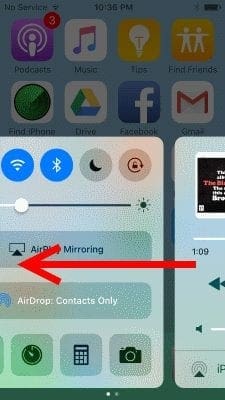
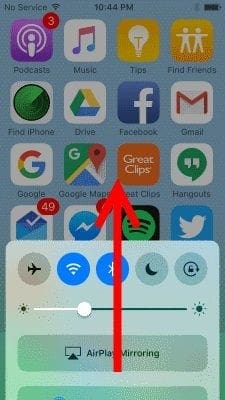
  1. Navigate to the “Now Playing card. You can access the “Now Playing” card from anywhere by swiping up from the bottom of the screen to bring up the Control Center, then swiping left.ios-10-swipe-up-control-centerios-10-swipe-now-playing-card
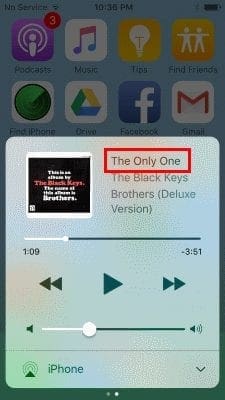
  2. Select the name of the song.ios-10-select-song
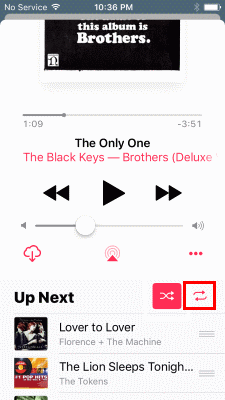
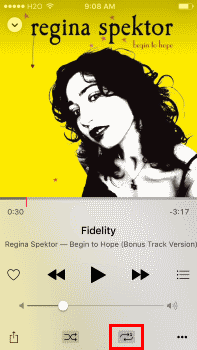
  3. iOS 10 users can select the crossed arrows to toggle the Repeat setting. The arrows will show with a darker box when enabled.
    ios-10-repeat

iOS 9

  1. From any screen, swipe up from the bottom of the screen to bring up the Quick Control panel.
  2. Tap the name of the song.
  3. Tap on the circular arrows below the bar. Tapping it once will repeat all the songs in the list. Tapping it again will repeat the current song. The number 1 will appear on the arrow icon indicating it is currently repeating a single song.
    iOS9 Repeat

iOS 7 & iOS 8

  1. From the “Now Playing” screen within the Music app, you can use the “Repeat” option located at the lower-left portion of the screen.
    iPhone Repeat Music Option
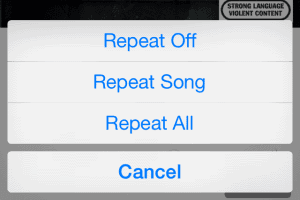
  2. When selected, you will be presented with three options:
    • Repeat Off = Turns repeat off.
    • Repeat Song = Repeats the current song.
    • Repeat All = Play through the currently selected playlist, artist, or album, then repeat playing the list.
      iOS7 Repeat Options

Alternately, you can use Siri to set songs to repeat. Just press and hold the Home button, then say “Repeat” followed by what you want to repeat.

Example: “Repeat Smells Like Teen Spirit”

iOS 6 & Lower

  1. From the “Now Playing” screen, tap on the album art.
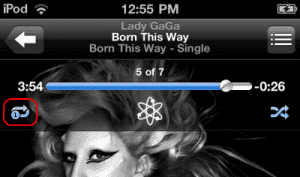
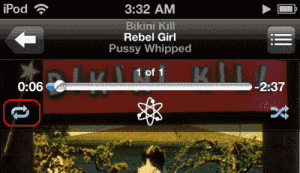
  2. Tap on the circular arrows below the bar. Tapping it once will repeat all the songs in the list. Tapping it again will repeat the current song.
    iTouch-repeat-song-option

The number 1 will appear on the arrow icon indicating it is currently repeating a single song.
iPod-Touch-repeat

Note: If you select the “Next” button while you have a single song set to repeat, it will skip to the next song. The repeat functionality only works if the song comes to an end naturally.


Categories: iPhone

Author Mitch Bartlett

Through my career that spans over 20 years I have become an expert in Microsoft Systems Administration, Android, and macOS. I started this site as a technical guide for myself and it has grown into what I hope is a useful knowledgebase for everyone.

You Might Also Like

  • Full Pinterest site in Safari for iOS

    Pinterest: How to View Full Website On iPad, iPhone or iPod Touch

    Morgan LangeiPhone
  • how long iphone charger lasts

    How Long Do iPhone Chargers Usually Last?

    Madalina DinitaiPhone
  • dropbox

    Fix: Dropbox Not Finding New Photos on iPhone

    Madalina DinitaiPhone
  • How to Use Smart Stack Widget on iPhone and iPad The Ultimate Guide

    How to Use Smart Stack Widget on iPhone and iPad: The Ultimate Guide

    Tamal DasiPad

Comments

  1. Nicole says:
    September 13, 2020 at 8:08 am

    The bottine for the repet is not on there on my iPod 3 and I’m try to get it off the repet

  2. Fred Flintstone says:
    August 1, 2019 at 10:23 am

    ‘iOS 10 users can select the crossed arrows to toggle the Repeat setting. ‘ No, it’s the circular arrows. Crossed arrows controls shuffle.

Leave a Reply

Your email address will not be published. Required fields are marked *

  • unable to create notebook error in onenote

    We Were Unable to Create Your Notebook Error in OneNote – Common Fixes 

  • error code 0x800704f8 fix

    Error Code 0x800704f8 – How to Fix 

  • back button in browsers doesnt work

    What to Do if the Back Button in Browser Doesn’t Work 

  • could not find this item

    “Could Not Find This Item” When Trying to Remove Files

  • no graphics signal on first boot

    No Graphics Signal on First Boot – How to Fix

profile pic

The Experts Behind Technipages

My name is Mitch Bartlett. I've been working in technology for over 20 years in a wide range of tech jobs from Tech Support to Software Testing. I started this site as a technical guide for myself and it has grown into what I hope is a useful reference for all.

Learn More

technipages logo white
linkedin icon

Technipages is part of Guiding Tech Media, a leading digital media publisher focused on helping people figure out technology. Learn more about our mission and team here.

© 2026 Guiding Tech Media All Rights Reserved

  • About Us
  • Contact
  • Terms of Use
  • Privacy Policy

© 2026 Guiding Tech Media All Rights Reserved

Information from your device can be used to personalize your ad experience.
Do not sell my personal information.

Last Updated on November 10, 2018 by Mitch Bartlett