Skip to content
LogoTechnipages
LogoTechnipages
  • Topics
        • Android
        • Browsers
        • Gaming
        • Hardware
        • Internet
        • iPhone
        • Linux
        • macOS
        • Office
        • Reviews
        • Software
        • Windows
        • Definitions
        • All Recent Posts
  • Product Reviews
  • About

Windows: Unable to Launch Virtual Machines

Mel HawthorneOctober 12, 2020 Comments (0)

Virtual machines are a really clever way of making the most out of your hardware. With one physical computer or server, you can run many different virtual machines. Each virtual machine is essentially its own computer, the only difference is that it’s running on a portion of the physical hardware rather than using all of it.

To actually create and use virtual machines, you need some sort of virtualization software or hypervisor. You may run into an issue on some computers where your virtual machine will just refuse to launch. There is a range of reasons why this could happen, we’ll walk you through troubleshooting some common issues.

Troubleshooting your virtual machine not launching

The best thing to check first is that the hardware has enough available system resources for the virtual machine that you’re trying to launch. For example, if you’re trying to run a virtual machine with 16GB of RAM but only have 8GB of RAM available, then your virtual machine will fail to run. The exact technique used to configure your virtual machine’s system resources will depend on the software that you’re using.

Another thing to check is that you have some form of bootable operating system. This can be an operating system on the main virtual hard drive that your virtual machine is using. It could also be an “iso” disk image, which is a bootable operating system installer.

If your virtual machine still won’t launch its possible that virtualization support is disabled in your BIOS. To check if virtualization support is enabled, open Task Manager, by pressing Ctrl+Shift+Esc. In the “Performance” tab, check the value for “Virtualization” in the bottom-right corner. It should say “Enabled”, if it says “Disabled” then you will need to go into your BIOS and enable the virtualization support.

Check that the value for “Virtualization” in the bottom-right corner is “Enabled”.

The exact name for virtualization support will vary between Motherboard and CPU manufacturer. On Intel platforms, it will be known as Intel Virtualisation Technology, or Intel VT, VT may optionally have an “-i”, “-d” or “-x” on the end, there may also be more than one entry in your BIOS. On AMD platforms, the same basic rules apply, but the technology is generally shortened to AMD-V or SVM, aka Secure Virtual Machine. These settings need to be enabled for virtual machines to run.
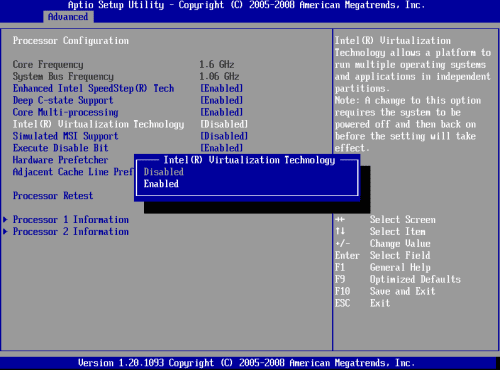
Enable the virtualization options in your BIOS.

Categories: Software

Author Mel Hawthorne

You Might Also Like

  • Zoom: How to Increase the Maximum Number of Participants You Can See in the Gallery View

    Mel HawthorneSoftware
  • Slack: How To Change Your Password

    Mel HawthorneSoftware
  • Slack: How To Configure Automatic Slackbot Responses for Your Workspace

    Mel HawthorneInternet
  • Slack: How To Disable Public File Sharing

    Mel HawthorneInternet

Leave a Reply

Your email address will not be published. Required fields are marked *

  • fix page fault in nonpaged area bsod

    How to Fix “Page Fault in Nonpaged Area” BSOD 

  • fix ERROR_SYSTEM_SHUTDOWN

    How to Fix ERROR_SYSTEM_SHUTDOWN

  • cant set a new default browser

    Can’t Set a New Default Browser Automatically? Here’s What to Do

  • fix error 0x8000ffff

    How to Fix Error 0x8000ffff

  • how to fix this device cannot start code 10

    This Device Cannot Start (Code 10) – How to Fix

profile pic

The Experts Behind Technipages

My name is Mitch Bartlett. I've been working in technology for over 20 years in a wide range of tech jobs from Tech Support to Software Testing. I started this site as a technical guide for myself and it has grown into what I hope is a useful reference for all.

Learn More

technipages logo white
linkedin icon

Technipages is part of Guiding Tech Media, a leading digital media publisher focused on helping people figure out technology. Learn more about our mission and team here.

© 2025 Guiding Tech Media All Rights Reserved

  • About Us
  • Contact
  • Terms of Use
  • Privacy Policy

© 2025 Guiding Tech Media All Rights Reserved

Information from your device can be used to personalize your ad experience.
Do not sell my personal information.

Last Updated on October 12, 2020 by Mitch Bartlett