
Just like a car needs maintenance to run smoothly, your Windows computer will also need maintenance. You may already be using third-party software to keep your computer running smoothly. But whether you know it or not, your computer has also been running some maintenance. It’s called Windows Automatic Maintenance. Its task is to update Windows software and ensure that all the drivers are running smoothly (among other things). But some users may want to disable it because they would prefer that a third party be the only software that gives their computer any maintenance. Or, may they’ve noticed that their computer runs a lot slower after that maintenance.
Contents
How to Stop Windows Automatic Maintenance
You’ve noticed that Windows Automatic Maintenance has started and want to stop it. You can do this by opening the Control Panel. Search for in the search bar and click on the Open option. Now go to System and Security> Security and Maintenance> Maintenance. Click on the dropdown menu for maintenance for more options. Under Automatic Maintenance, you should see the Stop Maintenance option if maintenance is in progress.
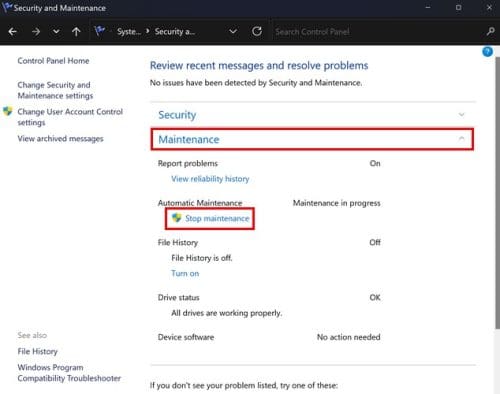
When you click on the Stop Maintenance option, what’ll happen is that Windows will show you the time and date the last maintenance was done. You’ll also see a message letting you know that Windows automatically schedules maintenance activities on your computer. But at what time? Below Automatic Maintenance, you will see the time and date of the last maintenance. But if your computer slows done too much because of the maintenance, you can schedule it when your workload is lighter. To change the maintenance time, click the Change Maintenance settings.
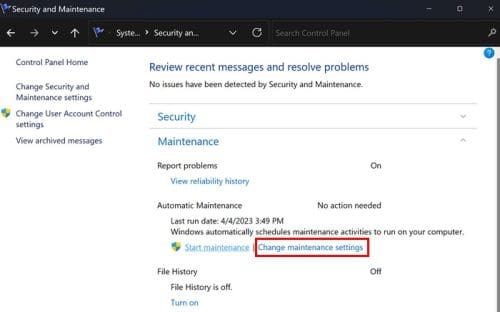
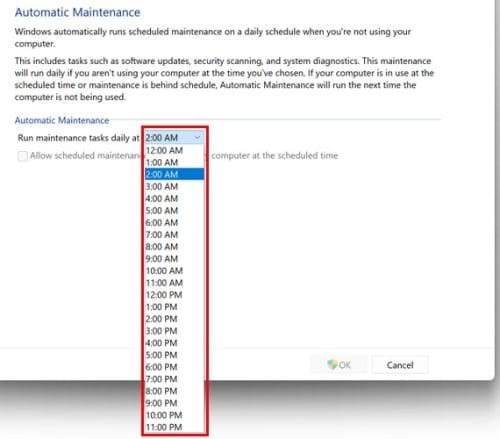
On the next window, click on the dropdown menu for the Run maintenance tasks daily. You’ll see a long list of times you can choose from. Choose your new maintenance time, and you’re all set.
You can follow these steps to start or stop Windows Maintenance. But, what some users want to do is disable it. If you go into your computer’s settings, you won’t find an option to do that. You’ll need to go into the Registry. It’s always best to create a backup of the Registry if unintentional changes are made. Having a backup of everything is always something experts recommend since you never know when something might go wrong.
How to Disable Windows Automatic Maintenance Using the Registry
Open the Registry by pressing the Windows + R keys. When the Run box appears, enter regedit. Once the Registry is open, go to:
- HKEY_LOCAL_MACHINE
- SOFTWARE
- Microsoft
- Windows NT
- CurrentVersion
- Maintenance
To the right, you should see a file named MaintenanceDisabled. If you don’t see it, don’t worry since you can easily create it. To make it, right-click below the only option and place the cursor on the New option, followed by the DWORD (32-bit) Value.
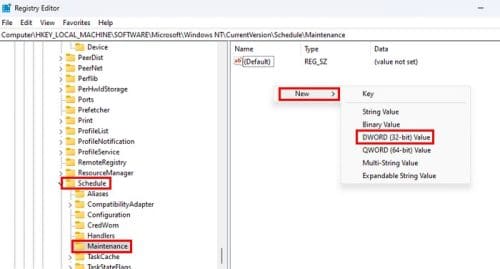
Name the file MaintenanceDisabled and click on a space to save it, or press enter. Now it’s time to enable it since it’s not enough only to create it. Right-click on the file and choose Modify. In the value data box, it will already be set to zero. Change the zero to a one, and it’ll be enabled.
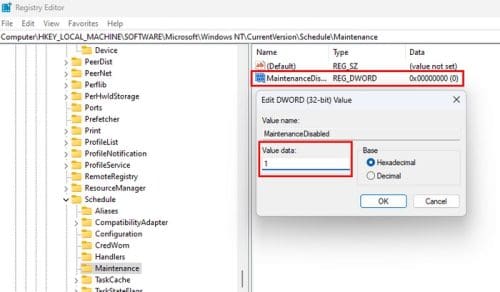
When you’re ready to disable the option because you want the Windows Automatic Maintenance back, change the value to zero. Don’t forget to restart your computer. Now you don’t have to worry about the issue the Windows maintenance has been causing you. Turning it back is as easy as changing the zero to a one.
Further Reading
As long as we’re on the subject of maintenance, you might want to continue reading about how you can use maintenance mode on Samsung Galaxy Phone to keep it running smoothly. Also, if you have a 3D printer, here are some maintenance tips to keep in mind to help it run smoothly and longer. If you need to search for tips on a specific topic not mentioned here, you can always use the search bar at the top of the page. Happy reading!
Conclusion
For some Windows users, the Automatic maintenance feature is helpful but causes issues for others. And, if it’s something you would instead turn off, now you know the steps to follow. If you ever change your mind and want to turn it back on, you only need to follow the same steps but change the one for a zero. Remember that you’ll need to restart your computer to apply the changes. Nothing will happen when you disable the option and try to run the maintenance feature. You’ll only see the date for the last time Windows ran the maintenance. Why did you need to turn off the Windows Automatic Maintenance? Share your thoughts in the comments below, and don’t forget to share the article with others on social media.