Skip to content
LogoTechnipages
LogoTechnipages
  • Topics
        • Android
        • Browsers
        • Gaming
        • Hardware
        • Internet
        • iPhone
        • Linux
        • macOS
        • Office
        • Reviews
        • Software
        • Windows
        • Definitions
        • All Recent Posts
  • Product Reviews
  • About

Windows 11: How to Remove the Language Switcher Icon

Judy SanhzNovember 26, 2022 Comments (0)
Windows Header

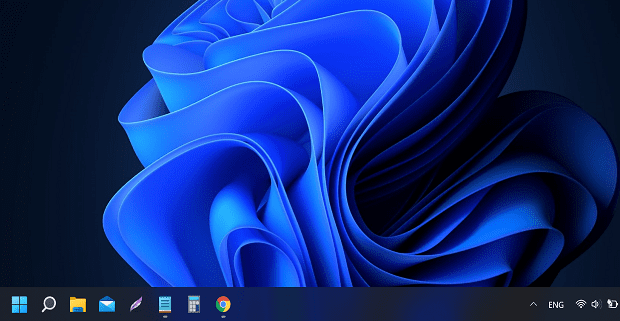
The language switcher icon makes it easier for you to switch languages from the taskbar. But maybe it’s cluttering up the taskbar, and you would rather not see it there. Whatever the reason for not wanting it there, you’ll be happy to know that removing it is easy and does not require downloading any additional software.

How to Eliminate the Language Switcher from the Taskbar in Windows 11

Some users want to remove the language switcher from the taskbar because they prefer to access it by pressing the Windows and Space keys or by clicking on the system tray icon. If these are your preferred choices and you want to remove the language switcher, here are the steps to follow.

Click on the Windows key and go to Settings.
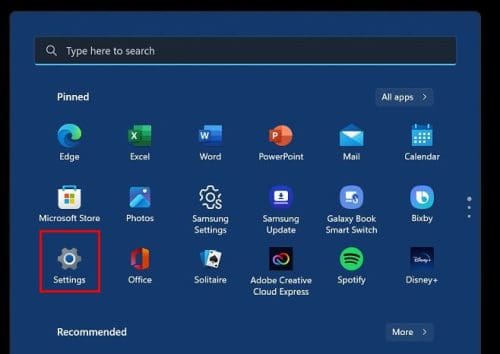
W11 Settings

Click on Time and language, followed by the Typing settings page.
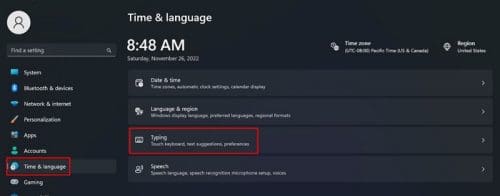
W11 Time and Language Typing

As long as you’re here, you can enable or disable other options, such as:

Advanced keyboard settings W11

  • Show text suggestions when typing on the physical keyboard
  • Multilingual text suggestions
  • Autocorrect misspelled words
  • Typing insight

But let’s move on to Advanced keyboard settings and then disable Use the desktop language bar. When you’re on the next page, look for and check an option called Use the desktop language bar when it’s available.

Langugage bar W11

Right below this last option, click on the option that says Language bar options.
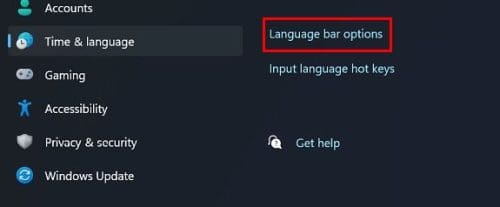
Language bar options

Make sure you’re on the Language Bar tab when the window appears. There will also be a section called Language Bar; click to enable the option called Hidden.
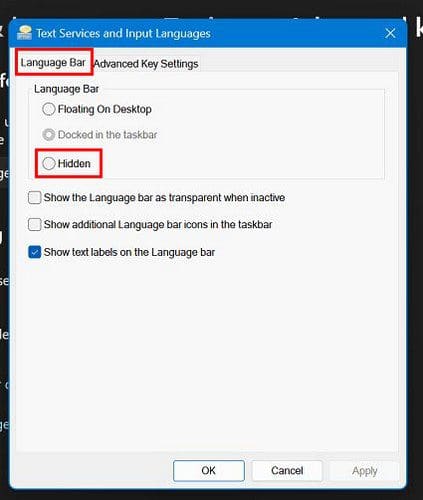
Hidden language bar W11

Don’t forget to click on the OK button to save your changes. If you’re looking to remove a language you previously installed, you can remove it by going to:

  • Settings (Win + I key)
  • Time and Language
  • Language and region
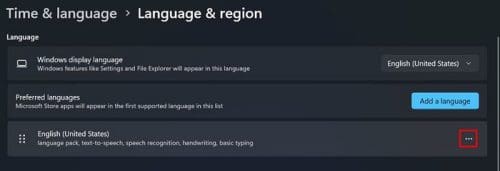
  • Click on the three dots to the right of the language you want to remove
  • Click on the remove option

Language and region W11

Conclusion

If you only type in one language, then having the language switcher icon on your desktop might make things look cluttered. If you ever want to make it re-appear, you can uncheck the hidden option you enabled in the first place. Do you think the option should be removed permanently? Let me know in the comments below, and don’t forget to share the article with others on social media.


Categories: Windows

Author Judy Sanhz

I am a tech geek who loves technology. I have been writing about tech for over a decade, covering various devices and programs. I write about Android, Apple, and Windows devices and programs. I stay updated on the latest gadgets, upgrades, features, and news. I aim to make complicated tech information easy for everyone to read. I've been with TechniPages from the beginning to help others fix their tech issues with the easy-to-follow guides.

You Might Also Like

  • Active Directory logo

    How to Find Computer Locking Active Directory Account

    Mitch BartlettWindows
  • How-to-Use-Windows-File-Recovery

    How to Use Windows File Recovery to Recover Data

    Madalina DinitaWindows
  • windows-11-error-0x800f0950

    How Do I Fix Error Code 0x800f0950 on Windows 11?

    Madalina DinitaWindows
  • never-combine-taskbar-buttons-windows-11

    Windows 11: Enable Never Combine Taskbar Buttons

    Madalina DinitaWindows

Leave a Reply

Your email address will not be published. Required fields are marked *

  • an unexpected error is keeping you from copying files

    How to Fix “An Unexpected Error Is Keeping You From Copying” for Files 

  • fix page fault in nonpaged area bsod

    How to Fix “Page Fault in Nonpaged Area” BSOD 

  • fix ERROR_SYSTEM_SHUTDOWN

    How to Fix ERROR_SYSTEM_SHUTDOWN

  • cant set a new default browser

    Can’t Set a New Default Browser Automatically? Here’s What to Do

  • fix error 0x8000ffff

    How to Fix Error 0x8000ffff

profile pic

The Experts Behind Technipages

My name is Mitch Bartlett. I've been working in technology for over 20 years in a wide range of tech jobs from Tech Support to Software Testing. I started this site as a technical guide for myself and it has grown into what I hope is a useful reference for all.

Learn More

technipages logo white
linkedin icon

Technipages is part of Guiding Tech Media, a leading digital media publisher focused on helping people figure out technology. Learn more about our mission and team here.

© 2025 Guiding Tech Media All Rights Reserved

  • About Us
  • Contact
  • Terms of Use
  • Privacy Policy

© 2025 Guiding Tech Media All Rights Reserved

Information from your device can be used to personalize your ad experience.
Do not sell my personal information.

Last Updated on November 26, 2022 by Judy Sanhz