Skip to content
LogoTechnipages
LogoTechnipages
  • Topics
        • Android
        • Browsers
        • Gaming
        • Hardware
        • Internet
        • iPhone
        • Linux
        • macOS
        • Office
        • Reviews
        • Software
        • Windows
        • Definitions
        • All Recent Posts
  • Product Reviews
  • About

Windows 11: How to Manage Your Organization Manages Updates on This PC

Madalina DinitaDecember 2, 2021 Comments (1)
your-organization-manages-updates-on-this-pc

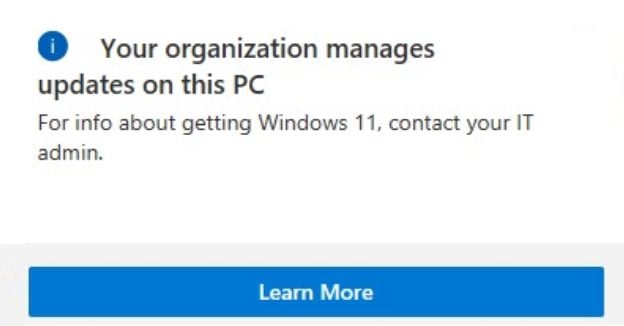
Before upgrading to Windows 11, make sure your computer meets the system requirements to run the OS. One way to do that is to run the PC Health Check app. Sometimes, the app may inform you that “Your organization manages updates on this PC.” Let’s discuss what that message means and what you can do about it.

Contents

  • 1 What to Do If Your Organization Manages PC Updates
    • 1.1 Contact Your IT Admin
    • 1.2 Unlink Work or School Accounts
    • 1.3 Create a New User Account
    • 1.4 Conclusion

What to Do If Your Organization Manages PC Updates

Contact Your IT Admin

Suppose the PC Health Check app says that your organization manages PC updates. In that case, this indicates you don’t have full admin privileges. That’s to be expected when your computer is managed by an organization. In other words, your IT admin has set up specific settings to prevent you from installing new OS versions.

Just because you can log in with an admin account doesn’t mean you control all the settings. IT admins actually decide what each user category can and can’t do. They usually deploy software updates in the background. You don’t need to do anything; they’ll take care of everything.

However, if your admin has already deployed the latest Windows updates, but your computer is stuck on a previous OS version, reach out to them for further help.

Unlink Work or School Accounts

Make sure you’re using the right user account on your computer. If the company you work for uses a “Bring Your Own Computer” approach, unlink your work account. The same is valid if you’re using a school account to attend online classes.

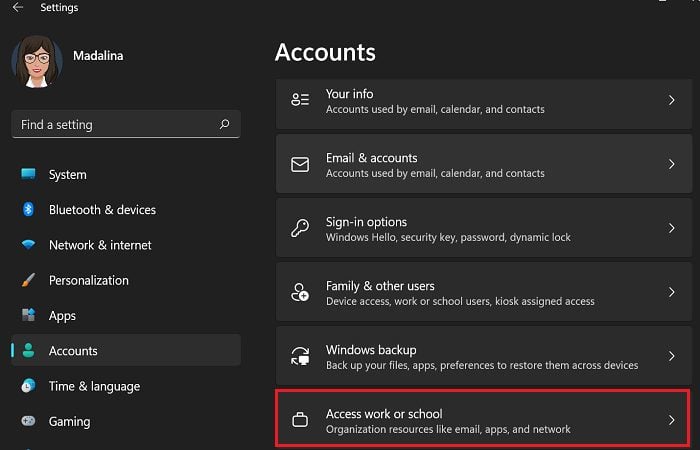
  1. Go to Settings, and select Accounts.
  2. Scroll down to Access work and school.access-work-or-school-windows-11
  3. Unlink your work or school account, and keep your personal account.
  4. Then rerun the PC Health Check app. Check if you can upgrade to Windows 11.
Create a New User Account

If your current user account got corrupted, create a new admin account. Then log in to the new admin profile and check if you can install Windows 11.

  1. Go to Control Panel, and select User Accounts.
  2. Then click on Manage another account.manage-another-account-windows-control-panel
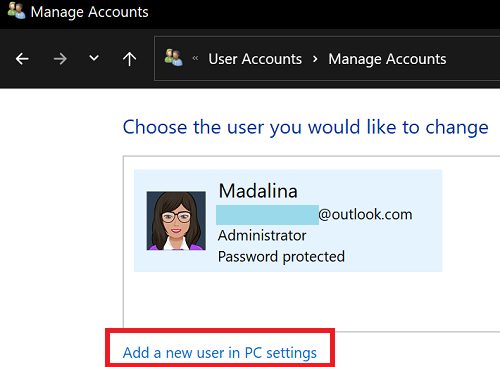
  3. Select Add a new user in PC settings.add-a-new-user-in-PC-settings
  4. Configure the new account with admin privileges.
  5. Switch to the new admin account and check for updates.

By the way, installing a new OS will also fix your corrupted user account issue.

Conclusion

Suppose you can’t install Windows 11 because your organization is managing PC updates. In that case, this means your IT admin has set up specific settings to prevent you from installing OS updates. Contact your IT admin for further help. Additionally, unlink your work or school account. Add a new admin account, and check if you can install Windows 11.

Did you manage to install Windows 11 on your computer? Do you like the new OS? Let us know in the comments below.


Categories: Windows

Author Madalina Dinita

Madalina has been a Windows fan ever since she got her hands on her first Windows XP computer. She is interested in all things technology, especially emerging technologies -- AI and DNA computing in particular.

You Might Also Like

  • Windows: Cannot Connect to Certain Web Sites

    Mitch BartlettWindows
  • fix-windows-automatic-repair-loop-no-administrator-account

    Fix: Windows Automatic Repair Loop, No Admin Account

    Madalina DinitaWindows
  • windows-11-bugs

    Windows 11 Bugs That Users Are Complaining About

    Madalina DinitaWindows
  • windows-11-change-taskbar-size-position-color

    Windows 11: Change Taskbar Size, Position and Color

    Madalina DinitaWindows

Comments

  1. brian says:
    November 1, 2021 at 10:42 pm

    no – it does nothing to help with a PC getting this messages on home PC not managed by any one but the owner of the PC>

Leave a Reply

Your email address will not be published. Required fields are marked *

  • unable to create notebook error in onenote

    We Were Unable to Create Your Notebook Error in OneNote – Common Fixes 

  • error code 0x800704f8 fix

    Error Code 0x800704f8 – How to Fix 

  • back button in browsers doesnt work

    What to Do if the Back Button in Browser Doesn’t Work 

  • could not find this item

    “Could Not Find This Item” When Trying to Remove Files

  • no graphics signal on first boot

    No Graphics Signal on First Boot – How to Fix

profile pic

The Experts Behind Technipages

My name is Mitch Bartlett. I've been working in technology for over 20 years in a wide range of tech jobs from Tech Support to Software Testing. I started this site as a technical guide for myself and it has grown into what I hope is a useful reference for all.

Learn More

technipages logo white
linkedin icon

Technipages is part of Guiding Tech Media, a leading digital media publisher focused on helping people figure out technology. Learn more about our mission and team here.

© 2026 Guiding Tech Media All Rights Reserved

  • About Us
  • Contact
  • Terms of Use
  • Privacy Policy

© 2026 Guiding Tech Media All Rights Reserved

Information from your device can be used to personalize your ad experience.
Do not sell my personal information.

Last Updated on December 2, 2021 by Mitch Bartlett