There are various Bluetooth devices you can connect to your Windows 11 computer. For example, you can add some buds or a Bluetooth speaker. The list doesn’t end there since you also have the option of adding a keyboard. The process may sound complicated if you’re not tech-savvy, but by following one step at a time, you’ll see that it isn’t so complex.
Contents
How to Easily Connect a Bluetooth Device to Windows 11
You can add various Bluetooth devices to your Windows 11 computer. To get started, click on the Windows icon and the Settings app. Once you’re in Settings, click on the Bluetooth and devices option from the left. You can click on different options to connect your device. You can tap or click on the Add device button at the top, or you can click on the Add device button in the Devices option. Ensure that Bluetooth is enabled on your computer. You can do this by pressing the Windows and A keys to open the Action Center. When you go to Settings and click on Bluetooth and devices, you’ll also see the option to enable Bluetooth.
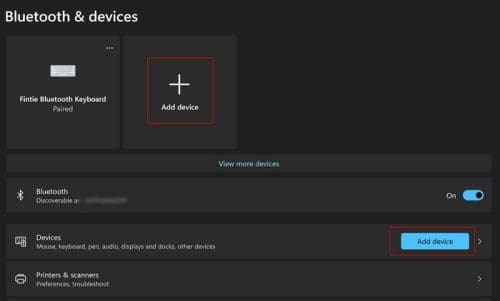
Ensure that the Bluetooth device you’re trying to connect is on, and if it has a connect button like a Bluetooth keyboard would turn that on too. When you click on the Add Device button, click on the Bluetooth option at the top, and your computer will start to look for the devices.
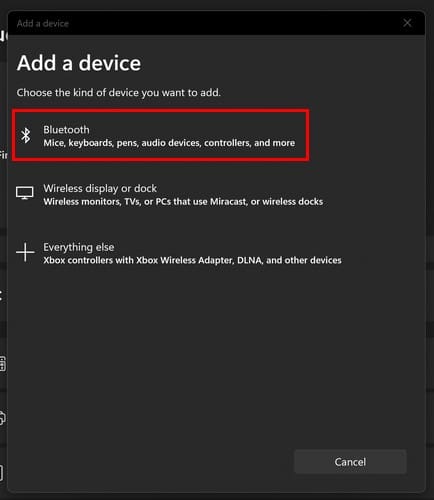
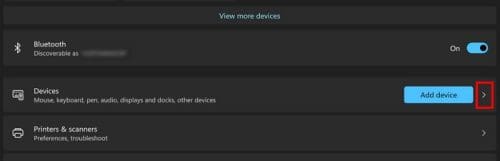
Click on it when you find it on the list, followed by the connect button at the bottom. Once you’re done adding your Bluetooth devices, you can check to see which are connected by going to Settings > Bluetooth and devices, and to the left of the Add device button, you’ll see them. You can also click on the arrow pointing right to the side of the Add device button.
How to Remove a Bluetooth Device from Windows 11
Just because you connect a device doesn’t mean that there will come a time when you’ll need to remove it. The good news is that eliminating the devices just as easy as adding them. You’ll need to go to the list of connected devices to remove a device. You can do that by going to Settings > Bluetooth and devices. You can see your connected device by choosing two paths. You can click on the dots of the connected option at the top, or you can click on the arrow pointing right to the right of the Add Device button.
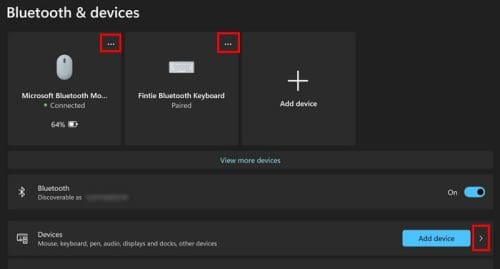
You’ll see all the paired devices in the Input area when you click on the arrow. Each device will have dots to the right, and when you click on the dots, you’ll see the Remove Device option. Click on it, and the device will be removed automatically. On that list, you’ll also see how much battery your connected Bluetooth device has. As shown in the image above, my Microsoft Bluetooth mouse only had 64%.
Further Reading
There are various other Bluetooth articles you can continue reading if you want. You can check out the article explaining how to use Bluetooth headphones with Pixel watch and pair Bluetooth headphones to Chromebook too. And, if Bluetooth stops working, there are some useful tips you can use to fix it.
Conclusion
When you use a Bluetooth device, you have the comfort of not having to deal with cables. You have to watch out for how much battery the device has, but it’s worth it, considering its convenience. Also, just because you pair a device to your computer, that doesn’t mean you can remove it at any time. If you’re unsure if you paired a device, your Windows 11 computer will let you know, and it’ll also let you know how much battery it has left. How many devices will you be adding? Share your thoughts in the comments below, and don’t forget to share the article with others on social media.