
Skip to content
LogoTechnipages
LogoTechnipages
  • Topics
        • Android
        • Browsers
        • Gaming
        • Hardware
        • Internet
        • iPhone
        • Linux
        • macOS
        • Office
        • Reviews
        • Software
        • Windows
        • Definitions
        • All Recent Posts
  • Product Reviews
  • About

How to Pair Bluetooth Headphones to Chromebook

Aaron KimSeptember 28, 2022 Comments (0)

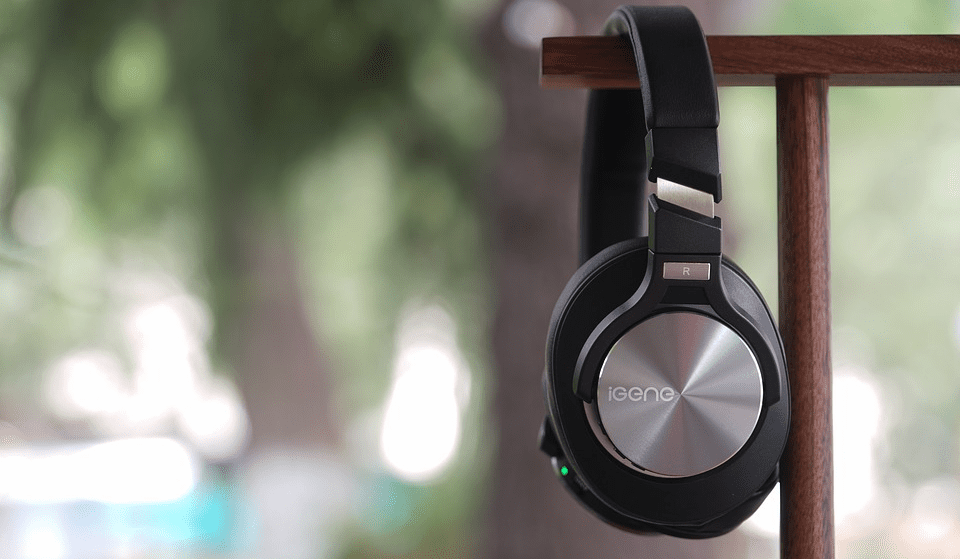
Chromebooks are awesome for their portability, so it’s only right that you should use devices that fit the portable theme. If you’re looking to pair your Bluetooth headphones with your Chromebook, you may feel a little confused if you’re a new user. The process is super simple, and once you’ve done it, you’ll never struggle with pairing Bluetooth devices again. Check out our comprehensive guide on how you can pair Bluetooth headphones to a Chromebook below.

Contents

    • 0.1 Related Reading:
  • 1 How to Pair Bluetooth Headphones to Chromebook
  • 2 Conclusion

Related Reading:

  • Fix: Bluetooth Headset Showing as Two Devices on PC
  • Fix: Chromebook Won’t Connect to Bluetooth Devices
  • Bluetooth Headset Won’t Work as Headphones and Speakers
  • How to Add Bluetooth to Any Computer

How to Pair Bluetooth Headphones to Chromebook

The process of how to pair Bluetooth headphones to a Chromebook is extremely simple. Provided that both your headphones and Chromebook work just fine and have adequate connectivity, you can follow these simple steps:

  1. Make sure your Bluetooth headphones are on and your Chromebook has Bluetooth on.
  2. Click on the Quick Settings Panel at the bottom right corner of your Chromebook screen.
  3. Click on Bluetooth.
  4. In the dropdown menu, select your Bluetooth headphones.
  5. Follow any supplementary onscreen instructions.

That’s it! You can take your Chromebook and Bluetooth headphones anywhere you please and enjoy the portability of these devices—the wonders of Bluetooth connectivity.

Conclusion

We strongly recommend you purchase some Bluetooth devices to pair with your Chromebook, as it fits the spirit of the device. It’s great not having to worry about tangled or broken wires, plug and unplug your device in, or pack them. With Bluetooth headphones, you can wear them on your head or around your neck and wear them when you need to. Once you pair Bluetooth headphones to Chromebook, your device will recognize them for future purposes. So, you’ll need to turn on both devices and get cracking.

Categories: Hardware

Author Aaron Kim

You Might Also Like

  • Network Cable Header

    What is a Crossover Cable?

    Mel HawthorneHardware
  • Differences Between Galaxy S10, S10+ and S10e

    Mel HawthorneAndroid
  • Troubleshooting S-Pen When Not Connecting

    MonaAndroid
  • The Latest Foldable Phones – A Look At The Samsung Galaxy Z Flip3 5G

    Mel HawthorneAndroid

Leave a Reply

Your email address will not be published. Required fields are marked *

  • error 400 when signing in

    Encountered Error 400 When Signing In to Microsoft? Here’s What You Can Do 

  • unable to create notebook error in onenote

    We Were Unable to Create Your Notebook Error in OneNote – Common Fixes 

  • error code 0x800704f8 fix

    Error Code 0x800704f8 – How to Fix 

  • back button in browsers doesnt work

    What to Do if the Back Button in Browser Doesn’t Work 

  • could not find this item

    “Could Not Find This Item” When Trying to Remove Files

profile pic

The Experts Behind Technipages

My name is Mitch Bartlett. I've been working in technology for over 20 years in a wide range of tech jobs from Tech Support to Software Testing. I started this site as a technical guide for myself and it has grown into what I hope is a useful reference for all.

Learn More

technipages logo white
linkedin icon

Technipages is part of Guiding Tech Media, a leading digital media publisher focused on helping people figure out technology. Learn more about our mission and team here.

© 2026 Guiding Tech Media All Rights Reserved

  • About Us
  • Contact
  • Terms of Use
  • Privacy Policy

© 2026 Guiding Tech Media All Rights Reserved

Information from your device can be used to personalize your ad experience.
Do not sell my personal information.

Last Updated on September 28, 2022 by Judy Sanhz