Skip to content
LogoTechnipages
LogoTechnipages
  • Topics
        • Android
        • Browsers
        • Gaming
        • Hardware
        • Internet
        • iPhone
        • Linux
        • macOS
        • Office
        • Reviews
        • Software
        • Windows
        • Definitions
        • All Recent Posts
  • Product Reviews
  • About

Windows 11: How to Change Your Username

Judy SanhzDecember 7, 2022 Comments (1)

When you get your Windows 11 computer, you start adding all sorts of things to it. One of those things is a username. But, what can happen is that, in time, you don’t find that username appealing and decide it’s time for a change. The good news is that the steps to modify your username are quick and easy. The hard part is thinking of a new and good username.

Contents

  • 1 How to Modify Your Username on Windows 11 Using the Control Panel
    • 1.1 Using Settings
    • 1.2 Changing the Username for a Microsoft Account
    • 1.3 Conclusion

How to Modify Your Username on Windows 11 Using the Control Panel

Hopefully, you’re sure about your new username. To get started, type the words Control Panel in the search bar, and when you see it click on it to select it. When it opens, look for and click on Change account type; the option will be under User Accounts.
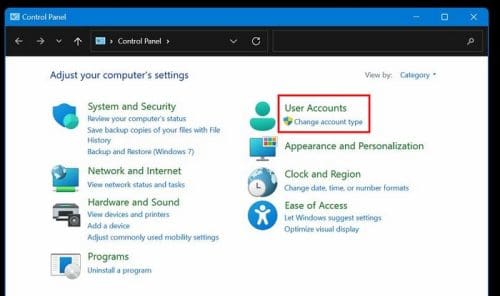
Change account types

You should now see the accounts available. They should be under the section Choose the user you would like to change. Click on the account whose name you want to change and click on Change the account name. The option should be to your left. Continue by choosing the Change Name option.

If you don’t see the option to change the name, then there is a good chance that you choose a Microsoft account, and you’ll need to go online to change the username.

Using Settings

You can also try changing the name using Settings—access Settings by using the Windows and I keys. Once you’re in settings, go to Accounts > Your Info.
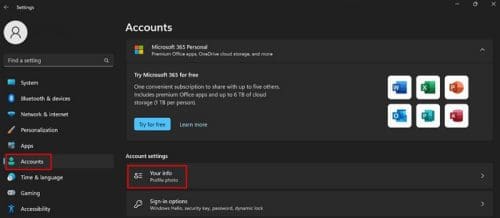
Accounts Your Info W11

Look for the Manage my accounts under the Related settings section.
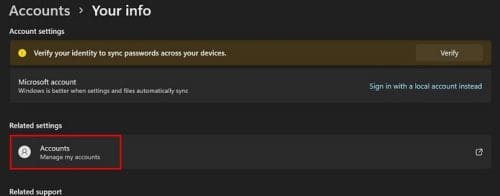
Accounts Related Settings

When you choose your account, and your browser opens, sign in and tap on the Your Info tab at the top. On the next page, click the Edit Name and fill out the following form. Enter your first and last name. You’ll also need to enter the captcha to ensure you’re not a robot. Don’t forget to click on the blue Save button. You’ll need to restart your computer.
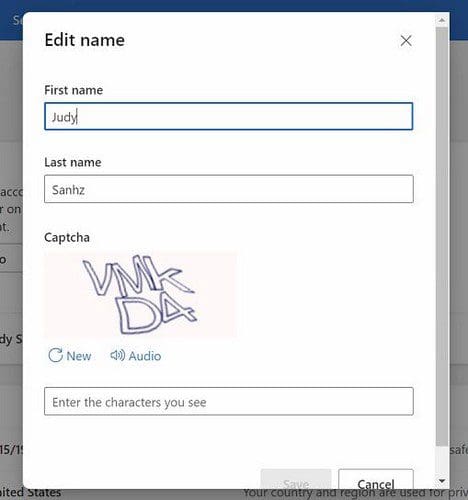
Sheet Edit Name

Changing the Username for a Microsoft Account

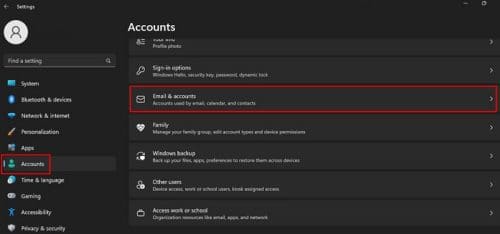
If the username you want to change belongs to a Microsoft account, here are the steps to follow. Click on the Windows Start button and go to Settings. Or, you can always use the keyboard keys Win + I to open Settings. Once you’re in settings, go to:

  • Accounts
  • Email and accounts

Accounts W11 Email and accounts

Look for your account in the Accounts used by other apps section. Click Manage, and the Microsoft account will open in your browser.
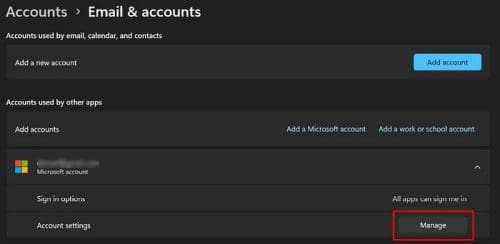
Manage Email and accounts

Click on Your info located at the top of the page, followed by the Edit name option.

Edit name Microsoft

That’s all there is to it. When it’s time to change the username once again, these are the steps you’ll need to follow.

Conclusion

Changing your username for your account is easy. The hard part is thinking of a good username that won’t make you want to change it the next day. Even if you’re not very tech-savvy, the steps are easy to follow.

If one option doesn’t work, you can always try the other one. Remember that the name change will also appear on every service the company provides, for example, the Xbox network. How many times have you changed the name? Share your thoughts in the comments below, and don’t forget to share the article with others on social media.

Categories: Windows

Author Judy Sanhz

I am a tech geek who loves technology. I have been writing about tech for over a decade, covering various devices and programs. I write about Android, Apple, and Windows devices and programs. I stay updated on the latest gadgets, upgrades, features, and news. I aim to make complicated tech information easy for everyone to read. I've been with TechniPages from the beginning to help others fix their tech issues with the easy-to-follow guides.

You Might Also Like

  • Windows 11 22H2 Download The Ultimate Guide (Photo: Courtesy of Microsoft)

    How to Enable Live Captions in Windows 11

    Judy SanhzWindows
  • Windows Header

    Windows 11: How to Enable/Disable “Manage” Selection Under “This PC”

    Judy SanhzWindows
  • Enable Login Header

    Windows 11: How to Turn on Auto Login

    Judy SanhzWindows
  • Fix Dynamic Lock Not Working on Windows 11

    Judy SanhzWindows

Comments

  1. Kampus Terbaik says:
    December 11, 2022 at 4:44 pm

    In ulang laptop saya, saya installed windows but was given a different name from the toko where the laptop is located. After reading this tutorial, I was able to change my desktop’s name

Leave a Reply

Your email address will not be published. Required fields are marked *

  • fix error code 0x3000008 1

    How to Fix Error Code 0x3000008 for Remote Desktop Connection

  • fix error code 0x80190001 1

    How to Quickly Fix Error 0x80190001 for Microsoft or Outlook Account Login 

  • fix filecoauth.exe application error

    Fix FileCoAuth.exe Application Error 

  • fix error code 0x80010002 in windows update

    How to Fix 0x80010002 Error in Windows Update 

  • an unexpected error is keeping you from copying files

    How to Fix “An Unexpected Error Is Keeping You From Copying” for Files 

profile pic

The Experts Behind Technipages

My name is Mitch Bartlett. I've been working in technology for over 20 years in a wide range of tech jobs from Tech Support to Software Testing. I started this site as a technical guide for myself and it has grown into what I hope is a useful reference for all.

Learn More

technipages logo white
linkedin icon

Technipages is part of Guiding Tech Media, a leading digital media publisher focused on helping people figure out technology. Learn more about our mission and team here.

© 2025 Guiding Tech Media All Rights Reserved

  • About Us
  • Contact
  • Terms of Use
  • Privacy Policy

© 2025 Guiding Tech Media All Rights Reserved

Information from your device can be used to personalize your ad experience.
Do not sell my personal information.

Last Updated on December 7, 2022 by Judy Sanhz