Skip to content
LogoTechnipages
LogoTechnipages
  • Topics
        • Android
        • Browsers
        • Gaming
        • Hardware
        • Internet
        • iPhone
        • Linux
        • macOS
        • Office
        • Reviews
        • Software
        • Windows
        • Definitions
        • All Recent Posts
  • Product Reviews
  • About

Windows 11: How to Automatically Hide the Taskbar

Judy SanhzMay 16, 2022 Comments (0)
Windows-11-evaluation-copy-watermark

Everyone personalizes their Windows 11 computer to their liking. For example, some users like the taskbar at the bottom of the screen since they’ll easily access the apps they use the most. You also have easy access to see what day it is and what time it is. But, for some users, the screen would look a lot better if that taskbar space was free.

By going into your computer’s settings, you can have the taskbar disappear and give you that extra space. If you ever change your mind, you can always undo the changes. Keep reading to see how you can make the taskbar disappear and reappear.

Contents

  • 1 How to Hide the Taskbar in Windows 11
    • 1.1 What to Do When the Taskbar Doesn’t Hide
    • 1.2 Conclusion

How to Hide the Taskbar in Windows 11

To hide the taskbar, right-click on the taskbar and click on the Taskbar Settings.
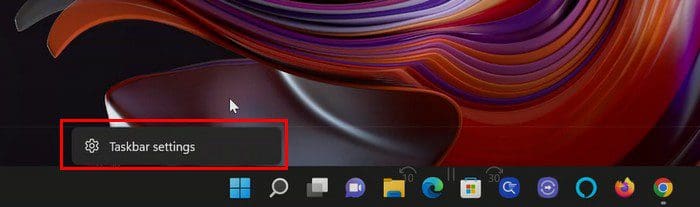
Taskbar Settings Windows 11

Once you’re in Settings, click on the Taskbar behaviors option at the bottom.

Windows 11 Taskbar behavior

In the next window, you’ll see various options. Check the box for the option Automatically hide the taskbar. You can also change the taskbar’s position as long as you’re there. If it does, then maybe it’s not necessary to make it disappear. You’ll see a dropdown menu to the right of the Taskbar Alignment option. Try placing the taskbar on each of the available options to see which one looks better.
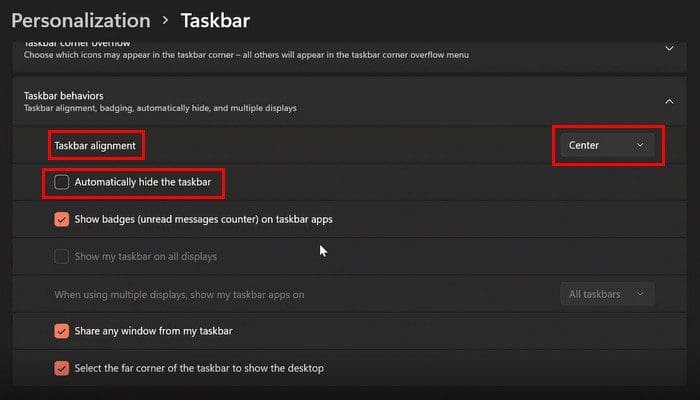
Hide Taskbar Settings

When you need to make the taskbar appear, simply place the cursor where the taskbar should be. When you move the cursor away, the taskbar will hide.

What to Do When the Taskbar Doesn’t Hide

If you notice that the taskbar won’t hide despite your following the steps, here are some reasons as to why that might be. Maybe you have some notifications that need your attention.  If that’s the case, the taskbar won’t hide until you take a look at those notifications. You can look at them by clicking on the far right of the taskbar.

Open apps could also be the culprit. You can try closing them one by one until the taskbar hides. That way, you know which one caused the problem, just in case this happens again. Starting the Windows Explorer can also help. You can do this by going to Task Manager > right-click Windows Explorer and then click on Restart.

Conclusion

If all else fails, you can also try restarting your computer. You’d be surprised what a reboot can do. But, hopefully, you won’t run into these problems. The taskbar doesn’t take up too much space, but sometimes that little space makes all the difference. Now you know what you can do to make it go away and bring it back if you ever change your mind. Why do you want to get rid of the taskbar? Share your thoughts in the comments below, and don’t forget to share the article with others on social media.

Categories: Windows

Author Judy Sanhz

I am a tech geek who loves technology. I have been writing about tech for over a decade, covering various devices and programs. I write about Android, Apple, and Windows devices and programs. I stay updated on the latest gadgets, upgrades, features, and news. I aim to make complicated tech information easy for everyone to read. I've been with TechniPages from the beginning to help others fix their tech issues with the easy-to-follow guides.

You Might Also Like

  • Inclusion list for high risk file types policy

    Windows: Disable “Publisher Could Not Be Verified” Messages

    Mitch BartlettWindows
  • Windows Header

    Windows: Open Command Prompt to Specific Folder Location

    Mitch BartlettWindows
  • How-to-Use-Windows-File-Recovery

    How to Use Windows File Recovery to Recover Data

    Madalina DinitaWindows
  • windows-11-error-0x800f0950

    How Do I Fix Error Code 0x800f0950 on Windows 11?

    Madalina DinitaWindows

Leave a Reply

Your email address will not be published. Required fields are marked *

  • system32 folder opens on startup

    System32 Folder Opens on Startup – How to Fix

  • browser keeps opening hp support

    Browser Keeps Opening HP Support Assistant Tabs 

  • camera not working in vmware

    Camera Not Working in VMware – How to Fix

  • browser screen goes black

    Browser Screen Goes Black Intermittently 

  • computer heating up in hyper v

    Computer Heating Up When Using Hyper-V – How to Fix 

profile pic

The Experts Behind Technipages

My name is Mitch Bartlett. I've been working in technology for over 20 years in a wide range of tech jobs from Tech Support to Software Testing. I started this site as a technical guide for myself and it has grown into what I hope is a useful reference for all.

Learn More

technipages logo white
linkedin icon

Technipages is part of Guiding Tech Media, a leading digital media publisher focused on helping people figure out technology. Learn more about our mission and team here.

© 2026 Guiding Tech Media All Rights Reserved

  • About Us
  • Contact
  • Terms of Use
  • Privacy Policy

© 2026 Guiding Tech Media All Rights Reserved

Information from your device can be used to personalize your ad experience.
Do not sell my personal information.

Last Updated on May 16, 2022 by Judy Sanhz