Skip to content
LogoTechnipages
LogoTechnipages
  • Topics
        • Android
        • Browsers
        • Gaming
        • Hardware
        • Internet
        • iPhone
        • Linux
        • macOS
        • Office
        • Reviews
        • Software
        • Windows
        • Definitions
        • All Recent Posts
  • Product Reviews
  • About

Windows 11: How to Automatically Empty Recycle Bin

Mitch BartlettDecember 19, 2023 Comments (0)

When you come across a file you don’t need any more in Windows 11, you erase it. But, to get rid of those files permanently, you’ll need to do something else than click on the delete option. When you wipe a file, it may disappear from your files, but it still accessible in the recycling bin.

The following guide will show how you can empty the recycling bin on a schedule. That way, you can worry about more important things and not whether you emptied the recycling bin or not.

  1. To schedule the recycling bin, open the Task Scheduler by searching for it in the search bar.
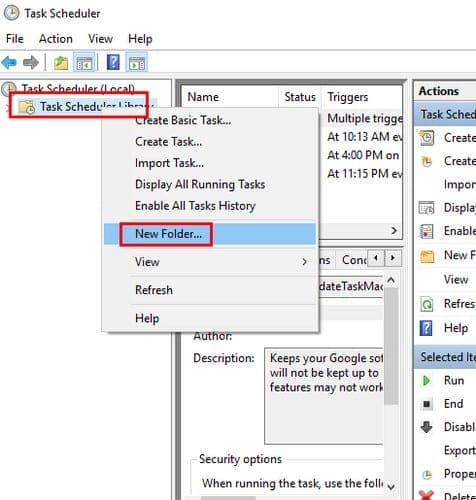
  2. In the Task Scheduler screen, right-click on Task Scheduler Library > New Folder…
  3. Give the folder a name, like “Auto Del Bin” or something recognizable for the task. Right-click on the new folder and choose to Create task.  On the General tab, give your task a name that describes what it does in the Name field.
  4. Select the Triggers tab then choose the New button at the bottom left.
  5. Select the Begin the task > On a schedule.
  6. I recommend you choose the monthly or weekly option if the schedule option is being used as a trigger. There will also be an option where you can decide when you want the cleaning to begin. Right below that, you can also choose the day.
  7. Select the Actions tab, followed by the new option at the bottom right. Under Settings where it says Programs/script type cmd.exe and also under Settings, in Add arguments type:
  • /c "echo Y|PowerShell.exe -NoProfile -Command Clear-RecycleBin" -Force

Double-check to make sure that everything is entered correctly and click OK to finish your task.

Conclusion

The more things Windows can do for means that you’ll have more time for other useful things. Emptying the recycling bin may not seem like much, but it sure helps. Are you going to empty the recycling bin on your own, or will you have Windows do it for you automatically?


Categories: Windows

Author Mitch Bartlett

Through my career that spans over 20 years I have become an expert in Microsoft Systems Administration, Android, and macOS. I started this site as a technical guide for myself and it has grown into what I hope is a useful knowledgebase for everyone.

You Might Also Like

  • Encryption Header

    How to Turn Off Windows File Encryption (EFS)

    Mitch BartlettWindows
  • Win11 Install Telnet Header

    How to Install Telnet in Windows 11

    Mitch BartlettWindows
  • Creating a Scheduled Task in Windows 11

    MonaWindows
  • Chrome: Fix “Unable to connect to the proxy server”

    Mitch BartlettSoftware

Leave a Reply

Your email address will not be published. Required fields are marked *

  • roblox error 280

    Having Trouble With Roblox Error 280? Here’s What to Do

  • hard disk smart command error

    Hard Disk SMART Command Failed – How to Fix 

  • files automatically deleted on click

    Files Getting Deleted Automatically? Here Are Some Reasons Why

  • error 400 when signing in

    Encountered Error 400 When Signing In to Microsoft? Here’s What You Can Do 

  • unable to create notebook error in onenote

    We Were Unable to Create Your Notebook Error in OneNote – Common Fixes 

profile pic

The Experts Behind Technipages

My name is Mitch Bartlett. I've been working in technology for over 20 years in a wide range of tech jobs from Tech Support to Software Testing. I started this site as a technical guide for myself and it has grown into what I hope is a useful reference for all.

Learn More

technipages logo white
linkedin icon

Technipages is part of Guiding Tech Media, a leading digital media publisher focused on helping people figure out technology. Learn more about our mission and team here.

© 2026 Guiding Tech Media All Rights Reserved

  • About Us
  • Contact
  • Terms of Use
  • Privacy Policy

© 2026 Guiding Tech Media All Rights Reserved

Information from your device can be used to personalize your ad experience.
Do not sell my personal information.

Last Updated on December 19, 2023 by Mitch Bartlett