There may be various problems you can live with when it comes to your Microsoft Windows 10 computer, but not being able to use the start menu is not one of them. Not to worry, you won’t have to download any hard to understand software to fix this.
To get your Windows 10 Start Menu working again, you will need to use the task manager and type in a few commands. Even if you’re new to Windows, you won’t have a hard time understanding the following instructions.
Contents
Disconnect Your Windows Account
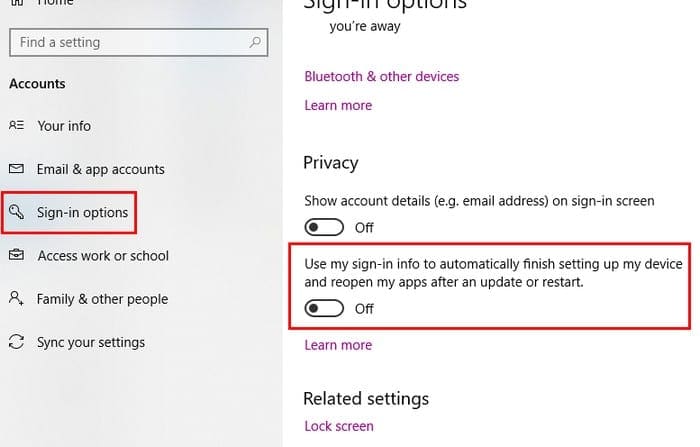
If the Windows Start Menu fails every time you restart your computer, then this is a method you want to try. Go to Settings > Accounts > Sign In Options. Scroll to Privacy and turn off the option that says ” Use my sign in info to automatically finish setting up my device after an update or restart. Hopefully, the next time you click on the Start menu, it won’t give you any issues.
Cortana Could Be the Culprit
There could be various reasons as to why the Windows Start Menu is not working, and Cortana could be one of them. To fix this issue, you could try restarting Cortana, and if that doesn’t work, you can also try re-registering it.
Let’s take this one step at a time and try restarting Cortana first. First, you’ll need to access the Task Manager by right-clicking on the taskbar. The Task Manager option will be the third one from the bottom.

Make sure you’re on the Processes tab and find Cortana. Click on it and then select the End Task button at the bottom right. This should restart Cortana and hopefully end the Start menu issue. If not, it looks like you’re going to have to re-register it.

This process requires that you launch the Windows File Explorer and go to C:WindowsSystem32WindowsPowerShellv.1.0 and once you’ve found it right-click on the powershell.exe option. You will need to run this as an administrator. Once the PowerShell is up and running copy and paste the following code:
Get-AppXPackage -AllUsers | Foreach {Add-AppxPackage -DisableDevelopmentMode -Register “$($_.InstallLocation)\AppXManifest.xml”}
When you’ve entered the command, close any program you have open and reboot your Windows computer. Your Start Menu should now be up and running.
Switch Administrative Accounts
If you notice that the Start menu starts to fail after significant updates, then this method should work for you. Create the new administrative account and move over all your files. To create the new account press Ctrl + Shift + Esc and when the Task Manager opens click on File.

Select Run new task and type net user yourname yourpassword /add
Replace the yourname part with the name you want to give the account and the yourpassword part with your new password. Click OK when you’re done and get ready to sign into your new account. The start menu should now be visible.
To transfer your files log back into your old account and go to Control Panel > System > Advanced system settings. If you have a hard time find the System option, remember that you can always use the search bar.
Now, click on Advanced system settings and when the System Properties box appears make sure you’re in the Advanced tab. Click on the User Profiles Settings box and select the account you just created and choose Copy To.

Enter Safe Mode
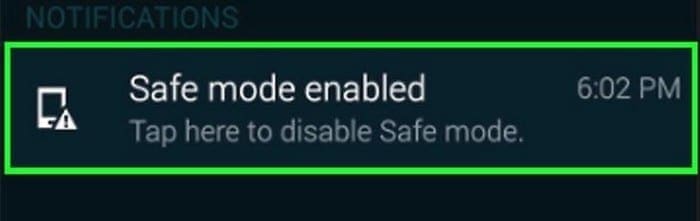
If you started having problems with the Start Menu after installing a software, then you should try entering safe mode to confirm a software is causing the problem. To enter safe mode, you’ll need to press the Windows and L key when Windows is starting.
Now, click on the Power button and long-press on the Shift key and press Restart. You should now see the boot options, head on over to Troubleshoot > Advanced options > Startup Settings and then reboot your computer.
Press F5 to access Safe Mode with Networking once your computer has had a chance to reboot completely. Once you’re in Safe Mode, the Start Menu should be working; if it is, then the problem is being caused by a software your recently installed.
Uninstall Dropbox or Your Antivirus
There are have been reports that Dropbox or an antivirus could be preventing your Windows start menu from working correctly. To rule this option out, I would suggest that you install it and see if the problem goes away.
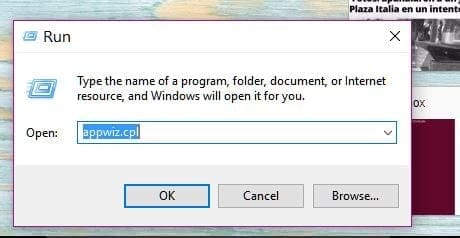
Press the Windows key and R and when the Run window appears type appwiz.cpl. Click OK and find Dropbox. Select Uninstall and to see if it was the culprit you’ll need to restart your computer.
Repeat the process but this time uninstall the Antivirus. You’re obviously not going to use your computer without one, so I would recommend that you use an antivirus that is known for not causing these kinds of problems such as Symantec or Avast.
Conclusion
No OS is free of problems. Sooner or later it’s not going to work as intended. When that happens, all you can do it troubleshoot until you come across the fix that makes the issues go away. Did I miss a method you use? If so, leave a comment and let me know.