When you install a new program, your Windows 10 computer automatically creates a new program directory. The default location for new programs is C:\Program Files unless you instruct your computer otherwise. But sometimes, Windows 10 may fail to create the directory for the program you’re trying to install. When this issue occurs, the following error message usually pops up on the screen: “An error occurred while attempting to create the directory.” Let’s see how you can fix this problem.
Contents
What to Do If an Error Occurred While Creating the Directory
Use an Admin Account
Make sure to use an administrator account when installing new programs on Windows 10. Guest or local user accounts may not have the necessary permission to install new apps and programs.
Create a New Admin Profile
If you’re already using an admin account, try creating a new local admin account. Maybe your current profile got corrupted.
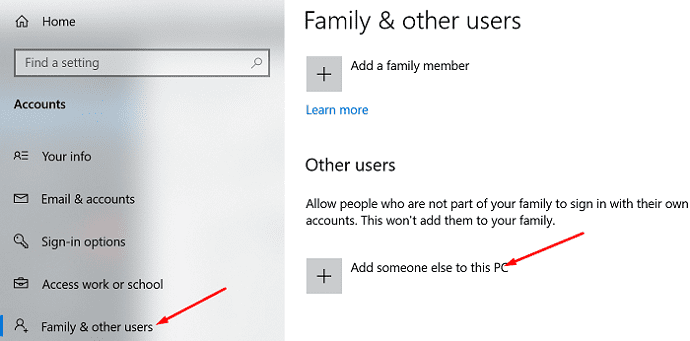
- Go to Settings, click on Accounts, and select Family & other users.
- Click on Add someone else to this PC.

- Select “I don’t have this person’s sign-in information,” and then “Add a user without a Microsoft account.”
- Follow the rest of the onscreen instructions to create the new account.
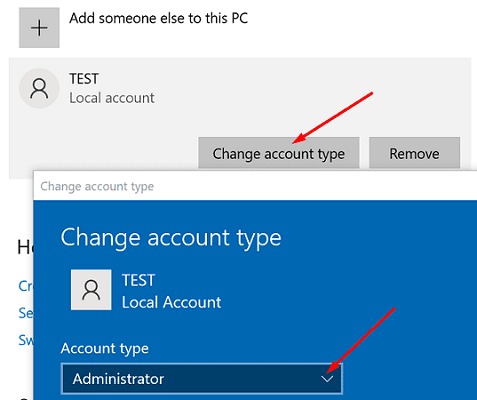
- Then, go back to Family & other users, and select the new account.
- Click on Change account type.
- Go to Account type, and select Administrator.

- Save the changes and sign in with the new admin account.
Check if you can create the program directory using the new local admin account.
Disable Controlled Folder Access
Check if turning off Controlled folder access solves the problem.
- Go to Windows Security and select Virus and threat protection.
- Go to Virus and threat protection settings and click on Manage settings.
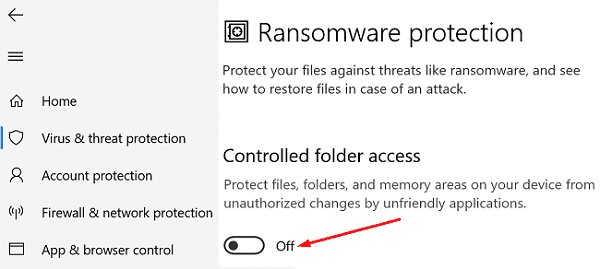
- Scroll down to Controlled folder access.
- Then click on Manage Controlled folder access.
- Disable this option and close Windows Security.

- Check if you can install the problematic program now.
Disable Your Antivirus and Firewall
If Windows 10 can still create a new directory for the program you’re trying to install, disable your antivirus completely.
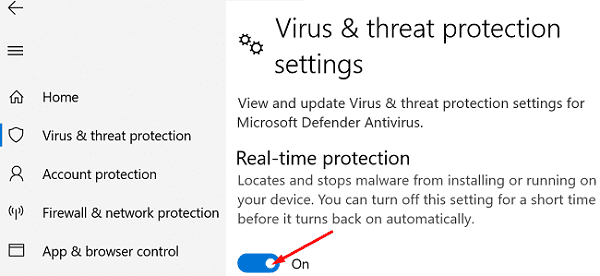
- Go back toWindows Security and select Virus and threat protection.
- Go to Virus and threat protection settings.
- Switch off the Real-time protection option.

Then turn off your firewall and try again.
- Go to Control Panel, and select System and Security.
- Then go to Windows Defender Firewall.
- Click on Turn Windows Defender Firewall on or off and disable the firewall.
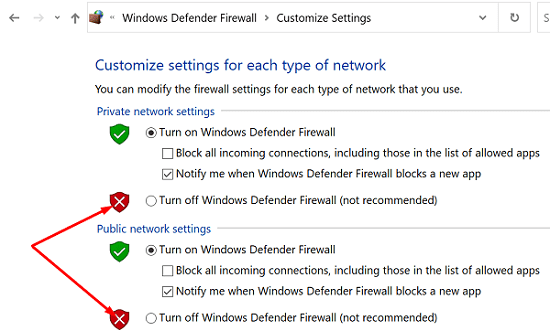
Sometimes, your antivirus and firewall may mistakenly identify the new program as a threat. Make sure to download new programs only from trusted sources. If you download them from obscure third-party web pages, chances are your security tools are right blocking the programs.
Conclusion
If your Windows 10 computer says that an error occurred while creating the directory, make sure to use an admin account. Then go to Windows Security settings and disable Controlled folder access. If the issue persists, disable your antivirus and firewall and install the problematic program again. Hit the comments below and let us know if you managed to fix this problem.