
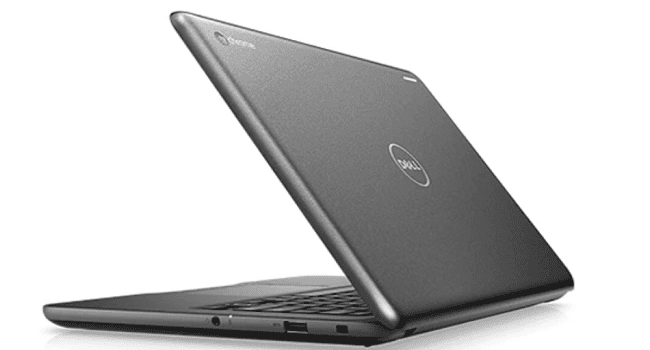
ChromeOS lets you download apps directly from the Google Play Store and use them on your laptop. That’s one of the most fantastic features of the OS. It’s like running Android on a bigger screen. Unfortunately, some Play Store apps may not be compatible with your Chromebook.
Contents
Play Store Apps Are Not Compatible with Chromebook
Check Your Connection and Restart Your Chromebook
First things first, check if this issue is caused by something on your end. Restart your ChromeOS laptop and then unplug your router. Leave your network device unplugged for one minute, and then plug it back in. Check if you can download and install apps from the Google Play Store now.
Apps Not Listed as Compatible with ChromeOS
Suppose an app is available on your Android device. In that case, it doesn’t necessarily mean you can download it on your Chromebook as well. Keep in mind that not all Android apps work on ChromeOS.
If you can’t find specific apps, this may indicate they’re not compatible with ChromeOS. Contact the app developer for further details about hardware limitations.
When adding apps to the Play Store, devs need to list which devices their apps are compatible with. Some choose not to update the list to reduce testing and support costs. As a workaround, you can also try putting your Chromebook in dev mode and sideload the apps you’re interested in.
Missing Key Functions
Suppose your Chromebook is not compatible with a particular app version. In that case, this indicates the device doesn’t support a key function that makes the app work properly. For instance, you can’t download Waze on Chromebook because the app uses GPS data, and your laptop doesn’t support GPS.
Switch to the Stable Channel
Some Play Store apps will only work on the Stable Channel. If enrolled in the Beta or Dev channel, switch back to Stable and restart your laptop.
- Navigate to Settings, and select About Chrome OS.
- Then go to Additional details.
- Locate the Channel section.
- Click on the Change channel option.
- Select the Stable channel and save the changes.

- Check if the problematic app is now compatible with your ChromeOS version.

Keep in mind that when switching from an unstable OS version (Developer) to a more stable release, you may need to powerwash your device. This will erase all data from your machine.
Look for an Alternative App
If the app you’re interested in is not compatible with ChromeOS, search for an alternative app. There are plenty of options available in the Play Store. Use the search field, and try to find the best possible alternative for your needs.
Conclusion
Not all the Google Play Store apps out there are compatible with ChromeOS. This is often due to hardware limitations and missing key functionalities, such as GPS. For more information, contact the app developer.
Do you have a lot of apps installed on your Chromebook? Let us know in the comments below.



honestly this is turning into the worst computer ever its boring l use a lot of android apps and why not compatable are android apps too big for your small computer now how can l do my work if the apps are not here please change your version so it can be compatable