Skip to content
LogoTechnipages
LogoTechnipages
  • Topics
        • Android
        • Browsers
        • Gaming
        • Hardware
        • Internet
        • iPhone
        • Linux
        • macOS
        • Office
        • Reviews
        • Software
        • Windows
        • Definitions
        • All Recent Posts
  • Product Reviews
  • About

WhatsApp: How to Send a See Only One Time Picture

Judy SanhzAugust 4, 2021 Comments (0)
whatsapp Can't Restore Chats From Google Drive Backup

When you send a picture on WhatsApp, you only have so much time before you can’t erase it anymore. After that, the receiver will always have access to the picture on their device, even if you erase it on yours.

But a much-anticipated feature is finally here where what you send will erase on its own. You can finally send a picture to the other person who can only see it once. After that, they can tap on their screen all they want; the image or video won’t come back unless you re-send it.

Contents

  • 1 How to Send an Image that Self Destructs on WhatsApp
  • 2 Things to Keep in Mind
  • 3 Conclusion

How to Send an Image that Self Destructs on WhatsApp

Before, when you would send a picture on WhatsApp, the other person could see it as many times as they want. If you forget to erase it, tough luck. Sure, you could enable self-destructing messages on WhatsApp, but the message can be seen for a total of seven days. Something that doesn’t make that feature very beneficial.

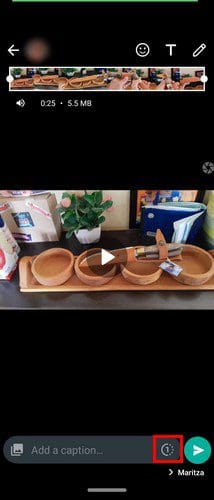
Now you can enable this new feature and forget about the message. All you have to do is choose the file you want to send, and before you hit the send button, you’re going to see a one with a circle around it to the left of the send button.
Things to Keep in Mind

It’ll light up when the option is selected, and the image or video can only be seen once. If you’re receiving the image or video, you’ll know because it’ll say so. Tap on it, and the image or video will open. You can see the image for as long as you want, but once you close it, it’s gone.
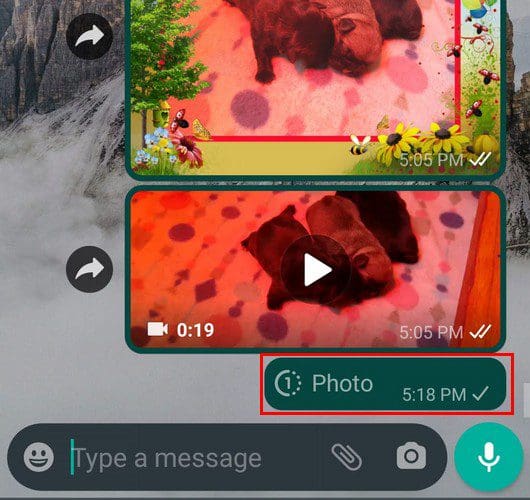
The downside to the picture is that the sender can’t see the picture they sent on their chat. So if you forget what image you send or if you accidentally sent the wrong picture or video, you have no way of knowing. So, you have to be really careful and be distracted when you send the picture or erase it, just in case, and send it again.
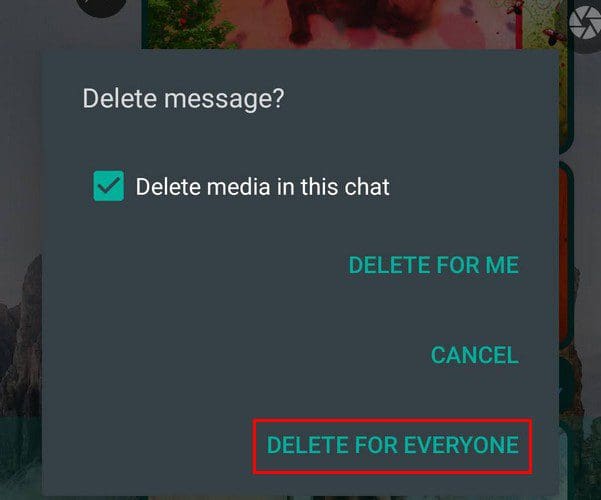
You can erase the image by long-pressing on it and choosing the delete for everyone option. You won’t see the two blue check marks when the other person opens the picture or video. You’ll only see the word Opened in its place. Another drawback is that you can only set it to one time no matter how many times you tap on the option.

Hopefully, WhatsApp will let its users set how many times they want the other person to see the image or video later. Keep in mind that you won’t find this feature available if you try to send a document. When you select your file to send it, you’ll only see the cancel and send button. The option to have the receiver only see it once won’t be available.

Conclusion

The option is one that I’m definitely going to frequently use. But the option still needs some improvement, but at least it’s available. So, now when you see a one to the left of the send button, you know what it’s for and what it can and can’t do. Do you think you’ll be using the feature often? Share your thoughts in the comments below, and don’t forget to share the article with others on social media.


Categories: Android

Author Judy Sanhz

I am a tech geek who loves technology. I have been writing about tech for over a decade, covering various devices and programs. I write about Android, Apple, and Windows devices and programs. I stay updated on the latest gadgets, upgrades, features, and news. I aim to make complicated tech information easy for everyone to read. I've been with TechniPages from the beginning to help others fix their tech issues with the easy-to-follow guides.

You Might Also Like

  • How to Configure the Size of the Keyboard in the Swiftkey Keyboard in Android

    Mel HawthorneAndroid
  • 4 Free Android Apps to View Notification History

    Judy SanhzAndroid
  • 100+ Best Snapchat Lenses for Cool Selfies in 2023

    100+ Best Snapchat Lenses for Cool Selfies in 2023

    Tamal DasAndroid
  • What to Do When Your Android Tablet Won’t Charge

    Judy SanhzAndroid

Leave a Reply

Your email address will not be published. Required fields are marked *

  • roblox error 280

    Having Trouble With Roblox Error 280? Here’s What to Do

  • hard disk smart command error

    Hard Disk SMART Command Failed – How to Fix 

  • files automatically deleted on click

    Files Getting Deleted Automatically? Here Are Some Reasons Why

  • error 400 when signing in

    Encountered Error 400 When Signing In to Microsoft? Here’s What You Can Do 

  • unable to create notebook error in onenote

    We Were Unable to Create Your Notebook Error in OneNote – Common Fixes 

profile pic

The Experts Behind Technipages

My name is Mitch Bartlett. I've been working in technology for over 20 years in a wide range of tech jobs from Tech Support to Software Testing. I started this site as a technical guide for myself and it has grown into what I hope is a useful reference for all.

Learn More

technipages logo white
linkedin icon

Technipages is part of Guiding Tech Media, a leading digital media publisher focused on helping people figure out technology. Learn more about our mission and team here.

© 2026 Guiding Tech Media All Rights Reserved

  • About Us
  • Contact
  • Terms of Use
  • Privacy Policy

© 2026 Guiding Tech Media All Rights Reserved

Information from your device can be used to personalize your ad experience.
Do not sell my personal information.

Last Updated on August 4, 2021 by Judy Sanhz