Skip to content
LogoTechnipages
LogoTechnipages
  • Topics
        • Android
        • Browsers
        • Gaming
        • Hardware
        • Internet
        • iPhone
        • Linux
        • macOS
        • Office
        • Reviews
        • Software
        • Windows
        • Definitions
        • All Recent Posts
  • Product Reviews
  • About

WhatsApp: How to Erase Status Pictures You’ve Viewed

Judy SanhzFebruary 11, 2022 Comments (0)
WhatsApp

Do you usually view a lot of WhatsApp status’? If you have a lot of contacts, then you have a long list of statuses to see, that is, if you view them all. But, if you can’t leave a status unseen, then many images are saved only on your Android device even though you don’t see them on your device’s gallery.

In time, all those status images will start to take up some important storage space. The good news is that there’s an app that can find those hidden WhatsApp status pictures so you can erase them. The app can not only find those WhatsApp pictures but other hidden images you may have forgotten about.

How to Find and Erase Hidden WhatsApp Status Pictures

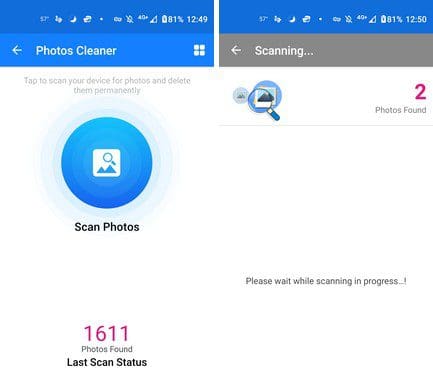
The app you’re going to need to do this is Photo Cleaner – Recover Valuable Storage Space. Once the app is installed, you’ll need to give the app some permissions, and it’ll also give you a tour of how to use it. When at the app’s main page,  tap on the big blue circle button that says Scan Photos.
Find hidden photos Android

How long the scanning process takes depends on how many pictures you have on your phone. Once it’s done, it’ll show you a message on how many hidden images it was able to find. Tap on the Hidden Folder and browse through the images the app could find. Sooner or later, you’re going to come across the images your friend put on their WhatsApp status. When you find it, long-press on the image. It’ll be selected, but if you want to search for more, you’ll only need to tap on the following images you want to erase.

If you want to erase all the pictures, simply tap on the white box at the top right corner. Also, if you tap on the uneven lines at the top, you can choose how to sort the images. You can choose from sorting them by date, size, and name.

Sort found images

That’s all there is to it. Thanks to this app, you can find images you wouldn’t find on your device’s gallery.

Conclusion

When you see that your Android device’s memory is filling up regardless of all the things you try. Using this app will really come in handy. You can find those hidden images that are only taking up space and that you thought you got rid of a long time ago. Did you have a lot of hidden apps on your Android device? Let me know in the comments below and don’t forget to share the article with others on social media.


Categories: Android

Author Judy Sanhz

I am a tech geek who loves technology. I have been writing about tech for over a decade, covering various devices and programs. I write about Android, Apple, and Windows devices and programs. I stay updated on the latest gadgets, upgrades, features, and news. I aim to make complicated tech information easy for everyone to read. I've been with TechniPages from the beginning to help others fix their tech issues with the easy-to-follow guides.

You Might Also Like

  • 4 Business Card Maker Apps for Android

    Judy SanhzAndroid
  • Firefox for Android: How to Force Enable Zooming

    Mel HawthorneAndroid
  • Best Tips to Save Smartphone Battery Life for Android

    Judy SanhzAndroid
  • google-maps-find-location-by-phone-number

    How to Easily Fix Google Maps Not Working for Android

    Judy SanhzAndroid

Leave a Reply

Your email address will not be published. Required fields are marked *

  • how to make chromebook run faster

    8 Ways to Make Your Chromebook Run Faster

  • error code 0xC0000428

    What Is Error Code 0xC0000428 and How to Fix It

  • windows 11 usb tethering

    Your Guide to USB Tethering on Windows 11

  • find the serial number of a laptop

    6 Ways to Find the Serial Number for Your Laptop

  • battery issues after windows 11 update

    Battery Issues After Windows 11 Update? Here’s the Fix

profile pic

The Experts Behind Technipages

My name is Mitch Bartlett. I've been working in technology for over 20 years in a wide range of tech jobs from Tech Support to Software Testing. I started this site as a technical guide for myself and it has grown into what I hope is a useful reference for all.

Learn More

technipages logo white
linkedin icon

Technipages is part of Guiding Tech Media, a leading digital media publisher focused on helping people figure out technology. Learn more about our mission and team here.

© 2026 Guiding Tech Media All Rights Reserved

  • About Us
  • Contact
  • Terms of Use
  • Privacy Policy

© 2026 Guiding Tech Media All Rights Reserved

Information from your device can be used to personalize your ad experience.
Do not sell my personal information.

Last Updated on February 11, 2022 by Judy Sanhz