You can do all sorts of things on WhatsApp, for example, create your own stickers. At least on the web version. You can also see how much time is left when sharing your location. But, there are still some things that WhatsApp needs to add, such as adding a passcode to block specific groups.
You can enable the passcode lock so only you can access WhatsApp. But, the feature to add a passcode to lock a specific group is still missing as an integrated feature. But that doesn’t mean that it’s not possible. With the help of a popular third-party app, you can lock those important WhatsApp groups and individual chats.
How to Add a Passcode to Any Group on WhatsApp
Adding a passcode to an important WhatsApp group can save you from unauthorized people from seeing things they shouldn’t. To do that, you’re going to need to download an app called Locker for Whats Chat App – Secure Private Chat. After giving the app a few necessary permission, you’ll be ready to use the app. The app is free to use but with the option to upgrade to Premium.
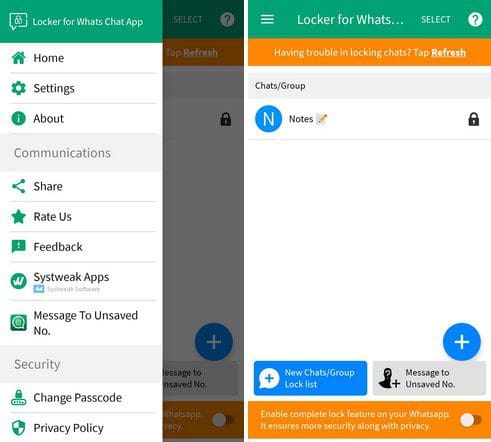
When you first start using the app, you must create a 4-digit passcode. That’s the passcode you will enter when you want to open that specific WhatsApp group. The ads on the free version might be a little annoying, but you can get rid of them by upgrading. The prices are reasonable. You can choose from:
- $0.99 a month
- $4.99 a year
- $3.99 every six months
Or, you can install three recommended app to enjoy the Premium features for free. The app will also ask you to enter a recovery email if you forget the passcode. It’s not an obligation to add it at that precise moment. Still, it’s recommended since you can forget and have no way to recover your account if you forget the passcode you created.
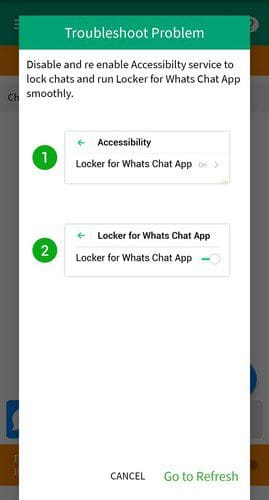
To add a group to the app, tap on the plus button. You’ll be taken to WhatsApp, where you’ll need to select a group. As soon as you choose, it’ll be added to the list. If you continue to use the app’s free version, it’ll only let you add two groups to the list. It might not happen all the time, but if you have issues getting back to WhatsApp, the app has a refresh option you can use.
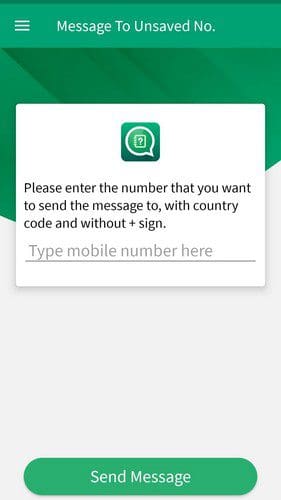
The app also gives you the option of adding an individual chat and not only a group. Who doesn’t get messages from numbers you don’t have on your contact list, right? By tapping on the three-lined menu, you can access the Message to Unsaved number option. Simply enter the number and reply. As you can see, you get two useful features on the same app.
Conclusion
This is a great app to lock individual or group chats. Even if you add a fingerprint lock to WhatsApp, you might accidentally leave your phone in a hurry to see who’s at the door or for something else. That’s the perfect opportunity for someone to grab your phone and quickly look through your conversations.
At least the app will protect the most important ones. Do you think you’re going to find the app useful? Let me know in the comments below, and don’t forget to share the article with others on social media.