Skip to content
LogoTechnipages
LogoTechnipages
  • Topics
        • Android
        • Browsers
        • Gaming
        • Hardware
        • Internet
        • iPhone
        • Linux
        • macOS
        • Office
        • Reviews
        • Software
        • Windows
        • Definitions
        • All Recent Posts
  • Product Reviews
  • About

What to Do When Your Bluetooth Toggle Is Missing (Windows 11)

Evan MercerApril 8, 2026 Comments (0)
bluetooth toggle missing windows 11

Whether it’s connecting your wireless headphones or sending files to your smartphone, Bluetooth is an indispensable part of the Windows experience. If you suddenly find the Bluetooth toggle missing, Windows 11 has options to help you get it back. In this article, we’ll be looking at the reasons why and (more importantly) the fixes.

Contents

  • 1 What Causes This Issue?
  • 2 How to Fix a Bluetooth Toggle Missing (Windows 11)
    • 2.1 Restart and Update
    • 2.2 Update Your Bluetooth Drivers
    • 2.3 Add Via the Quick Menu
    • 2.4 Run the Bluetooth Troubleshooter
    • 2.5 Turn Off Fast Startup

What Causes This Issue?

A missing Bluetooth toggle or icon has several possible causes. These include:

  • Outdated or corrupted drivers
  • Problems arising from a recent Windows system update
  • The Bluetooth support service is being disabled
  • Conflicts with Fast Startup

How to Fix a Bluetooth Toggle Missing (Windows 11)

Based on the possible causes above, it’s clear that a few solutions are needed. We’ve outlined some troubleshooters below to help:

Restart and Update
What to Do When Your Bluetooth Toggle Is Missing Windows 11 1

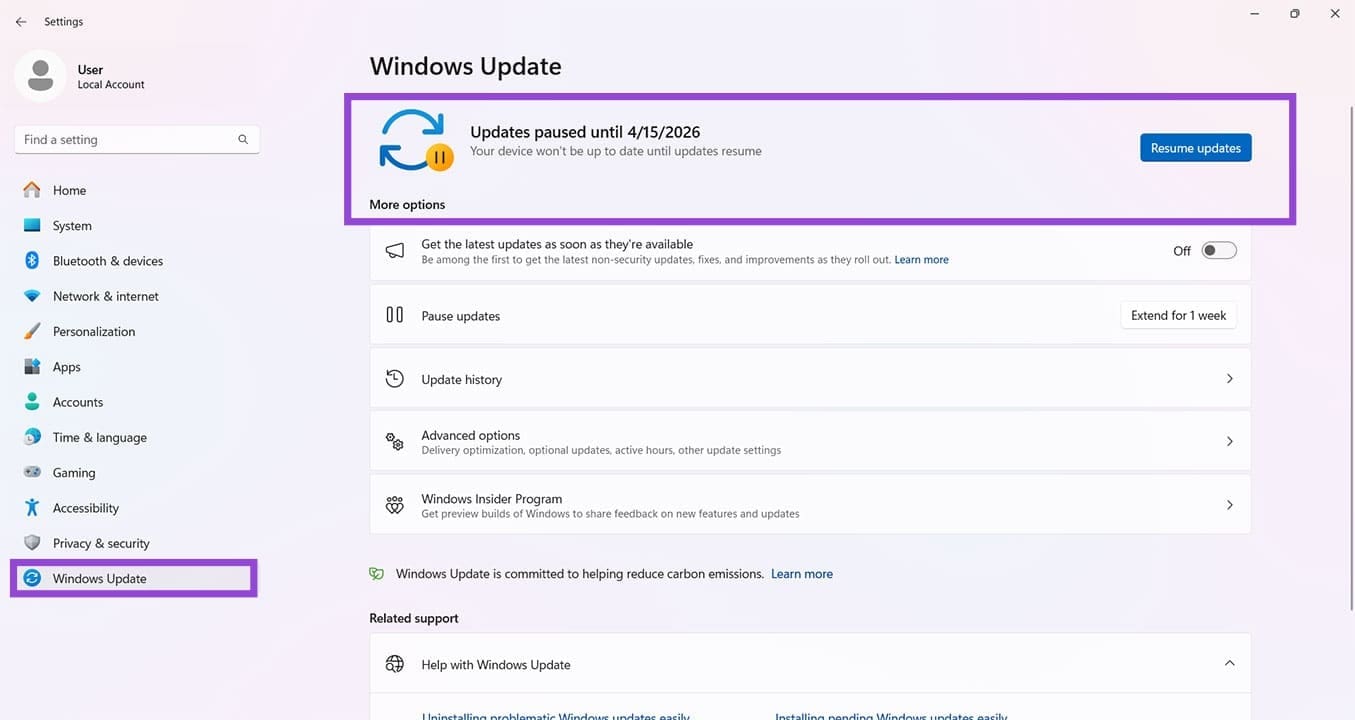
Let’s start with two obvious, but important checks. Ensure that your Windows is fully up to date. You can check via “Windows Update” in Settings (Win + I). Install any updates that pop up. You should also restart your PC to rule out any erratic behavior caused by your system running too long.

Update Your Bluetooth Drivers

If you can’t turn on Bluetooth, Windows 11 device drivers might be the culprit. To fix this:

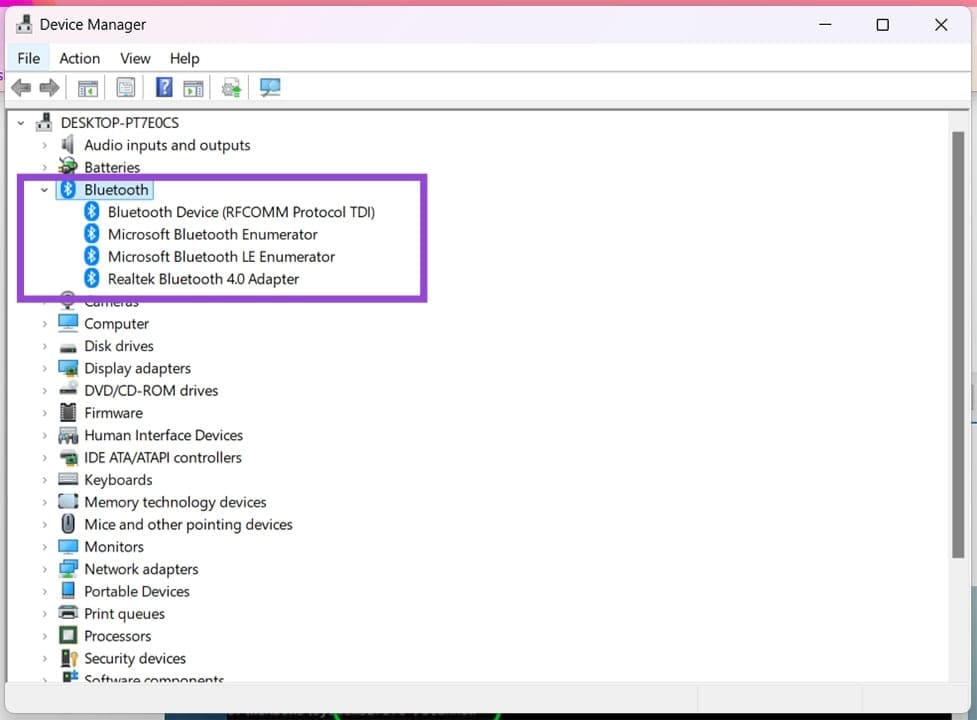
Step 1. Open the Run Dialog (Win + R) and type “devmgmt.msc” and hit “Enter.”

Step 2. In Device Manager, click the “Bluetooth” option and right-click on each option inside.
What to Do When Your Bluetooth Toggle Is Missing Windows 11 2

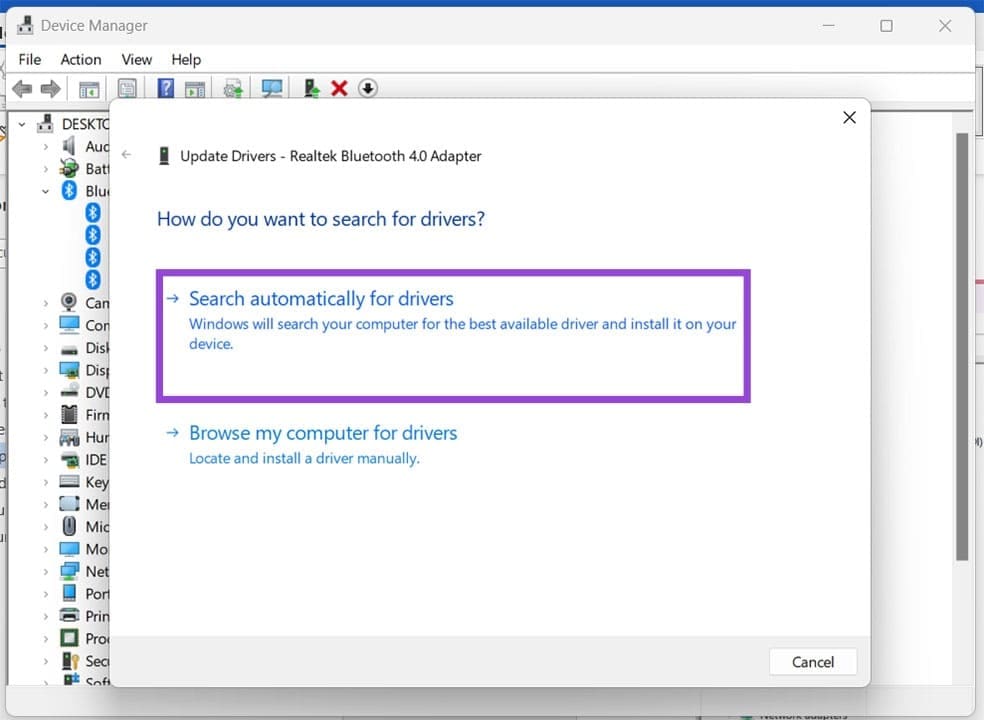
Step 3. Choose “Update driver.”

Step 4. Choose “Search Automatically for Drivers” and follow the steps provided. If Windows has a new driver available, install it.
What to Do When Your Bluetooth Toggle Is Missing Windows 11 3

Add Via the Quick Menu

If your toggle isn’t visible, there might be a chance the option isn’t or hasn’t been enabled in the Quick menu. If you can access Bluetooth in other ways, this might be the case. Here’s how to add it back in:

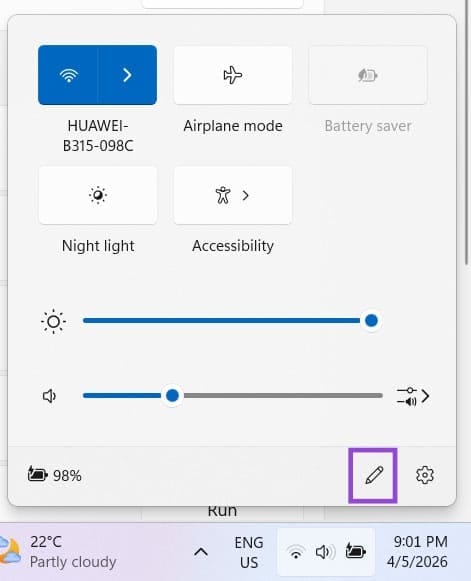
Step 1. Open the Quick Menu by clicking either the Volume icon or the Internet icon in your taskbar.
What to Do When Your Bluetooth Toggle Is Missing Windows 11 4

Step 2. Click the Pencil Icon at the bottom-right of the Quick Menu.

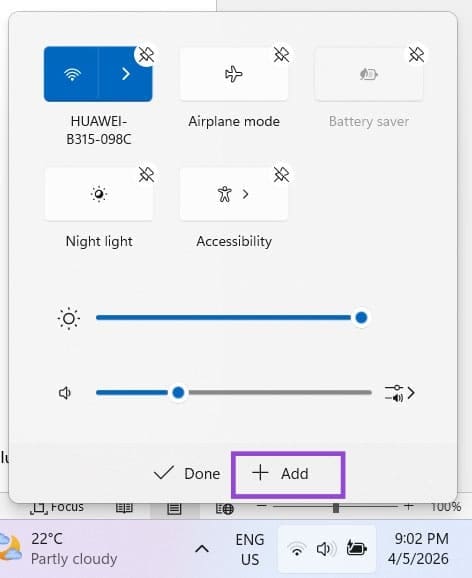
Step 3. Click the “Add” button that should appear.
What to Do When Your Bluetooth Toggle Is Missing Windows 11 5

Step 4. Choose “Bluetooth” from the menu options.
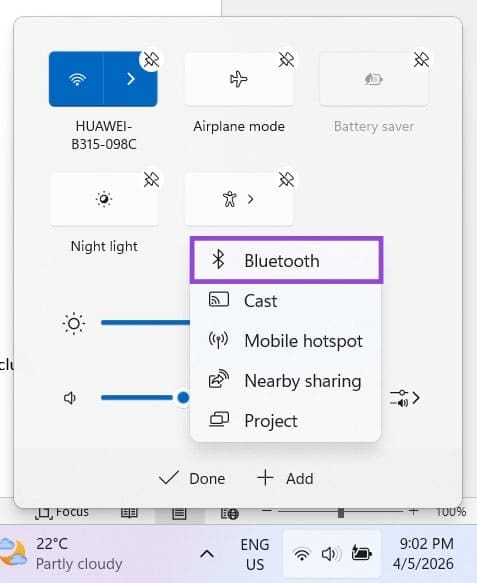
What to Do When Your Bluetooth Toggle Is Missing Windows 11 6

Step 5. The toggle should appear in your Quick Menu. Click and drag to reorder it, if you like. Press “Done” to finalize.
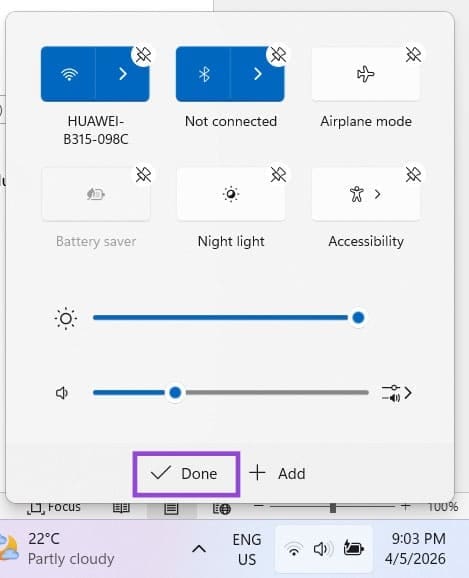
What to Do When Your Bluetooth Toggle Is Missing Windows 11 7

Run the Bluetooth Troubleshooter

Windows has quite a few built-in troubleshooters to help out the user. Bluetooth is included in that toolbox. To run the Bluetooth troubleshooter, you’ll need to do the following:

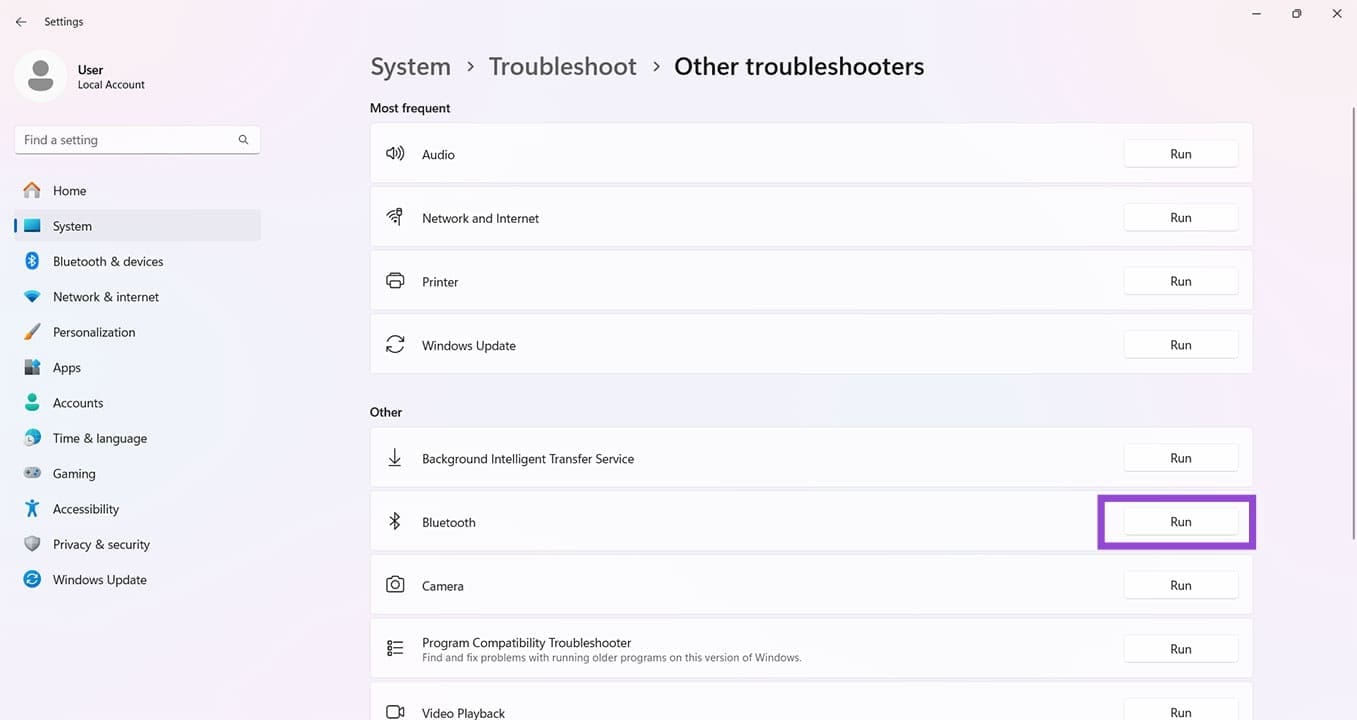
Step 1. Open Settings (Win + I) and click the “System” tab in the sidebar.

Step 2. Navigate down to the “Troubleshoot” option and click it.
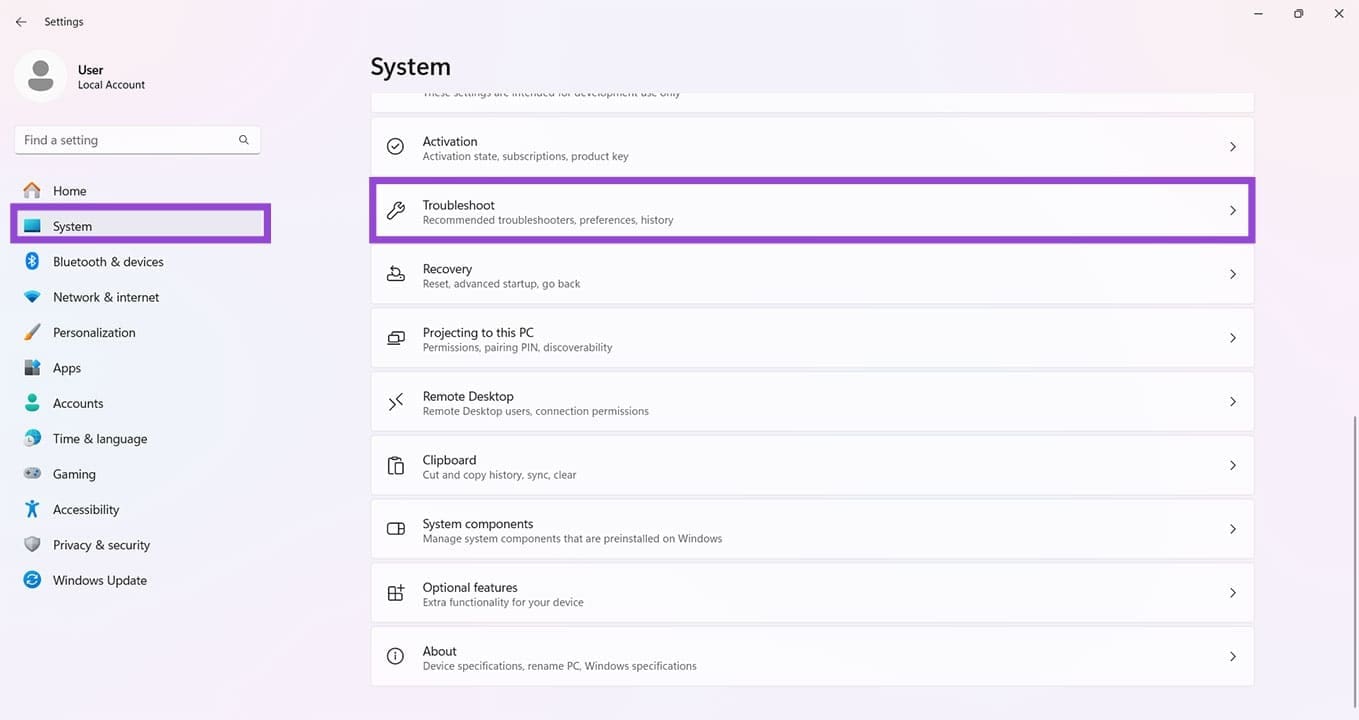
What to Do When Your Bluetooth Toggle Is Missing Windows 11 8

Step 3. In the next menu, click “Other troubleshooters.”
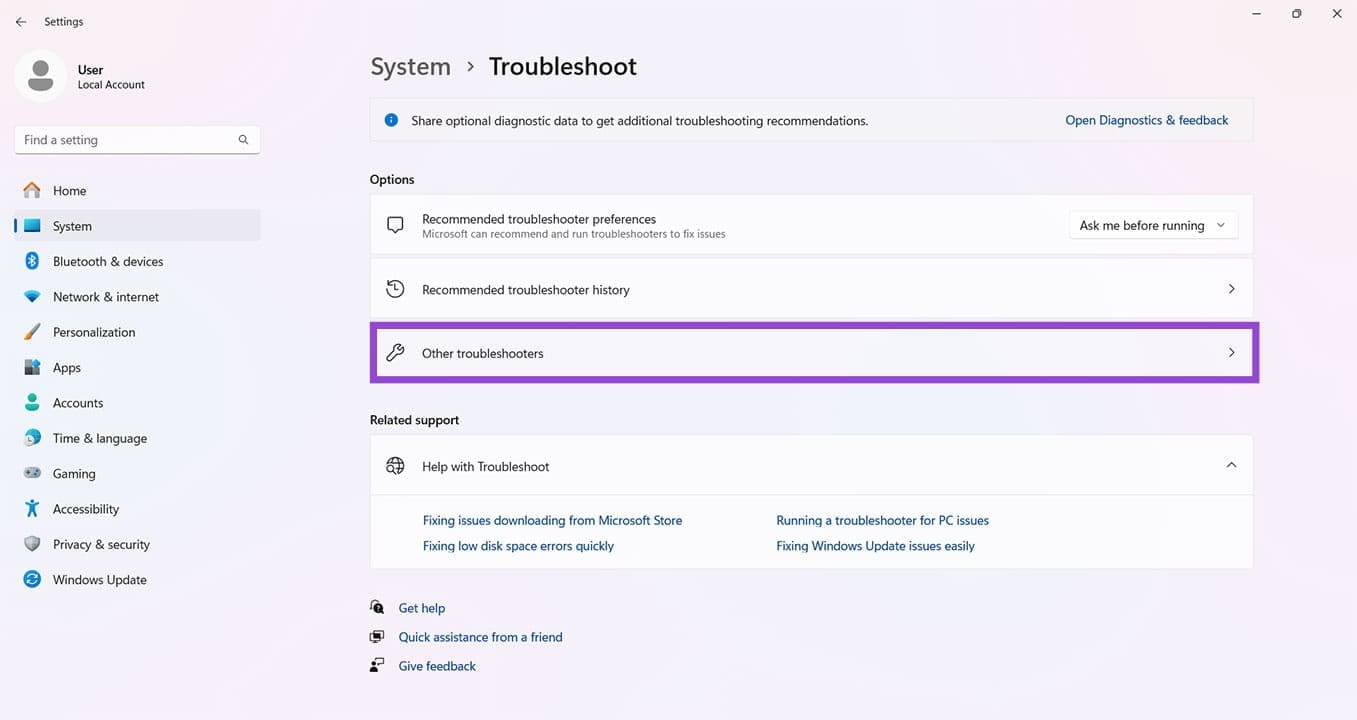
What to Do When Your Bluetooth Toggle Is Missing Windows 11 9

Step 4. Click the “Run” button next to the “Bluetooth” option. Let the troubleshooter run and fix any issues it detects.
What to Do When Your Bluetooth Toggle Is Missing Windows 11 10

Turn Off Fast Startup

Fast Startup is a handy way to get your PC running quickly, but it can cause problems with other utilities, including Bluetooth. Try disabling it to see if it solves the toggle problem:

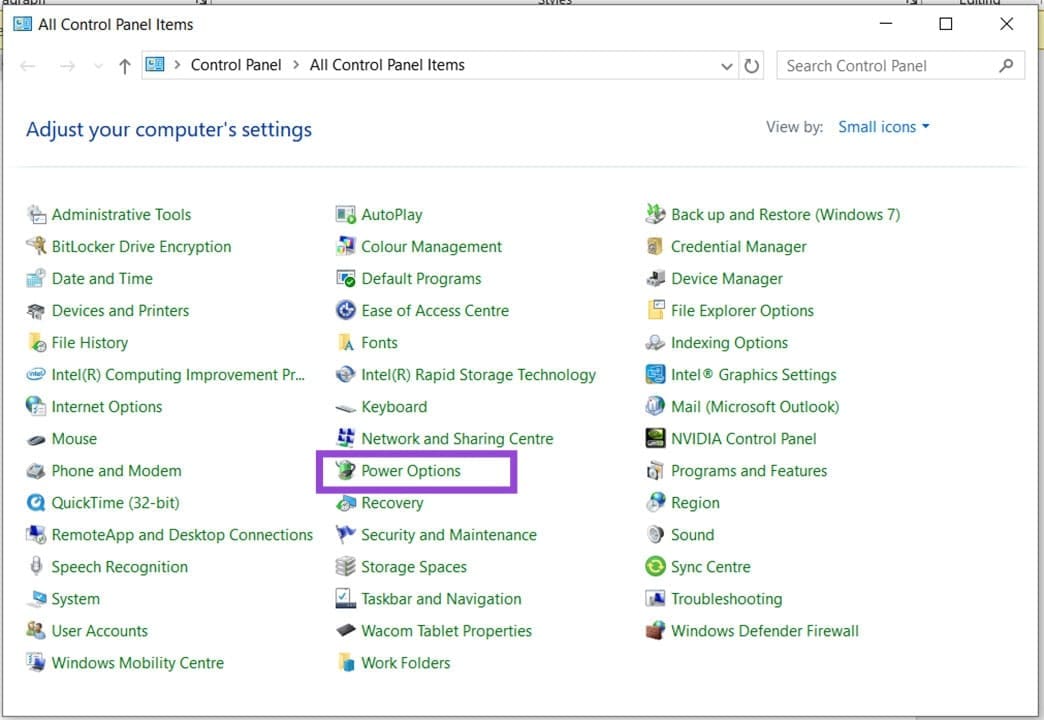
Step 1. Open the Control Panel by typing it into the search bar.

Step 2. Click “Power Options,” then “Choose what the power buttons do.”
What to Do When Your Bluetooth Toggle Is Missing Windows 11 11

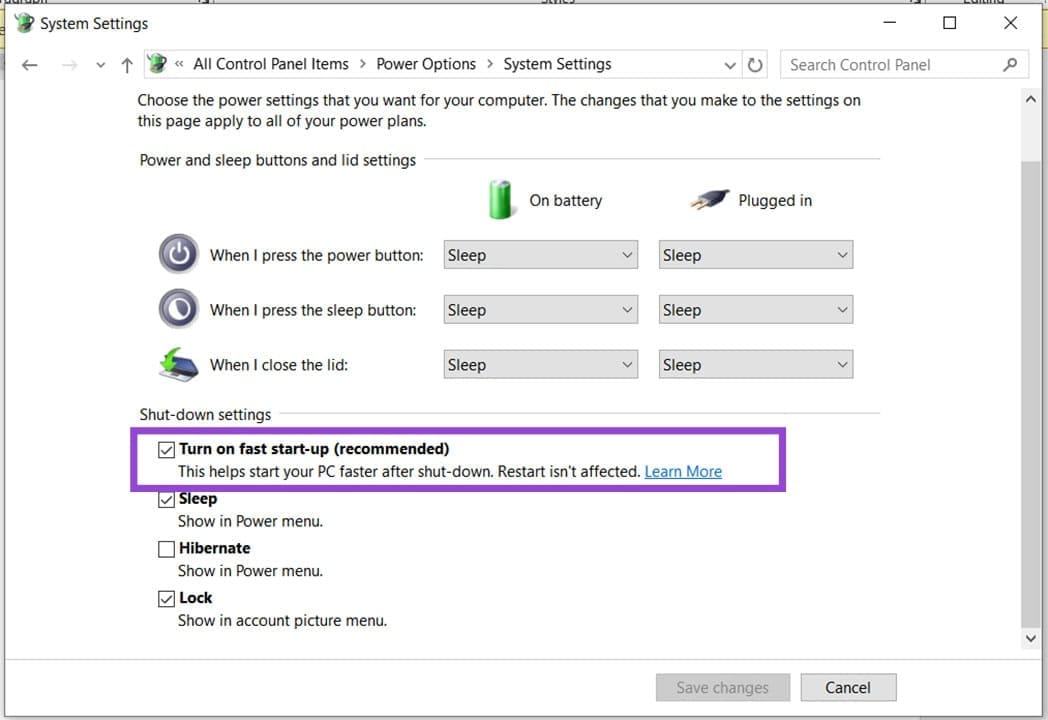
Step 3. Uncheck “Turn on Fast Startup.”
What to Do When Your Bluetooth Toggle Is Missing Windows 11 12

Step 4. Click “Save changes,” shut down your PC, and start it up again. See if the Bluetooth toggle is visible.

Categories: Windows

Author Evan Mercer

I’m a computer science grad who loves to tinker with smartphones and tablets in my spare time. When I’m not writing about how to fix techy problems, I like hanging out with my dogs and sipping nice wine after a tough day.

You Might Also Like

  • Fix The Disk Is Write Protected Error on Removable Disk in Windows 11

    Fix “The Disk Is Write Protected” Error on Removable Disk in Windows 11

    Mitch BartlettWindows
  • Can’t Delete Folder “You have been denied permission” Fix for Windows

    Mitch BartlettWindows
  • Fix NordPass Login Errors

    Troubleshooting NordPass Login Errors

    Madalina DinitaWindows
  • Fix-Error-0x80070490-We-Couldnt-Find-Your-Settings

    Fix Error 0x80070490: We Couldn’t Find Your Settings

    Madalina DinitaWindows

Leave a Reply

Your email address will not be published. Required fields are marked *

  • microsoft paint features

    Unleash Your Inner Artist – Advanced Microsoft Paint Features You Might Not Know About

  • how to make chromebook run faster

    8 Ways to Make Your Chromebook Run Faster

  • error code 0xC0000428

    What Is Error Code 0xC0000428 and How to Fix It

  • windows 11 usb tethering

    Your Guide to USB Tethering on Windows 11

  • find the serial number of a laptop

    6 Ways to Find the Serial Number for Your Laptop

profile pic

The Experts Behind Technipages

My name is Mitch Bartlett. I've been working in technology for over 20 years in a wide range of tech jobs from Tech Support to Software Testing. I started this site as a technical guide for myself and it has grown into what I hope is a useful reference for all.

Learn More

technipages logo white
linkedin icon

Technipages is part of Guiding Tech Media, a leading digital media publisher focused on helping people figure out technology. Learn more about our mission and team here.

© 2026 Guiding Tech Media All Rights Reserved

  • About Us
  • Contact
  • Terms of Use
  • Privacy Policy

© 2026 Guiding Tech Media All Rights Reserved

Information from your device can be used to personalize your ad experience.
Do not sell my personal information.

Last Updated on April 8, 2026 by Evan Mercer