SD cards have remained ubiquitous due to their small size and ability to transfer files from cameras and phones to PCs, but they’re also used in home surveillance systems and other small appliances. However, not all of these systems come with built-in ways to clear the card, requiring you to use a PC for it. And if you can’t remove data from SD card on PC, you might need to take a few extra steps.
Contents
Option 1: Check the SD Card’s Lock or the Reader
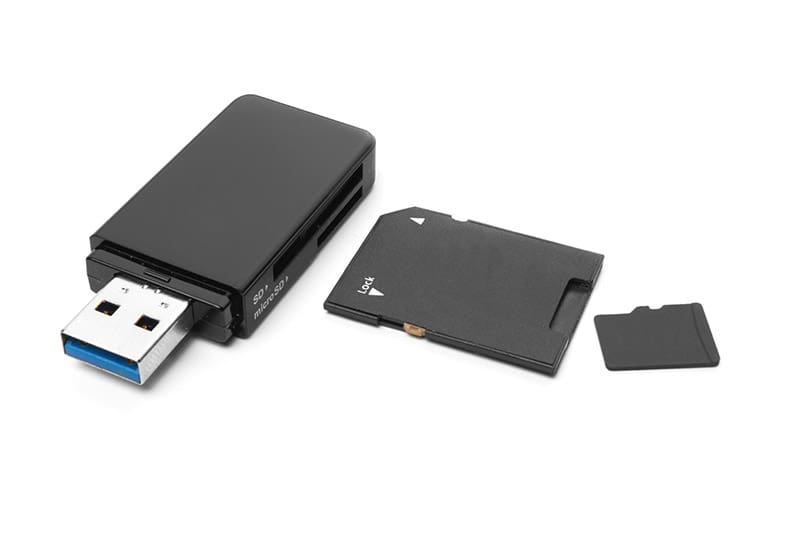
Some SD cards come with a physical lock on the side (like a switch) that prevents it from being written onto, essentially putting it into read-only mode. If this switch is toggled or broken, it can prevent PCs from making changes to it, which includes formatting or removing data.
Alternatively, if you’re using a dedicated SD card reader (which can be common since desktop PCs and new laptops rarely come with a built-in reader nowadays), it might’ve gotten broken. Try a different reader and attempt to remove some files.
You can also try to bypass the lock if it was done when formatting the card.
Step 1. Open the Run utility with “Win + R” and enter “diskpart” to run the Disk Partitioner utility.
Step 2. Enter the following commands one by one:
list disk
select disk [n]
attributes disk clear readonly
For [n], choose the number that corresponds to the SD card, as provided from the result of the “list disk” command.
Option 2: How to Remove Data From SD Card on Windows PC
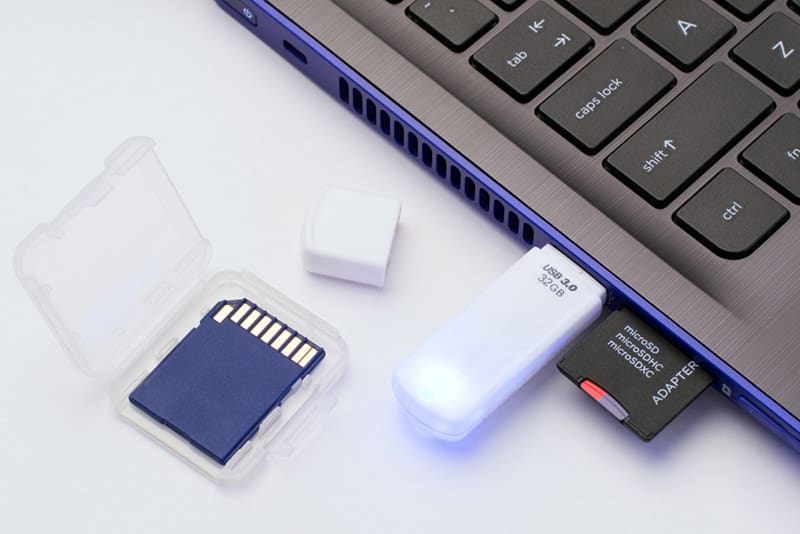
In Windows, you can use the Disk Management tool or manually reformat the card, which should remove its protection and clear it.
Method 1: Formatting the Card
Step 1. Open “This PC” and look for the SD card in the list of devices and drives.
Step 2. Right-click on the SD card and select “Format.”
Step 3. Uncheck the “Quick Format” box and click on “Start,” then follow the instructions.
Method 2: Using Disk Management
Step 1. Right-click on the Start button and select “Disk Management.”
Step 2. Find the disk that corresponds to the SD card, right-click on the memory module on the bottom-panel and select “Delete.”
Step 3. Right-click on the “Unallocated” part of the SD card’s volume and click on “New Simple Volume,” then follow the instructions in the Setup Wizard. This will also format the card.
Option 3: How to Remove Data From SD Card on a Mac
Mac PCs can use a similar formatting trick to overwrite the SD card and remove all data.
Step 1. Open Disk Utility.
Step 2. Find the SD card from the “External” section. USB readers will appear as “USB External Physical Volume.”
Step 3. Select “Erase,” then click on the “Format” drop-down menu on the bottom-right.
Step 4. Choose a security format (move it one step to the right to prevent data recovery from previous info), then choose “Erase.”
Option 4: Use a Third-Party Formatting Tool or a Mobile Device
If you can’t remove data from SD card on PC via stock apps, you might get better results with dedicated third-party card management tools. There are a few excellent options you can download and use the free trial to reformat the SD card and remove its data.
If you can’t physically fit the SD card in your PC and don’t have a working reader at the moment, you can use a mobile device like a tablet (which usually has an SD slot) or the device that the SD card came from. The instructions to unmount and reformat the SD card from there will vary depending on the device used.