No error code is a welcome error code when it pops up, but it does help narrow things down for repair and troubleshooting. Error code 0xC0000428 pops up when starting up your PC itself or an app and prevents things from running properly. In this article, we’ll be looking at some fixes to try.
Contents
What Causes This Error?
There are a few causes for the 0xC0000428 error code, and some major ones include:
- Corrupted file systems
- Corrupted boot files
- An outdated boot manager
- Driver signature issues
- Outdated software
Now you know some of the causes, let’s get looking at fixes.
Fixing Error code 0xC0000428
Below are a few troubleshooters that address the different causes behind this error code. Hopefully, one will work for you.
Update Everything
Before you get started, it’s important to ensure that both your Windows OS, all apps, and drivers are fully up to date. Outdated software can clash with newer versions. It might be tedious, but fully updated software can eliminate many potential headaches off the bat.
Update Your Boot Manager
If error code 0xC0000428 pops up when starting your PC, the issue could be an outdated boot manager. To update it, you need to do the following:
Step 1. Create a bootable USB (NTFS file system) and add the Windows installation disk from the Microsoft site. Enter your BIOS on startup and use your USB drive as the bootable disk.
Step 2. In the next screen, click “Command Prompt.”
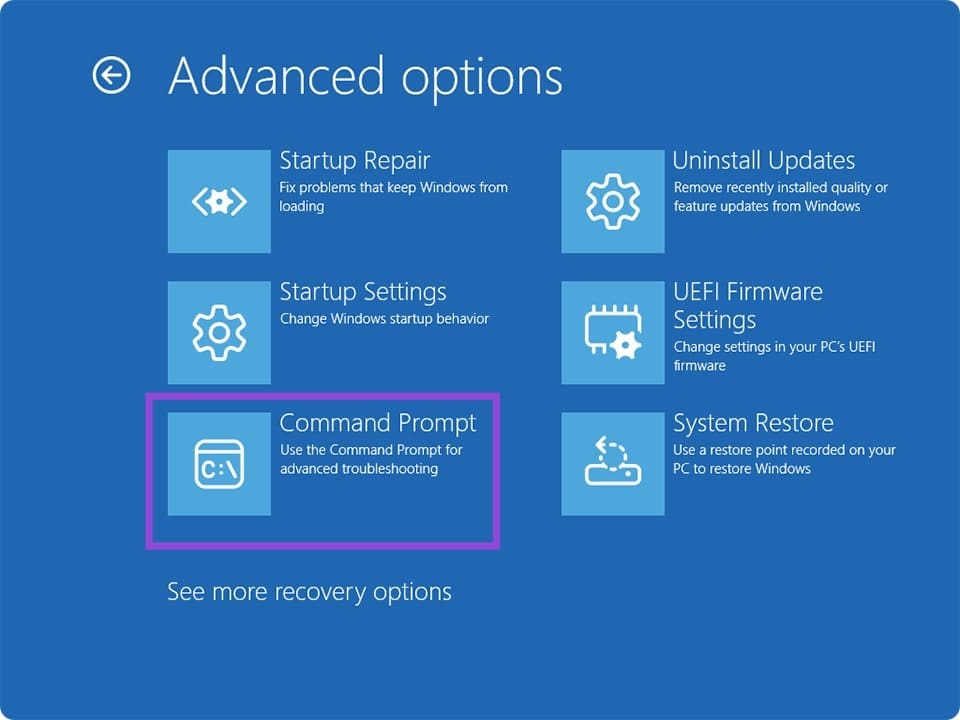
Step 3. Type the following command, hitting “Enter” after each one to make the boot file visible as S: “diskpart,” “list volume,” “select volume ‘X’ (replace ‘X’ with the FAT32 volume),” “assign letter=S,” then “Exit.”
Step 4. In Command Prompt, type “bcdboot C:\Windows /s S: /f UEFI” and hit “Enter.” “C” is your main disk drive, while “S” would be your partition. The “bootmgr” files will be replaced from the installation disk.
Disable Signature Enforcement
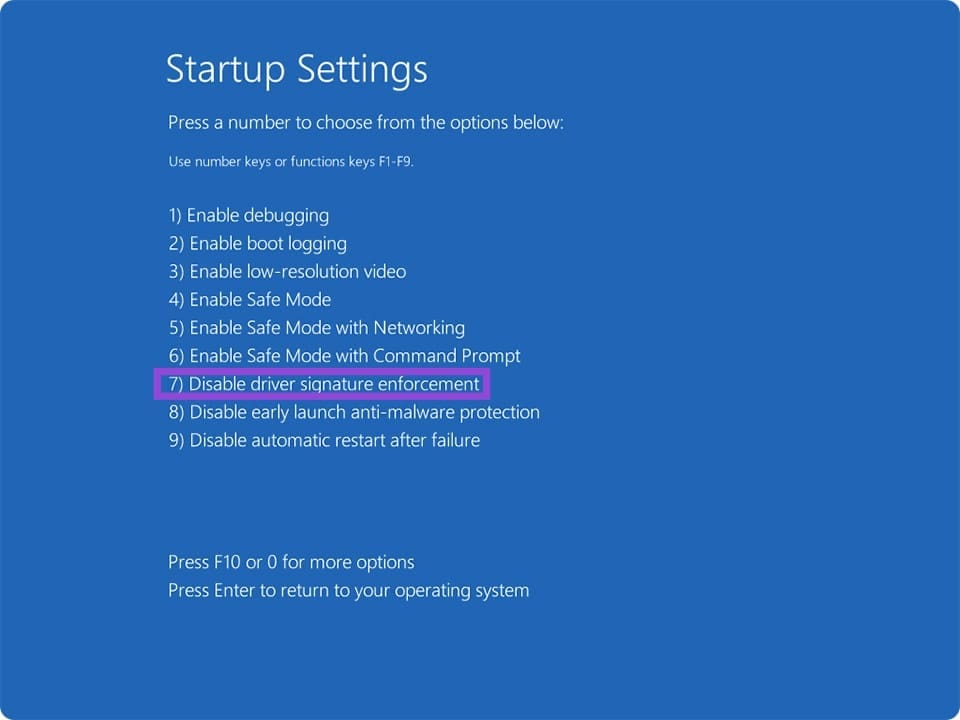
While you’re in recovery mode, it might help to disable the signature enforcement that can trigger this error code. In “Startup Settings,” choose “Disable driver signature enforcement” by pressing “7” and see if this resolves things.
Rebuild the Boot Manager
If you are in Windows, you can rebuild your boot manager via Command Prompt using a Recovery USB to stop the BSOD error:
Step 1. Open the Run dialog (Win + R) and type in “cmd” before hitting (Ctrl + Shift + Enter) to run as Admin.
Step 2. In Command Prompt, type “bootrec /rebuildbcd” and hit “Enter.”
Step 3. See if this resolves the BSOD error.
Reinstall Your App
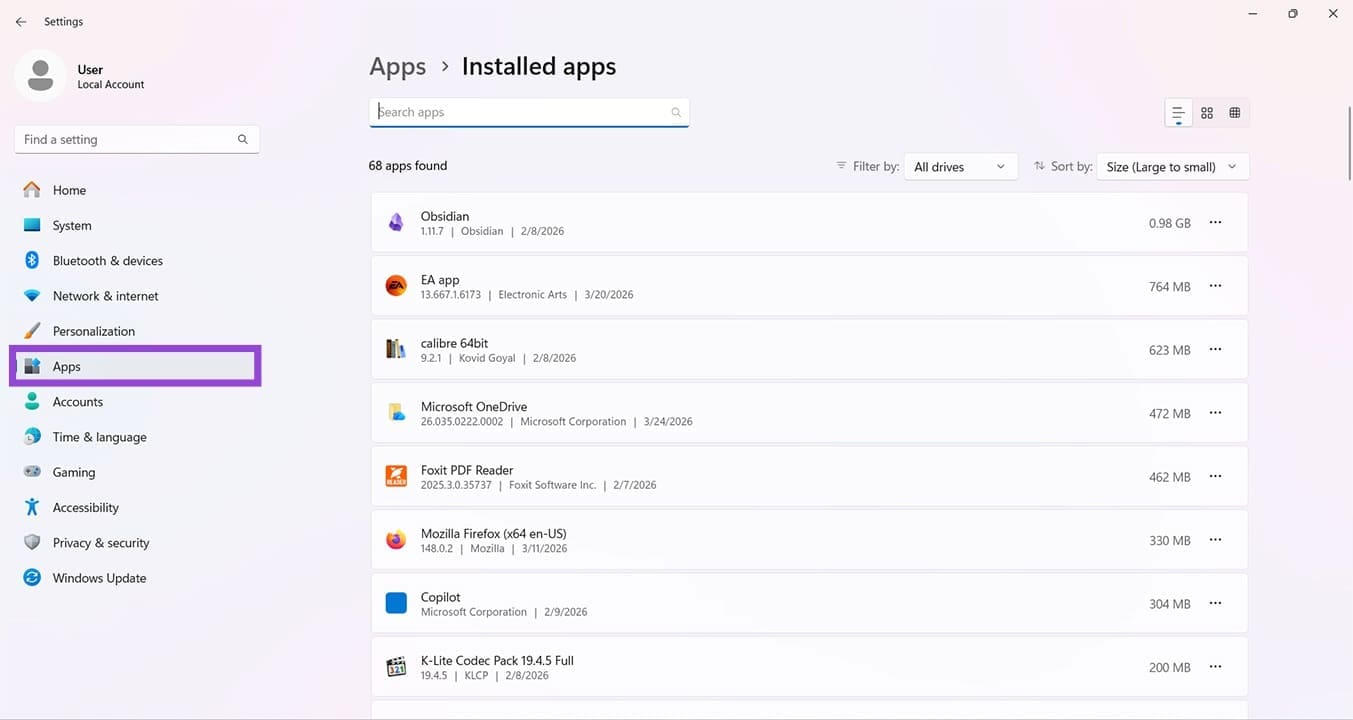
If the error message accompanies an app or program, it may well mean files are missing or corrupted. In this case, it’s best to start with a clean slate. You can uninstall the app and reinstall it to fix these issues. “Installed Apps” under “Apps” in Settings is a convenient way to remove any app.
Run SFC, Disk Check
To check corruption, you can also use Windows’ tools to help scan and repair issues. You can do this with both the System File Checker (SFC) and Disk Check:
Step 1. Open the Run Dialog (Win + R) and type “cmd” then press (Ctrl + Shift + Enter) to run as Admin.
Step 2. In Command Prompt, type: “sfc /scannow” and press “Enter.”
Step 3. Once done, restart your machine.
To perform a Disk Check:
Step 1. Open Command Prompt again in the same way:
Step 2. Type “chkdsk C: /f /r” and hit “Enter.”
Step 3. Let the process run and restart afterwards.