
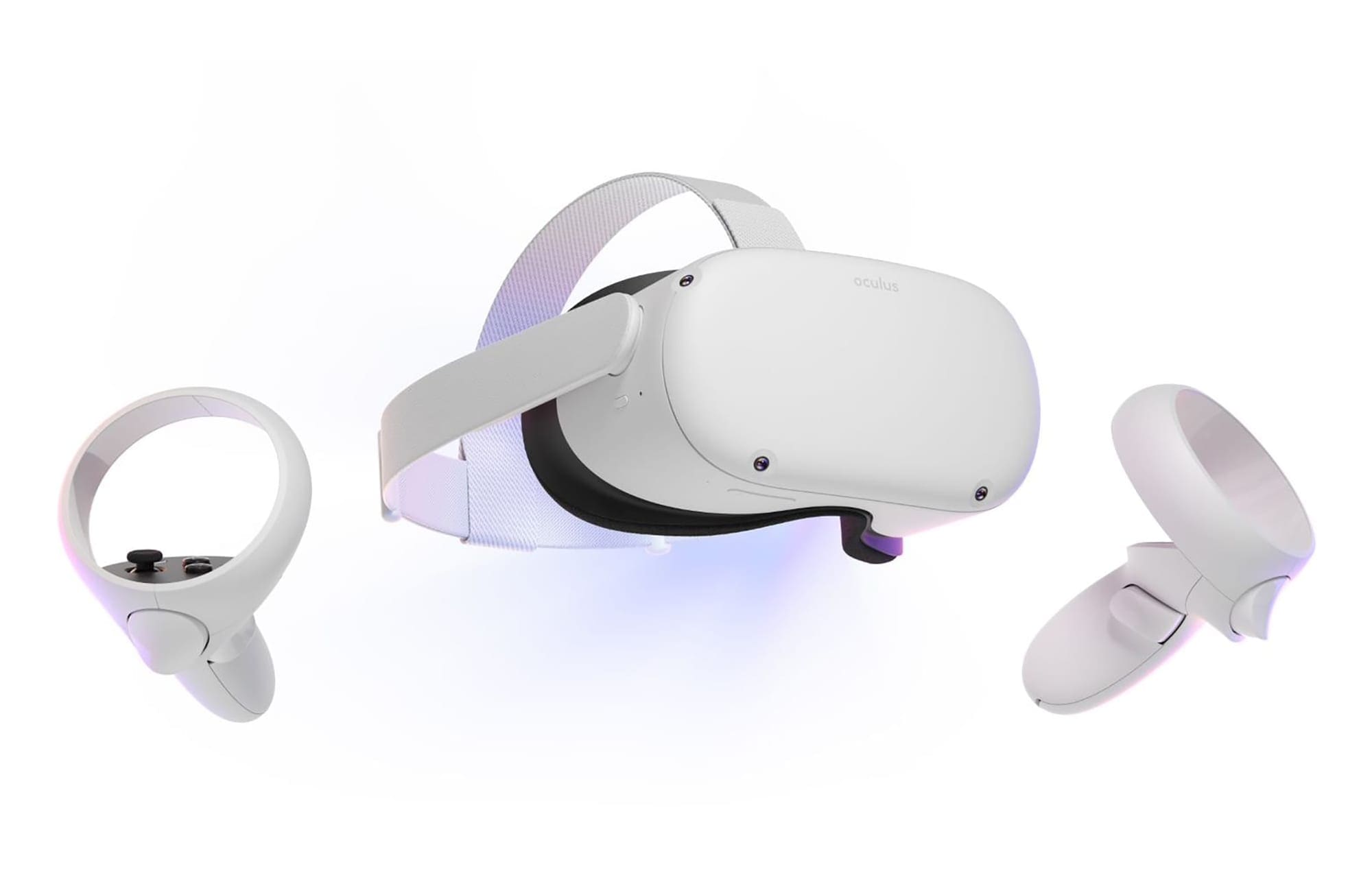
The default control method for your Oculus Quest 2 VR headset is the pair of included controllers. They’re pretty versatile and are the only supported controller in many games. Occasionally though, you may find that the headset loses track of where the controllers are.
This is frustrating if it is often happening or if it happened once when you were close to beating a new song in Beat Saber, for example. If you’re struggling with controller tracking issues, we’ve pulled together a list of troubleshooting tips to help you out.
Contents
Check the Headset Tracking Cameras Are Clean
The Quest 2 headset keeps track of your controllers and surroundings by using cameras embedded in the headset. Obviously, for these cameras and the tracking they facilitate, the cameras need to have a clear view to be able to work. Check that you’ve not put any stickers or decals etc., over any of the camera lenses. If the lenses don’t have anything obvious blocking them, give them a quick wipe down as dirt on the lens can also cause tracking issues.
Too Bright or Too Dark
Being a camera system, the tracking needs light to be able to work. Ensure that your play-space is well lit as dim-light or darkness will cause tracking issues. Just beware that too much light can also be a problem, especially direct sunlight. The Quest 2 is not designed for use outside and can struggle if it’s dazzled by direct sunlight or glare from the sun. If you’re inside and have a lot of natural light streaming in from a window, try closing the curtains or blinds a bit to reduce the glare.
LEDs and Mirrors
The headset uses the cameras to track the controllers. Still, it does so with the help of infrared LEDs embedded in the controllers. Many users find that other LEDs in their house can confuse the Quest 2, especially Christmas lights. If you’re experiencing tracking issues and are in a room with Christmas lights or other LEDs, try turning them off and see if the issue persists.
Similarly, large or just unfortunately placed mirrors can confuse the tracking system with conflicting information. If you’re playing near a mirror, try moving or covering it, or try to select another play-space.
Controllers Are out of or Low on Battery
The Quest 2 controllers each use a single AA battery. While the controller batteries can last for a surprising amount of time, they do need changing occasionally. Near the end of the battery life, you may experience more controller tracking issues. If your battery levels are low, try replacing them.
If you’re experiencing issues when using rechargeable batteries, you may also want to try switching to single-use AA batteries—the rechargeable batteries output 1.2V rather than the standard 1.5V, contributing to tracking issues.
Tip: When you’re replacing the batteries, you might also want to restart the headset itself as well as this can fix many issues.
Change Tracking Frequency
We mentioned before that LEDs can cause tracking issues. Generally, LED bulbs don’t have quite the same issue; however, that doesn’t mean they can’t cause issues. LEDs emit light when electrons flow over the LED. The power delivery in homes uses alternating current (AC) pulses at either 50 or 60 Hz, depending on which country you live in. This electricity pulse causes the LED to flash on, but it then turns off again between the pulses.
The speed of these pulses is fast enough that you can’t really see the pulses, although you may be able to notice an LED bulb flickering out of the corner of your eyes. It’s a lot easier to see the effect if you pull out your phone camera, though, generally, you’ll see a weird flickering effect, which can be even more noticeable in the slow-motion video camera; that just doesn’t happen in natural lighting.
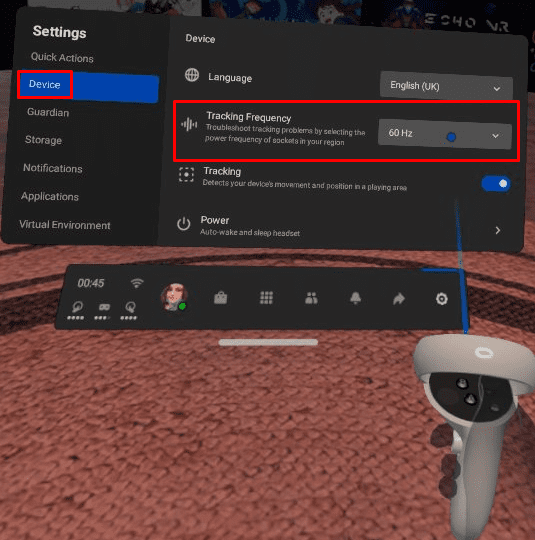
The Quest 2 headset attempts to automatically compensate for the flickering rate of LED light bulbs. But if you’re having tracking issues you can’t resolve, you can try overriding the setting yourself. You can change this setting by opening up the settings, switching to the “Device” menu then choosing between Automatic, 50 Hz, or 60 Hz.
Troubleshooting intermittent issues can be a real pain. By following the steps in this guide, you should be able to resolve most controller tracking issues. If your issues persist, however, you may want to try contacting Oculus support.

I can’t get through set up. The left controller pointer light works but not the meta home button. The right controller, the meta home button launches it but doesn’t priced to finish set up. I’m beyond frustrated
i just bought a brand new oculus meta quest 2! my right hand is working perfectly but my left hand is stuck on the ground! all the button work on both but the tracking/it wont move is broken! Please help its brand new!
my left controller is connected but isn’t tracking.
nothing worked. right controller not tracked, some buttons, joystick, are recognized
The questions were good. I’m having some of the same issues. But how could this help when there are no answers?
My oculus is stuck on the tracking lost screen and my controllers are not connecting to the oculus. It just flashes off and on with the tracking lost message and won’t allow you to do anything.
My right controller cannot be seen. I can hear it as I click on the buttons but cannot see it or a beam. When I click aimlessly it let me click a few things even tho I can’t see the right controller. I did factory reset, cleaned the cameras, made sure no LED things or mirrors were around. Still nothing, it worked fine at first but now i can’t see it through the headset. App says paired, 100% battery etc. I’ve done everything till my eyeballs hurt. It hasn’t even been 30 days yet. I’m sending it back.
I’ve been trying all of the options suggested by the oculus team for 6 months now and nothing seems to work…is there any way to get a new one or get mine fixed by oculus tech?
I followed these trouble shooting tips and still continue to have tracking issues. What is the next step to get this resolved as these tips haven’t helped
My right side hand controller keep having beeping sound and “controller disabled. Press any key to connect. I pressed multiple buttons with no success.
I’ve done all of these things atleast twice and no matter what I do my tracking continues to break. The only thing that seems to work is a complete factory reset.