
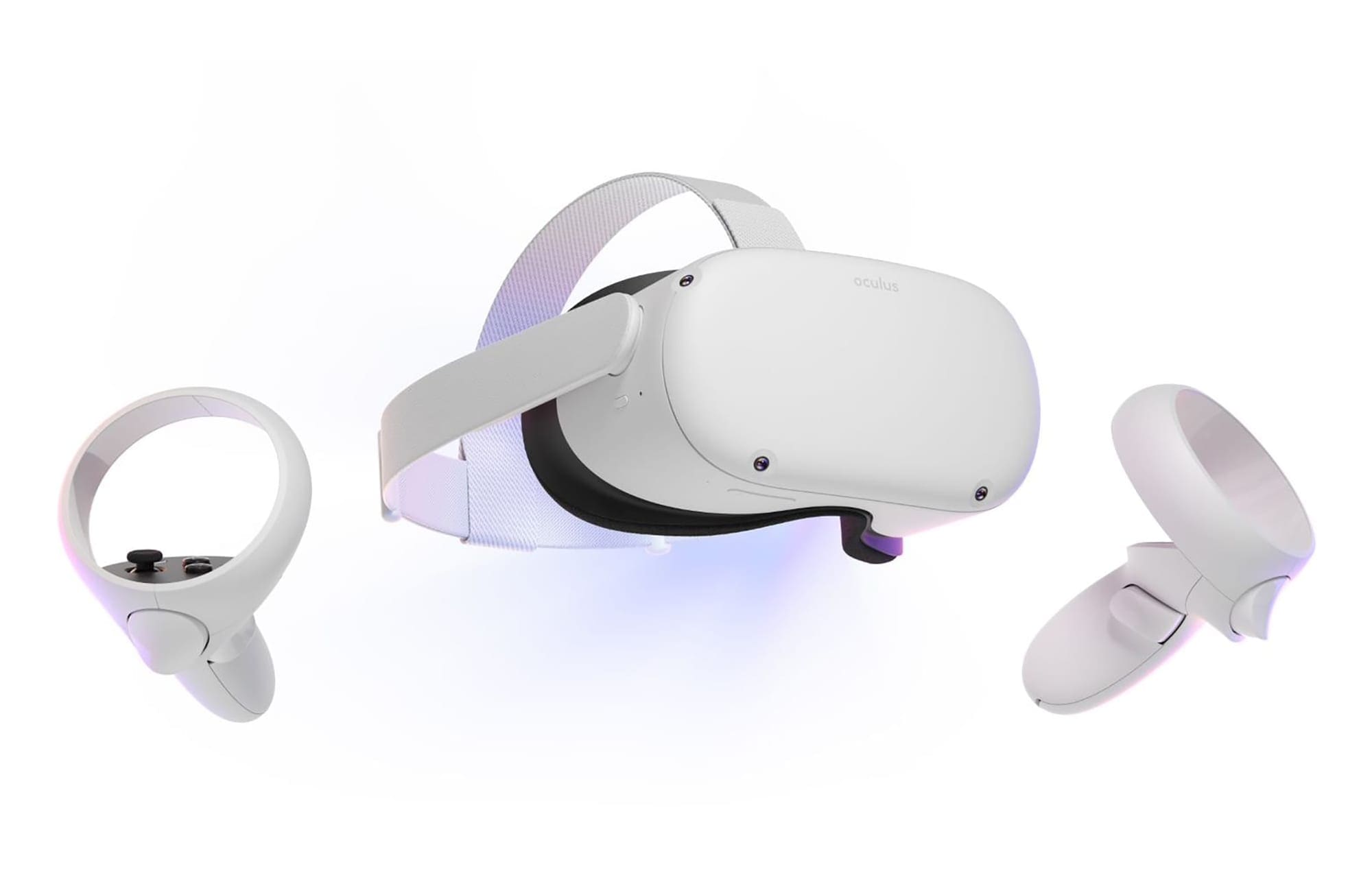
If you’re having a great time doing something, you may want to share your enjoyment with other people. With video games, this tends to come in two forms, multiplayer and streaming. Pretty much every gamer will have some experience with multiplayer games. There are plenty of options from local split-screen coop to online competitive player vs. player. Streaming is a newer form of sharing gameplay where one person streams their gameplay on the internet.
Watching a stream of someone else playing a video game may not sound like fun to everyone; it’s pretty popular. Some of the most popular streamers have millions of people subscribed to their channels. They regularly have tens or even hundreds of thousands of views of their streams. Most popular streamers are either some of the best in their chosen games or have a strong and engaging personality that keeps viewers coming back for more.
If you want to get started streaming or want to show off some cool VR gameplay to your friends, one of the things you can do is stream to Facebook. Helpfully, you can do so easily straight from your Oculus Quest 2 VR headset.
How to Stream from Your Quest 2 to Facebook
To stream to Facebook, you need to be logged into your Oculus device with your Facebook account.
Note: Support for streaming to Facebook is not mandatory, so some apps may have it disabled.
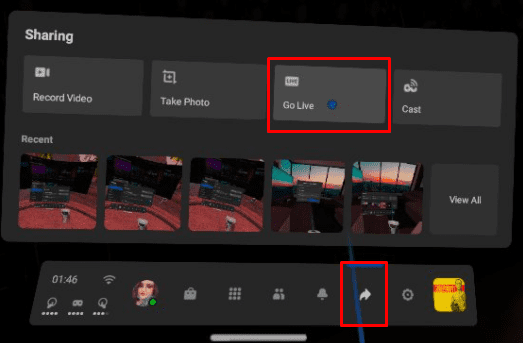
To start your live stream, press the Oculus button on the right controller, select “Share,” then “Go Live.”
Next, when prompted, select who you want to be able to see your live stream. You can pick between: “Anyone on Facebook,” “Facebook Friends,” or “Only Me.” You will also be prompted to choose if you want the built-in microphone audio to be included in the stream and if you want to show comments and reactions in your live stream.
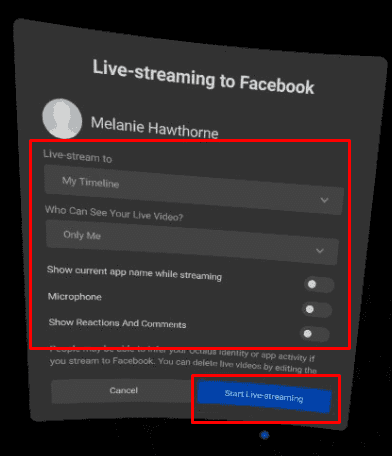
Once you’ve configured all of the stream options, click “Start Live-streaming” to launch your stream.
Tip: When you end your live stream, the video will be automatically posted to your Facebook timeline. Here it will be made visible to the audience you selected earlier.
Streaming your VR gameplay to Facebook is a great way to share the fun you’re having with your Oculus Quest 2. By following this guide’s steps, you can start streaming to Facebook directly from your Quest 2 headset.

I have the go live button still it shows up when i click the arrow havent trued it yet but i have seen it there i only just bought mine today.
With the new updated version it’s not there anymore. Sad to see the feature gone.
i cant find the go live button.
Hm, I wanted to try a live stream of a little Beat Saber-Session, but unfortunately there is no option to go “live”…
But there is an option to stream to a PC. I’ll have to try it, but it would be more comfortable to stream live to facebook out of my Quest 2.
Maybe it would be a little bit difficult to get a nice working stream, because i don’t own a gaming PC for VR.
I rented a Cloud Gaming PC, maybe it works with that. But that’s not the best solution for me :-/
mine shows the same just picture or casting
The live casting dos not show up at all all I get is casting, record and take a picture
no option to use this anymore!
This feature might not be available for Quest 2 users.
Yeah i cant find this so what happend i wanna go live
im unsure if oculus still has this feature since the update.. i can’t find the option anywhere.