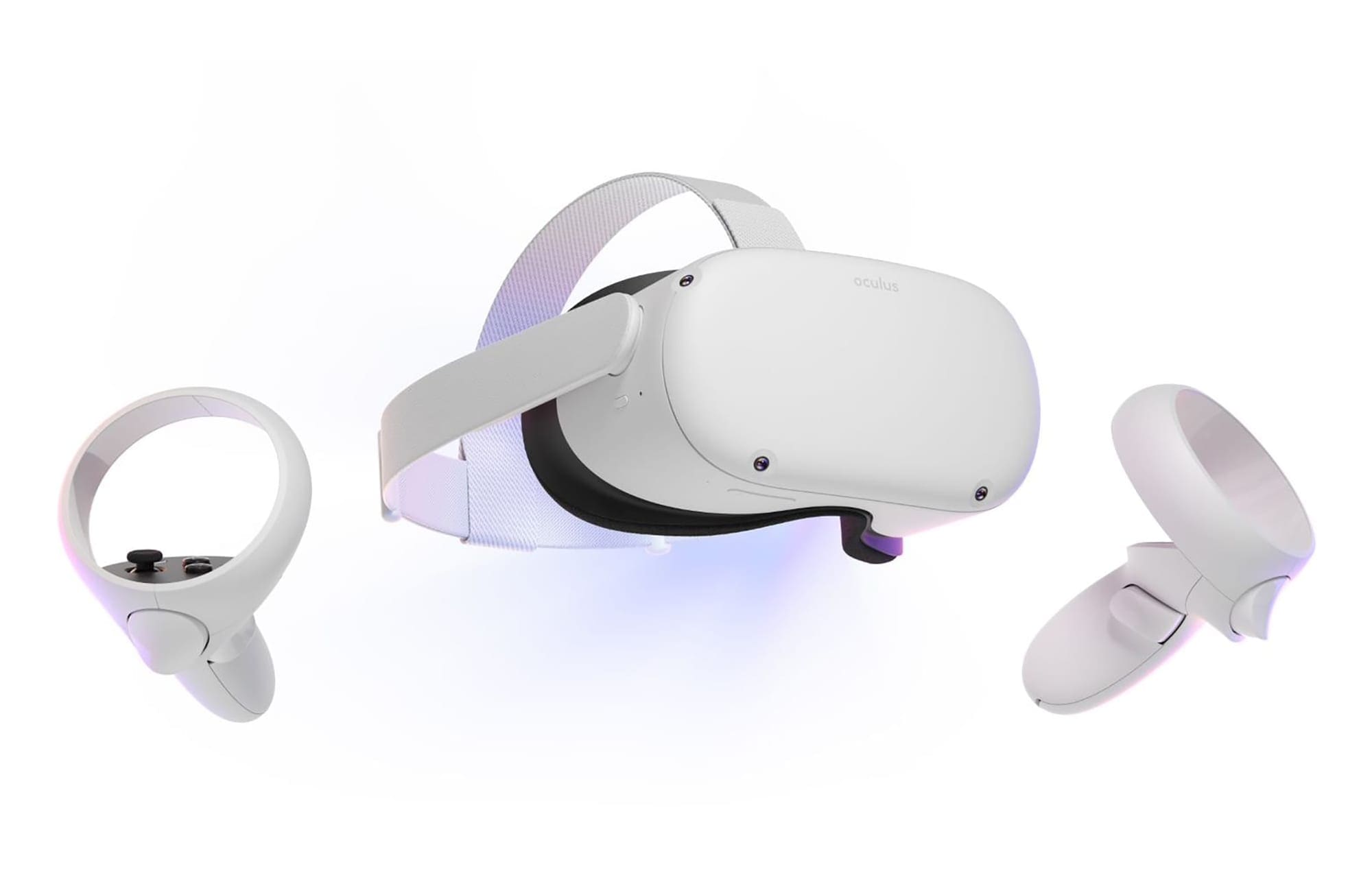
Your Guardian Boundary should always be adjusted correctly – you run the risk of injuring yourself if you drop the ball here. It’s all too easy to swing out your arm or take a step too far, and if your Boundary isn’t adjusted correctly, you might end up punching your plant… or window!
Thankfully the Quest 2 has a lot of options for making sure you’re as safe as possible. The options for your Guardian Boundary are all neatly grouped up in your options. Here is how you can adjust things like sensitivity, color, and more.
The Guardian Options
First, put your headset on and press the Oculus button on your right controller. It’ll pull up the menu. On the right-hand side, you’ll see the cogwheel. Click on it, and navigate to the Guardian panel on the left.
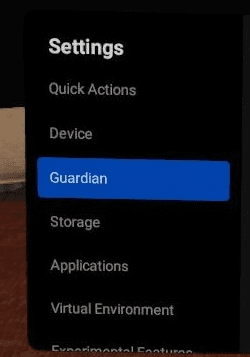
Here, you can find a collection of all the Guardian settings you could ever want!
Adjusting your Guardian’s sensitivity is definitely a great place to start. Scroll until you get to the option labeled Boundary Sensitivity. By lowering it, the Boundary will let you get closer to itself before it starts becoming visible. In other words, a higher sensitivity is more secure, but it can also get annoying if you are playing in a small space.
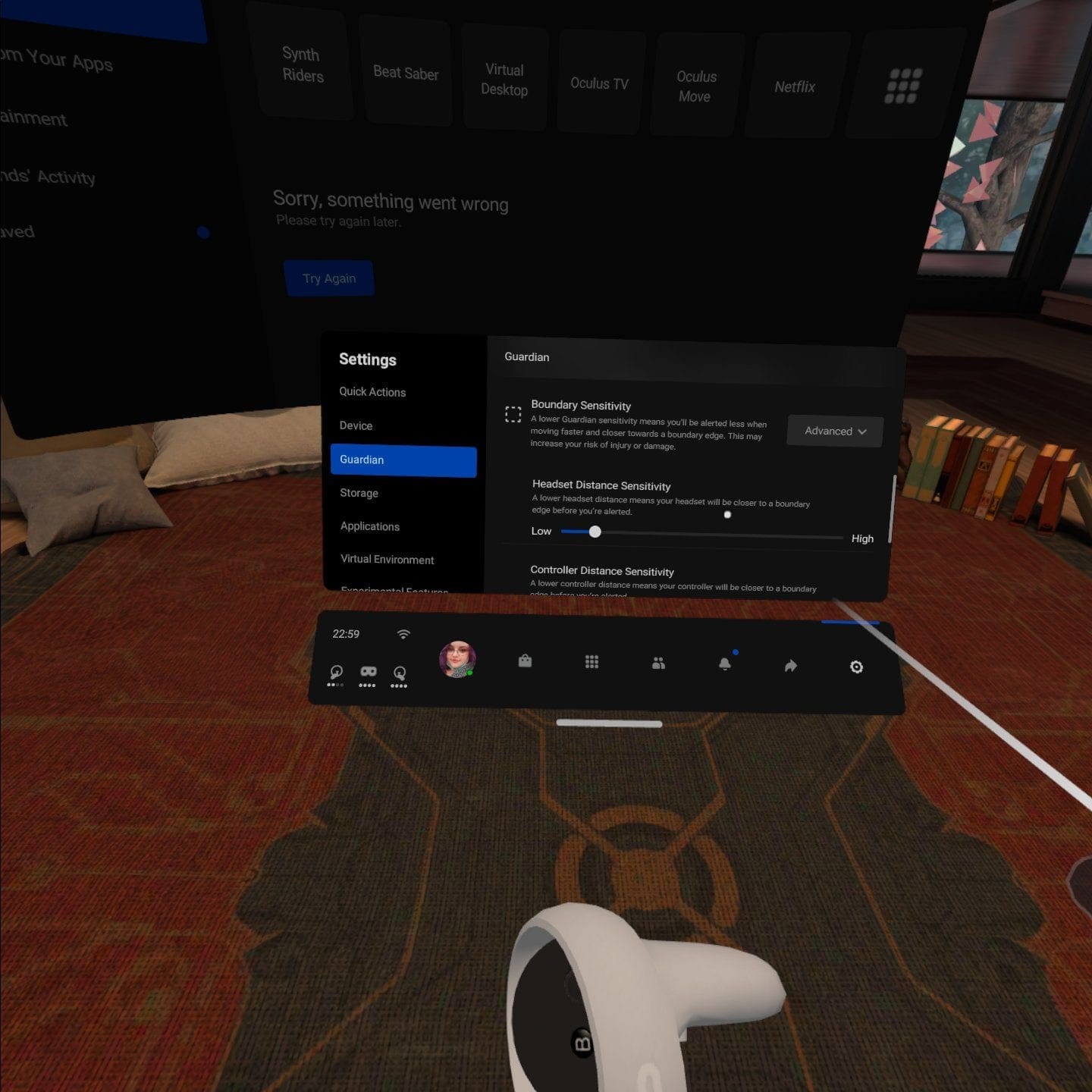
When you’re happy with that setting, consider also adjusting the Headset Distance sensitivity. It’s the next option down, and it’s how you can determine how close your head can get to the edge before the boundary reacts. Please remember that your hands are likely to swing out further than your head, and your settings should reflect that.
Other Settings
You can also adjust things like the color of your Guardian Boundary in these setting options. You can pick between yellow, blue, and purple – always choose a color that strongly contrasts with the environment you play in. The more it does so, the easier it will be to spot it when you get too close.
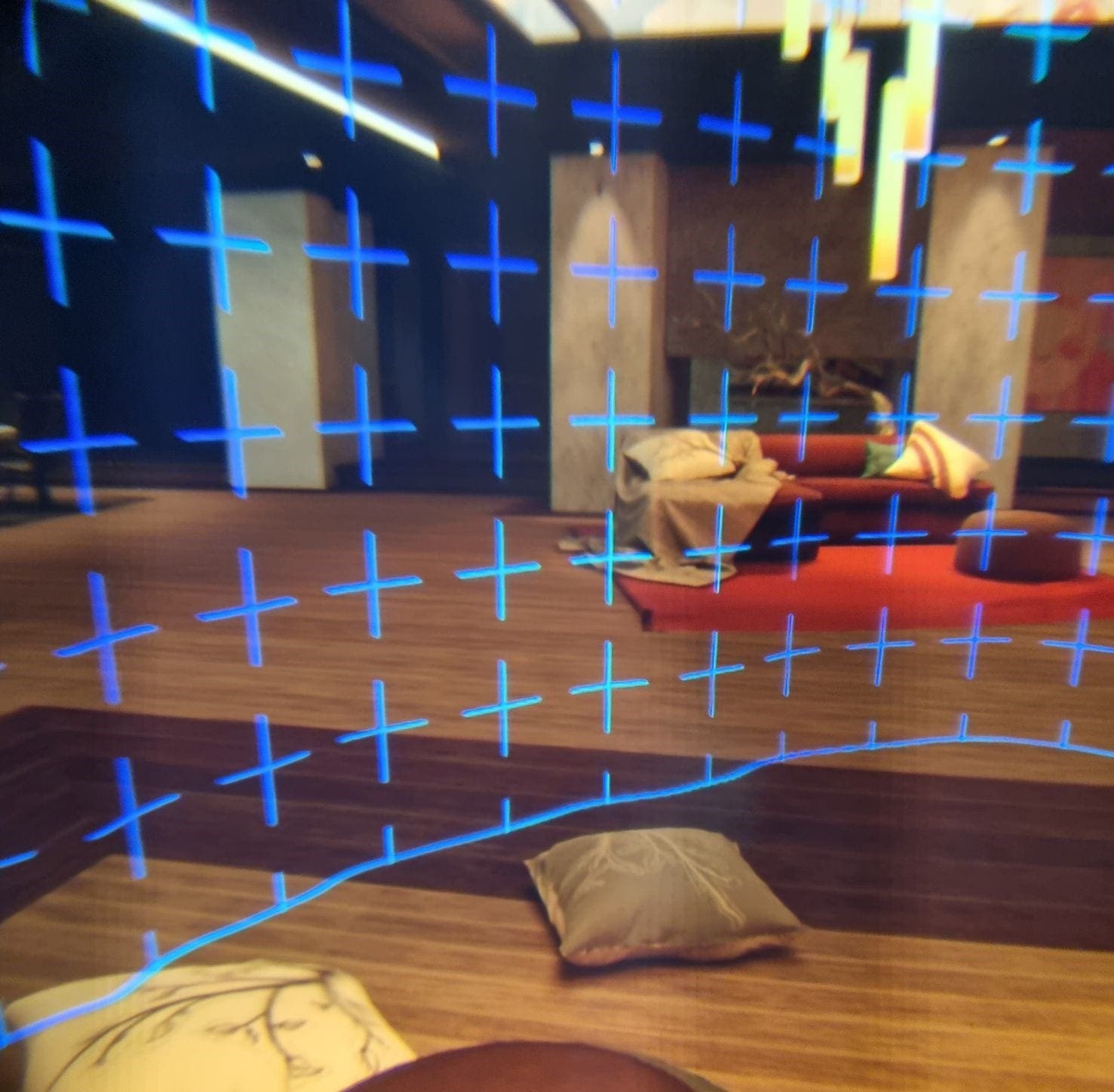
In this example, blue contrasts with the living room nicely and is visible. Yellow would blend in much more. You should change the color regularly to reflect what you’re playing – it’s safest that way. Setting up a new one is located in the Guardian section as well, in case the one you have no longer matches your play space.
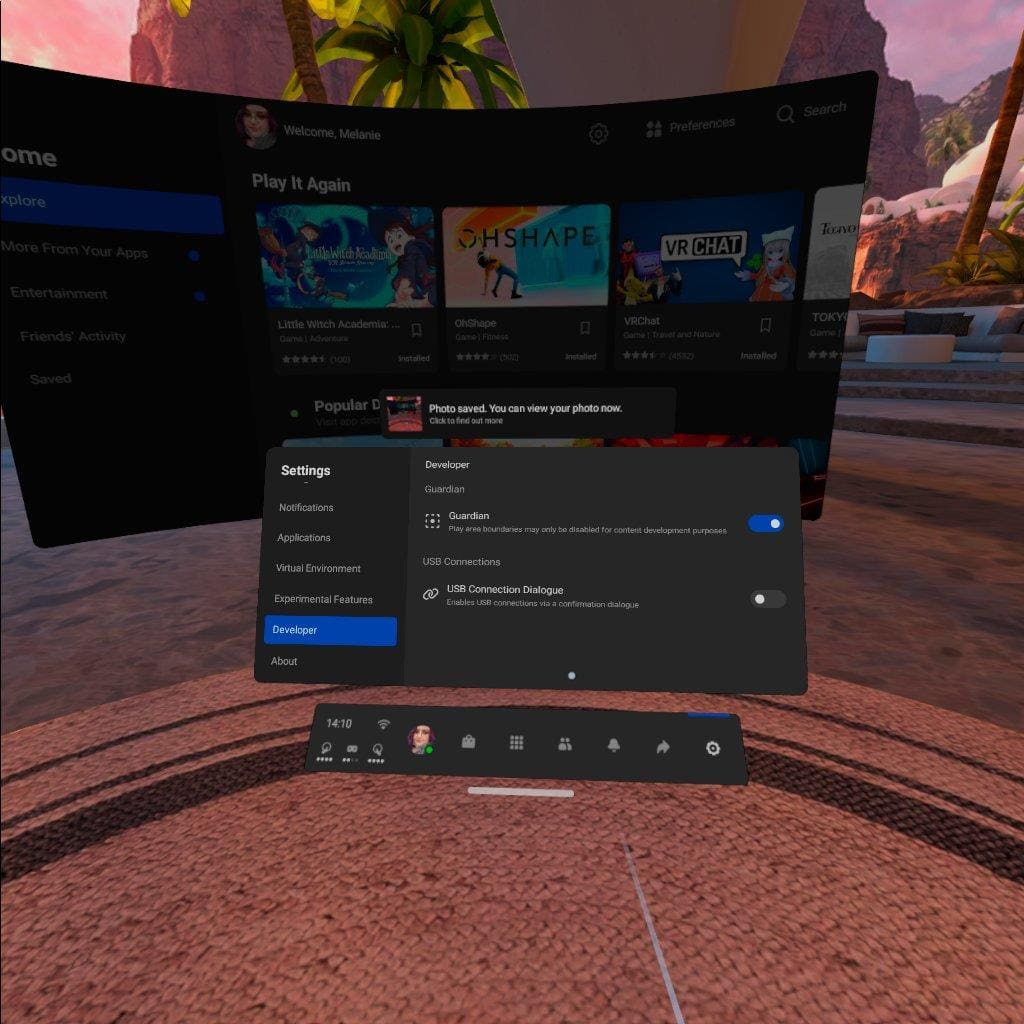
You can also find an option in the Developer section to delete and disable your Guardian. We HIGHLY recommend you NOT turn off the boundary. Not only will it affect several games and prevent some from working altogether, not having a defined play area really isn’t safe! Please be very careful should you decide to use that option.
What Boundary settings are most useful to you? Do you make do with the default, or prefer to fine-tune?