Apple’s iOS 13 and its updated versions come with lots of exciting features, with some have been available since its beta testing days. There’s a hefty amount of new features that will make your interaction with iPhone gadget—whether new or old—to be even more enjoyable than ever.
As appealing as they might be, some of these amazing features are not automatically activated, users need to manually unlock them to use them. Here’s a list of our favorites buried gems that will enhance your experience in using iOS 13.
Note that features listed below only focusing on iOS 13. But, most of these new features can be found in iPadOS 13 for iPad as well.
-
Contents
Dark Mode
Dark Mode is the ‘flagship’ feature heavily marketed by Apple. When Dark Mode is enabled, any elements that typically have bright hues such as buttons will now be turned to dark or black instead.
If we take a peek at Android and macOS users, many of them prefer dark modes over standard ones. We concluded that these users use Dark mode to puts less strain on their eyes as well as lengthens the battery life since, according to them, the dark mode doesn’t need much lighting.
To toggle Dark Mode, simply go to Settings -> Display & Brightness -> under the “Appearance” tab, select “Dark”.
-
Automatically close old tabs in Safari
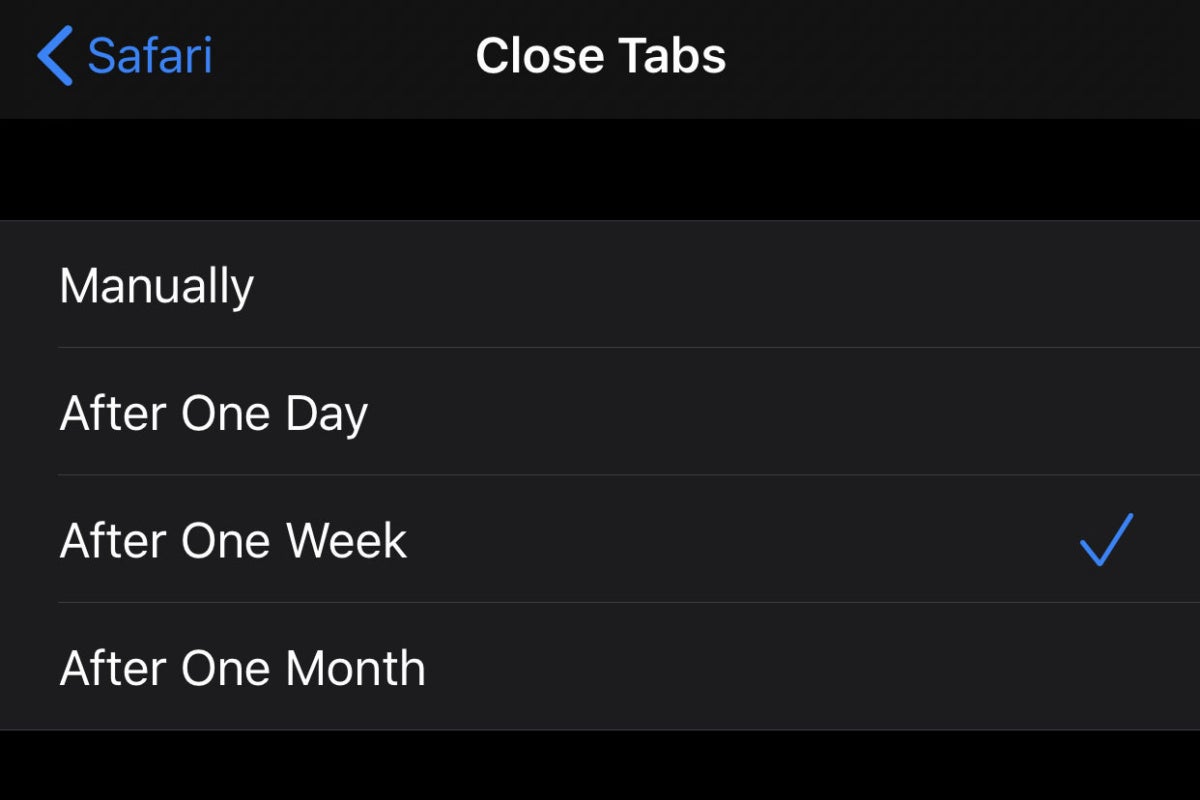
Whether you realize it or not, you may once be in a position with close to 100 tabs running in Safari at the same time. This can happen to you if you forgot to close the tab where you, for example, look up the release date of your favorite movie in Wikipedia a week ago.
Fortunately in iOS 13, we can automatically make old tabs in Safari close after a definite period. To do this, go to Settings -> Safari -> select the “Close Tabs” option in the Tabs section. From there, simply choose if you want tabs in safari to close after a day, a week, or a month.
-
Silence Unknown Callers
Ever get annoyed by some random number calling your phone? Then, the Silence Unknown Callers may be the right feature for you. By enabling Silence unknown Callers—which can be done by going to Settings -> Phone -> toggle “Silence Unknown Callers”—Siri intelligence installed in iOS 13 will only allow calls to reach you if the caller number is listed in your contact. Else, the number will be redirected to the voicemail.
-
More secure sign-in
If you ever tried to log into third-party apps or websites, chances are you are no longer need to create a brand new username and password for the app. Instead, you can simply click “Sign in with Google/Facebook”.
This universal login procedure, of course, makes accessing web applications faster and easier, although it does come with a ‘price’. By using these login features, you literally allowing Google or Facebook to track and gather your data activities on third-party sites and apps. Furthermore, your Google or Facebook information will be shared with those websites and apps as well.
With the new Sign-in feature from Apple though, you don’t need to worry. Apple’s universal login can quickly create accounts for you, just like Google and Facebook. The key difference is Apple will only give third-party sites and apps the most possible minimum information they need to gather from you. Besides, you can opt to create a randomized email address so those web applications won’t fill up your inbox.
Apple also promises to not track any of its users’ activity on different sites and apps when they choose to sign in with them.