
The drag and drop feature lets you select and move Trello boards and cards to a different location. This productivity-oriented feature allows you to quickly re-arrange your cards and boards so as to better organize your workflows.
That’s why many Trello users tend to panic when notice they can’t drag and drop their boards. Well, sometimes, drag and drop may stop working on your computer. But you can fix this issue with the help of this guide.
Contents
Troubleshooting Drag and Drop Not Working in Trello
Restart Windows Explorer
If Windows Explorer got corrupted, drag and drop not working is one of the most common manifestations of this problem. The good news is that restarting Explorer should fix it.
- Press the Ctrl + Alt + Delete keys simultaneously and select Task Manager
- Select the Processes tab
- LocateWindows Explorer

- Right-click on it and then select End task.

Check if the drag and drop feature is back to normal now.
Check your browser
Your browser may actually be the culprit if Trello is the only tool that does not support drag and drop on your device.
Here’s what you can do to solve the problem:
- Clear your browser cache. By doing so, you’ll remove temporary files that might break or interfere with certain Trello features. For more information, see How to Clear the Cache in Google Chrome. Although this guide focuses on Chrome, the steps to follow are pretty much the same on any Chromium-based browser.
- Disable your extensions. Well, browser extensions are known to interfere with the web-browser tools you’re using. Disable all of your extensions and check if the issue persists. If the problem is gone, re-enable your extensions one by one and test after each one in order to identify and remove the culprit.
- Update your browser. If you’re not running the latest browser version, you may encounter various glitches when running browser-based tools. Check for updates and install the newest browser version available.
- Use a different browser. If there’s a temporary bug or glitch breaking the drag and drop feature, utilizing a different browser is another workaround that you can use.
Perform a System File Checker scan
If certain system files got corrupted or you accidentally deleted them, this may also break the drag and drop functionality.
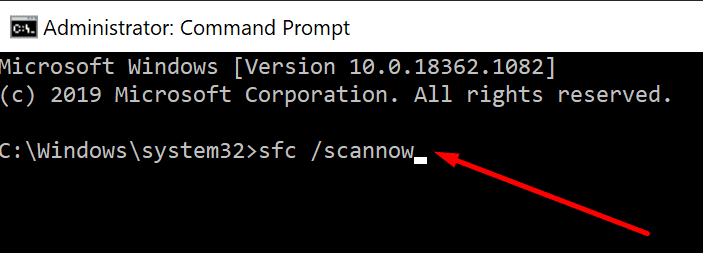
- Launch Command Prompt with admin rights
- Type the sfc /scannow command

- Press Enter and wait until SFC has finished the scan
- Restart your computer and check if drag and drop works in Trello now.
Use the Hardware troubleshooter
If this problem was not caused by a system or software issue, maybe this is a hardware issue. Check if your mouse is fully functional on other devices if that’s possible.
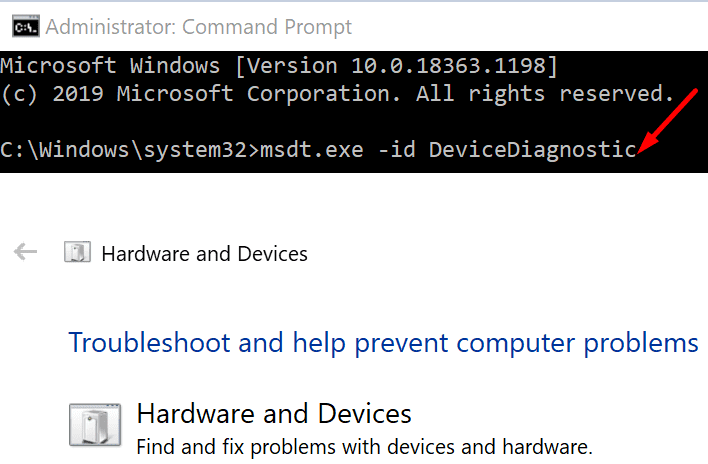
You can also run the Hardware troubleshooter to make sure your mouse is fully compatible with your computer.
If you’re running the latest Windows 10 version, you may have noticed that the Hardware troubleshooter is missing. Well, not quite so. Microsoft removed the tool from the UI but not from the OS.
To run the troubleshooter, launch Command Prompt with admin rights and run the msdt.exe -id DeviceDiagnostic command. You can then use the troubleshooter as usual.
Reinstall the mouse driver
Outdated mouse drivers may also break certain mouse functionalities, including the drag and drop feature.
Make sure you’re running the latest mouse driver version. You can also reinstall the driver to fix any corruption issues.
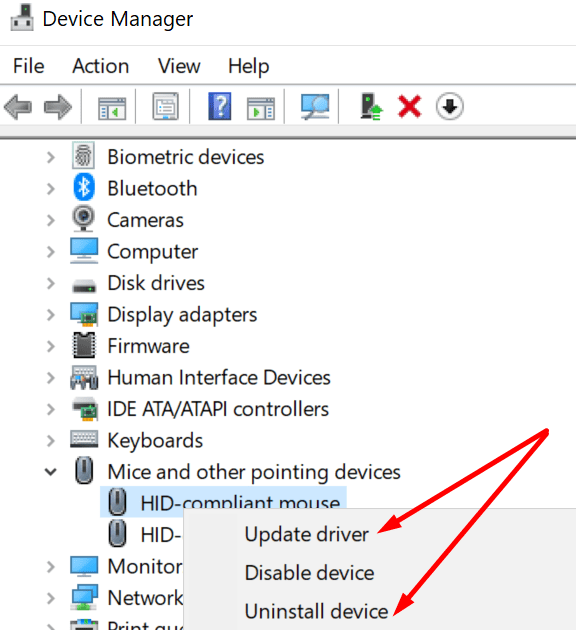
- Launch the Device Manager
- Expand the list of Mice and other pointing devices
- Right-click on your mouse
- Select Update driver or Reinstall device

- Check if updating or reinstalling the driver helped.
Use the ESC key
- Open Windows Explorer
- Go ahead and select any files
- Then long-press the left-mouse button
- Press the Escape key and check if drag and drop is back.
Let us know if you can use the drag and drop feature again.