Skip to content
LogoTechnipages
LogoTechnipages
  • Topics
        • Android
        • Browsers
        • Gaming
        • Hardware
        • Internet
        • iPhone
        • Linux
        • macOS
        • Office
        • Reviews
        • Software
        • Windows
        • Definitions
        • All Recent Posts
  • Product Reviews
  • About

Android: How to Enable “Tap to Translate” in Google Translate

Mel HawthorneAugust 6, 2020 Comments (2)

If you’re using an app on your phone, and you come across a post in a foreign language that you want to translate, you could copy the text and then switch into the Google Translate app. Google translate offers a quicker way to do this though, through its “Tap to Translate” feature.

Tap to Translate uses a widget that overlays other apps. To allow you to quickly and easily translate text without having to leave the app.

Tip: The main limitation of Tap to Translate, is that it can only translate text. You can’t use it to translate an image.

Enabling Tap to Translate

To enable Tap to Translate, open the Google Translate app, then tap the burger menu icon in the top-left corner.
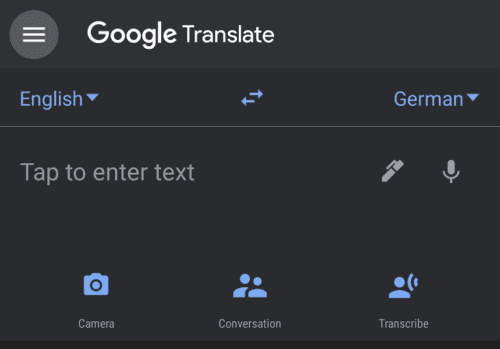
In the Google Translate app, tap the burger menu icon in the top-left corner.

To open the Google Translate settings, tap “Settings”.
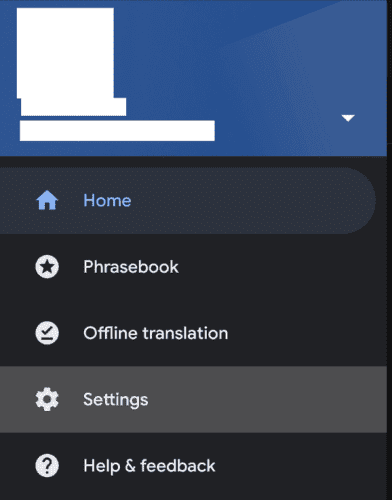
Tap “Settings” to open the settings for Google Translate.

Next, tap “Tap to Translate” at the top of the settings list.

Tap “Tap to Translate” at the top of the settings page.

On the Tap to Translate page, there will be a quick introduction as to how to use the functionality. Tap the slider labelled “Enable” to enable the Tap to Translate feature.
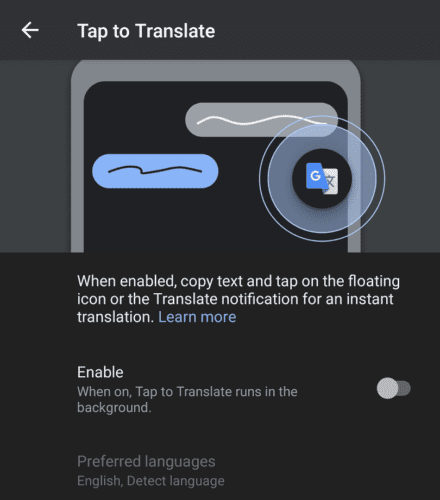
Tap “Enable” to enable Tap to Translate.

The first time you enable it, Tap to Translate will ask you to “Permit drawing over other apps”. This permission is required for the overlay to work over the top of other apps. Simply click “Permit”, then tap the slider to grant the permission.
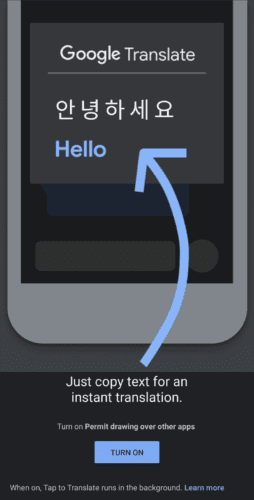
The first time you enable Tap to Translate, you’ll need to grant the “Allow drawing over other apps” permission.

Before you use the functionality, you should ensure that your language preferences are configured correctly. To do so, tap “Preferred languages”. In the preferred languages page, you’ll have two options, “Your primary language” and “Language that you translate most often”. Tap on each of them to select the languages you prefer from the lists available.

Tip: “Your preferred language” is the language that text will be translated into, whereas “Language that you translate most often” is the source language. If you’re going to be primarily translating one language you should set that language specifically. If you’re going to be translating from a range of languages, however, then you’re better off selecting “Detect language” as the source language.

Configure your preferred languages in the Tap to Translate settings.

Using Tap to Translate

To use Tap to translate, simply copy the text you want to translate to your clipboard, then tap the Tap to Translate overlay icon.

Tip: If you don’t like the position of the icon you can drag it to a better location on the screen.
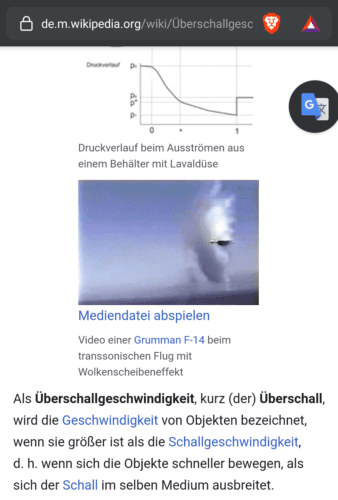
To use Tap to Translate, copy the text you want to translate, then tap the Tap to Translate overlay icon.

Tap to Translate will automatically paste and translate the contents of your clipboard when you tap the overlay icon. The translation will be shown in a partial screen overlay.
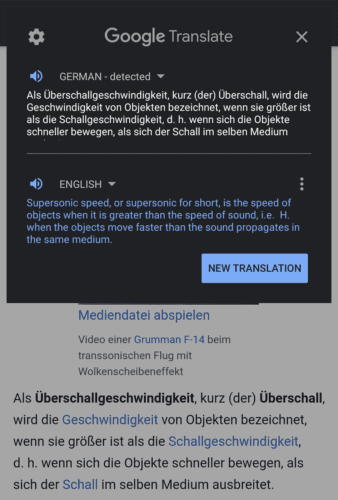
When you tap the Tap to Translate overlay icon, the text on your clipboard will be translated.

Categories: Android

Author Mel Hawthorne

You Might Also Like

  • Why is My Android Using So Much Data?

    Mitch BartlettAndroid
  • My Android Won’t Auto-Rotate – What to Do

    Judy SanhzAndroid
  • How to Add a Signature with Image in Gmail

    Judy SanhzAndroid
  • How to Insert and Remove SIM Card from Samsung Galaxy S22

    Andrew MyrickAndroid

Comments

  1. Toan Nguyen says:
    November 25, 2022 at 6:22 am

    Do this function exist in iOS?

  2. Mike schamberger says:
    September 9, 2021 at 5:33 am

    I have a pixel 4a. I am trying to use translate in the messenger app. When I click enable it then click on Turn On button, it shows display over apps page with allowed an not allowed apps. I have som set to allowed including messenger, but when I go to tap to translate page, the enable slider goes back to disabled?

Leave a Reply

Your email address will not be published. Required fields are marked *

  • back button in browsers doesnt work

    What to Do if the Back Button in Browser Doesn’t Work 

  • could not find this item

    “Could Not Find This Item” When Trying to Remove Files

  • no graphics signal on first boot

    No Graphics Signal on First Boot – How to Fix

  • system32 folder opens on startup

    System32 Folder Opens on Startup – How to Fix

  • browser keeps opening hp support

    Browser Keeps Opening HP Support Assistant Tabs 

profile pic

The Experts Behind Technipages

My name is Mitch Bartlett. I've been working in technology for over 20 years in a wide range of tech jobs from Tech Support to Software Testing. I started this site as a technical guide for myself and it has grown into what I hope is a useful reference for all.

Learn More

technipages logo white
linkedin icon

Technipages is part of Guiding Tech Media, a leading digital media publisher focused on helping people figure out technology. Learn more about our mission and team here.

© 2026 Guiding Tech Media All Rights Reserved

  • About Us
  • Contact
  • Terms of Use
  • Privacy Policy

© 2026 Guiding Tech Media All Rights Reserved

Information from your device can be used to personalize your ad experience.
Do not sell my personal information.

Last Updated on August 6, 2020 by Mitch Bartlett