Skip to content
LogoTechnipages
LogoTechnipages
  • Topics
        • Android
        • Browsers
        • Gaming
        • Hardware
        • Internet
        • iPhone
        • Linux
        • macOS
        • Office
        • Reviews
        • Software
        • Windows
        • Definitions
        • All Recent Posts
  • Product Reviews
  • About

Slack: How To Create a New Channel

Mel HawthorneJanuary 25, 2021 Comments (1)

Slack is a chatroom type app designed primarily for use by businesses. The concept of having a single overarching server simplifies managing multiple communications platforms across the company. Simultaneously, each team and project can have their own channels allowing targeted discussions that can relatively easily be kept on topic.

The channels are a key part of Slack’s popularity and usefulness as they allow discussions to be kept on topic. If a channel is facing too much off-topic chatter, this can be split into a new channel. People can be added to channels relevant to their work and then can choose to join other interest-based channels. The creation of channels that aren’t specifically team-based also encourages wider communication and relationship building in the company.

How to Make a New Channel on Slack

To add a new channel, you first need to click “Add channels.”  It’s at the bottom of the “Channels” section in the sidebar, then select “Create a new channel.”

Tip: Only users with the correct permissions can create channels. If you can’t see the option, you may need to ask someone else to make channels for you.
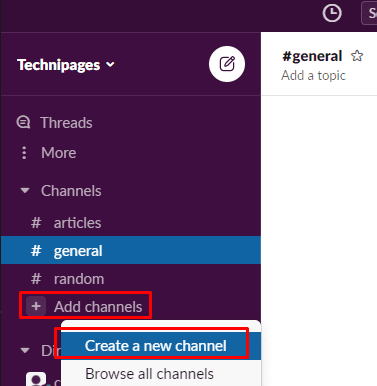
To add a new channel, click “Add channels” at the bottom of the “Channels” section. It’s in the sidebar, then select “Create a new channel.”

In the channel creation window, enter a name for the channel and a description.

Tip: Ideally, the channel name should be somewhat descriptive of what the channel is about. For example, a team channel should be named after the team, a project channel after the project name, an interesting channel after the interest, etc.

Select if the channel is private or public with the “Make private” slider. Public channels can be joined by anyone in the workspace. In contrast, private channels can’t be seen if you’re not a member and can only be joined by invitation. Once you’re happy with the new channel’s configuration, click “Create” to create the channel.

Choose a channel name and description. Then mark the channel as public or private.

Slack channels are a great way to organize communication in a workspace to manage crosstalk. However, only users with the correct permissions can create new channels. If you follow the steps in this guide, you’ll be able to create your own channels.


Categories: Software

Author Mel Hawthorne

You Might Also Like

  • Chrome header

    Chrome: Disable Auto Updates

    Mitch BartlettSoftware
  • How to Fix Dropbox Preview Not Working

    Madalina DinitaSoftware
  • Microsoft-Teams-Error-211-Fix

    How to Fix Microsoft Teams Error 2: 211 on Mac

    Madalina DinitaSoftware
  • fix-signal-app-wont-install

    Fix: Signal App Won’t Install on Android, iOS or PC

    Madalina DinitaSoftware

Comments

  1. NWABUNIKE Paul says:
    September 15, 2022 at 4:41 pm

    Yes is really helpful to me

Leave a Reply

Your email address will not be published. Required fields are marked *

  • fix error 0x9cfc7550

    How to Fix Error 0x9cfc7550 (We Couldn’t Create a New Partition) in Windows 

  • fix error code 0x3000008 1

    How to Fix Error Code 0x3000008 for Remote Desktop Connection

  • fix error code 0x80190001 1

    How to Quickly Fix Error 0x80190001 for Microsoft or Outlook Account Login 

  • fix filecoauth.exe application error

    Fix FileCoAuth.exe Application Error 

  • fix error code 0x80010002 in windows update

    How to Fix 0x80010002 Error in Windows Update 

profile pic

The Experts Behind Technipages

My name is Mitch Bartlett. I've been working in technology for over 20 years in a wide range of tech jobs from Tech Support to Software Testing. I started this site as a technical guide for myself and it has grown into what I hope is a useful reference for all.

Learn More

technipages logo white
linkedin icon

Technipages is part of Guiding Tech Media, a leading digital media publisher focused on helping people figure out technology. Learn more about our mission and team here.

© 2025 Guiding Tech Media All Rights Reserved

  • About Us
  • Contact
  • Terms of Use
  • Privacy Policy

© 2025 Guiding Tech Media All Rights Reserved

Information from your device can be used to personalize your ad experience.
Do not sell my personal information.

Last Updated on January 25, 2021 by Judy Sanhz